




 Amazon Seller Central

To connect Amazon Seller Central to Google BigQuery:
-
1
Log in with Google on portermetrics.com.
-
2
Select Google BigQuery as destination.
-
3
Select Amazon Seller Central as data source and name your connection.
-
4
Authorize your Amazon Seller account via SP-API credentials.
-
5
Authenticate BigQuery via Google login or Service Account.
-
6
Select Project ID, Dataset location, Dataset, and Table name (or create new).
-
7
Select metrics (e.g., Order Total Amount) and dimensions (e.g., ASIN).
-
8
Optionally, prompt custom fields (e.g., ACOS, Conversion Rate).
-
9
Set date range (e.g., this month to date).
-
10
Schedule refreshes in natural language (e.g., “daily at 8am”).
-
11
Set write mode (overwrite, append, or update).
-
12
Send and monitor execution logs.
Four free and paid ways to connect Amazon Seller Central to Google BigQuery
1. No-code marketing ETL powered by AI (Porter Metrics)
AI-native connector for marketers. Build queries with all fields: order, inventory, FBA report and sales metrics already joined. Create custom fields, calculated metrics, and dimension segmentations in natural language. Data arrives in BigQuery marketing-ready: connect directly to Data Studio without transformation.
2. General ETL/ELT tools
Data integration platforms for data engineers. Examples: Fivetran, Stitch, Airbyte.
Export raw tables that mirror the source schema: one table for orders, one for inventory, one for FBA reports, one for traffic. Each table contains all fields. The data engineer writes SQL JOINs to relate tables, selects fields, transforms data, and uses dbt or Python for preprocessing before visualization.
3. Google BigQuery Data Transfer Service
Free native Google integration for data engineers.
Setup requirements:
- Register as SP-API Developer in Amazon Seller Central.
- Create an app and request necessary data access.
- Implement LWA (Login with Amazon) OAuth flow.
- Sign requests with AWS Signature Version 4.
- Build custom ETL pipeline to BigQuery (no native integration).
What you get:
- Orders, inventory, and FBA reports.
- Sales and traffic data.
- Manual data pipeline maintenance required.
Limitations:
- No native BigQuery integration: requires custom ETL pipeline.
- Complex authentication: AWS Sig V4 + LWA OAuth.
- Throttling limits: vary by endpoint and seller tier.
- Report-based data: most data requires async report generation.
4. Manual CSV export or Google Sheets
Export from Amazon Seller Central manually. No automation.
How it works:
- In Amazon Seller Central: go to Reports → Business Reports or Inventory Reports, request the report, then download the CSV file.
- Upload CSV to BigQuery manually or via Cloud Storage.
- Alternative: use Porter to send Amazon Seller Central data to Google Sheets, then connect Sheets to BigQuery.
Limitations:
- No automation: repeat manually for each update.
- Date range: varies by report type, up to 2 years for most reports.
- No scheduled refreshes.
- Manual upload to BigQuery required.
How to Connect Amazon Seller Central to Google BigQuery for Marketers (No Code)
Porter is an AI-native connector. Configure everything with natural language, not SQL or forms. Custom fields, filters, scheduling—all prompted in plain English. No coding, no data engineering required.
- Data preview is always live. As you select metrics, dimensions, filters, and date ranges, Porter shows your data in real-time. Verify everything before sending to BigQuery.
- Data arrives transformed, blended, and ready to visualize. No SQL transformations needed after.
In this tutorial, we’ll show you how to send your Amazon Seller Central data to Google BigQuery with Porter. We’ll send seller performance data including fields like ASIN, Units Ordered, Revenue, and custom fields like AOV and Sell-through Rate.
Set a connection
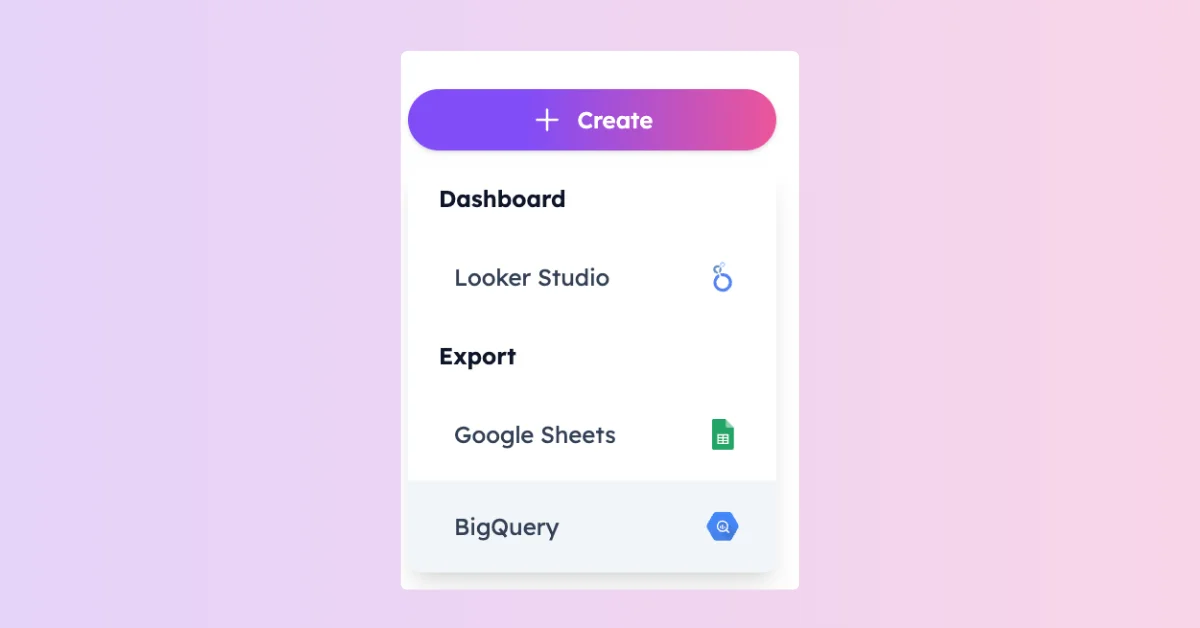
Log in to portermetrics.com with Google. Click “Create” and select “Google BigQuery” as destination. Name your connection (e.g., “Amazon Seller Central Performance”). Select Amazon Seller Central as data source.
- Data blending: optionally, add Google Ads, Meta Ads, Shopify in the same connection for cross-channel reports.
Connect your Amazon Seller Central accounts
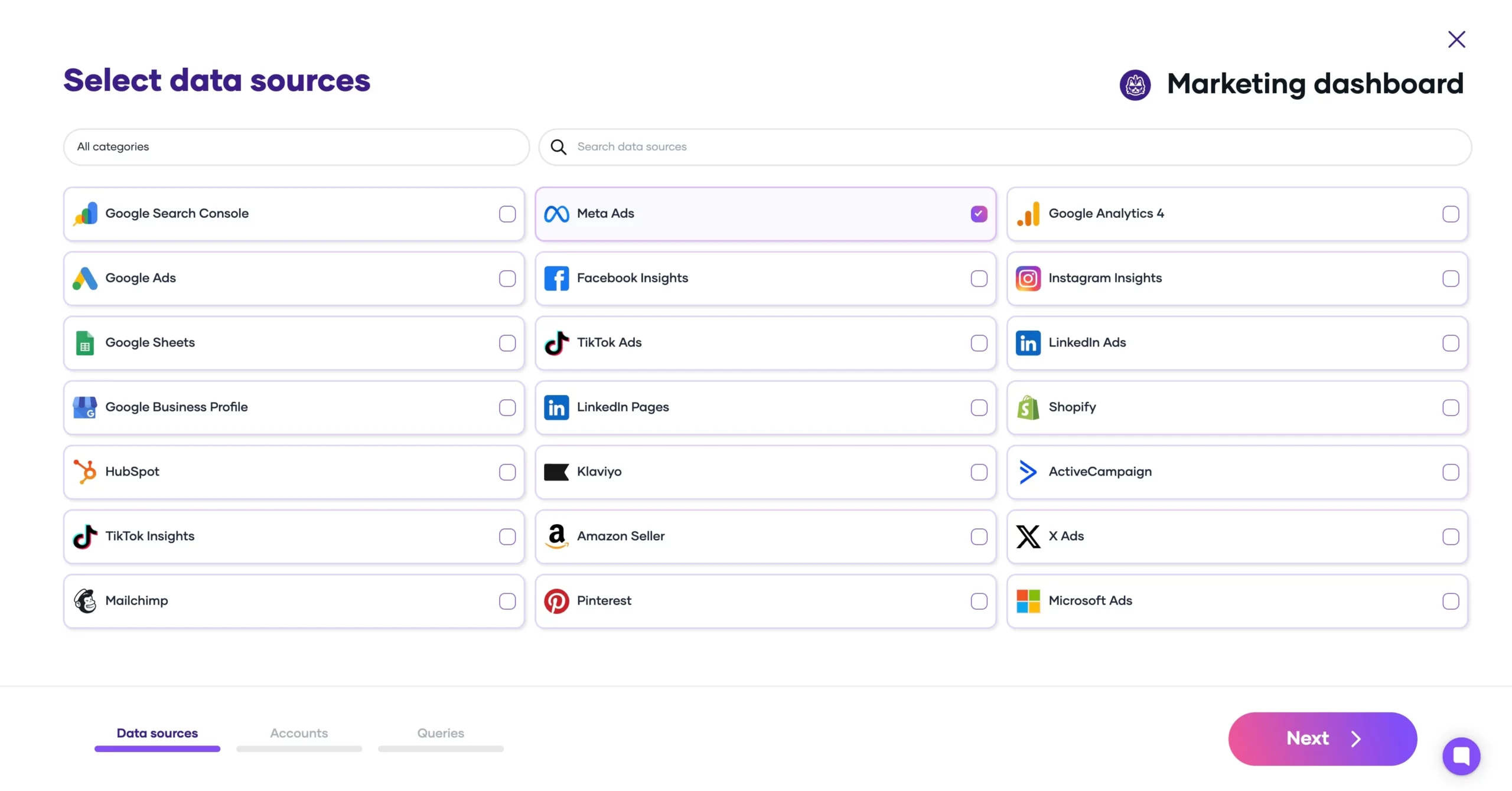
Connect your Amazon Seller account via SP-API. You’ll need to authorize Porter as a developer app.
Multi-account
Consolidate dozens or hundreds of seller accounts in a single report.
Required permissions
Admin or Developer access on the Amazon Seller Central account.
Tokens never expire
Your Amazon connection stays active as long as your store credentials remain unchanged.
Connect your BigQuery destination
Authenticate with Google login or Service Account. Select Project ID, Dataset location, Dataset, and Table name.
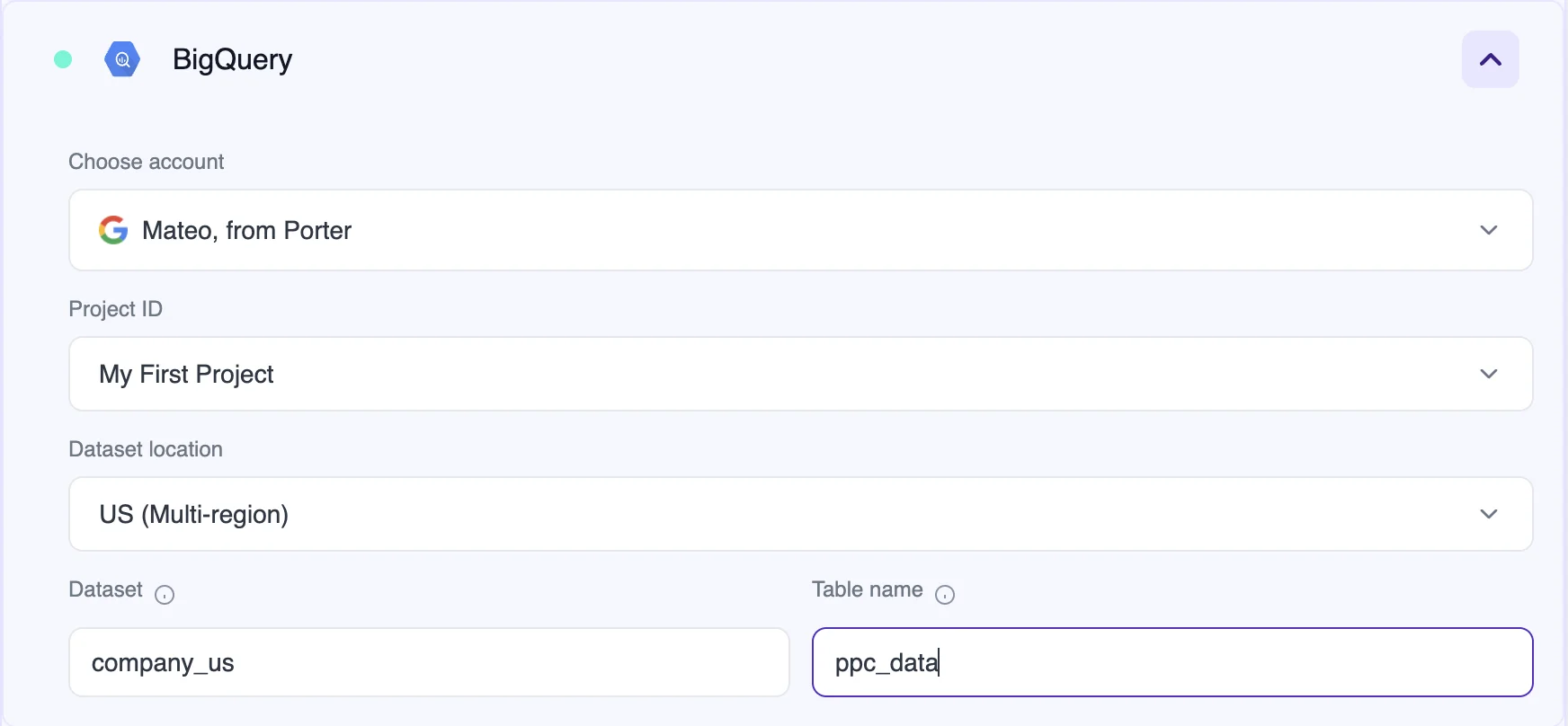
- Google login (recommended): Porter lists your projects in a dropdown. Easiest option.
- Service Account JSON: for companies with strict permissions management on Google Workspace. Copy a JSON text from your project details to connect.
- Dataset location: US, EU, or your preferred region.
- Auto-update schema: if you change your query later, Porter updates the schema automatically and rewrites it in your BigQuery table, unlike other tools.
New to BigQuery? Create your first project:
Go to console.cloud.google.com. In the Navigation Menu (top left), select BigQuery → Studio. On the left panel, you’ll see your projects.
- Create a Project: select or create a new project (e.g., “Marketing Data”). Choose a name, type, and organization. BigQuery creates a folder for it.
- Create a Dataset: expand your project folder, click the ellipsis, and select “Create Dataset.” Name it (e.g., “Sales_data”) and select a location (US or EU).
- Create a Table: inside your dataset, you can create a table (e.g., “amazon_seller”). Or let Porter create it automatically when you send your first query.
The Project ID, Dataset name, and Table name you set here are the same values you’ll enter in Porter’s BigQuery configuration.
Verify your data in BigQuery:
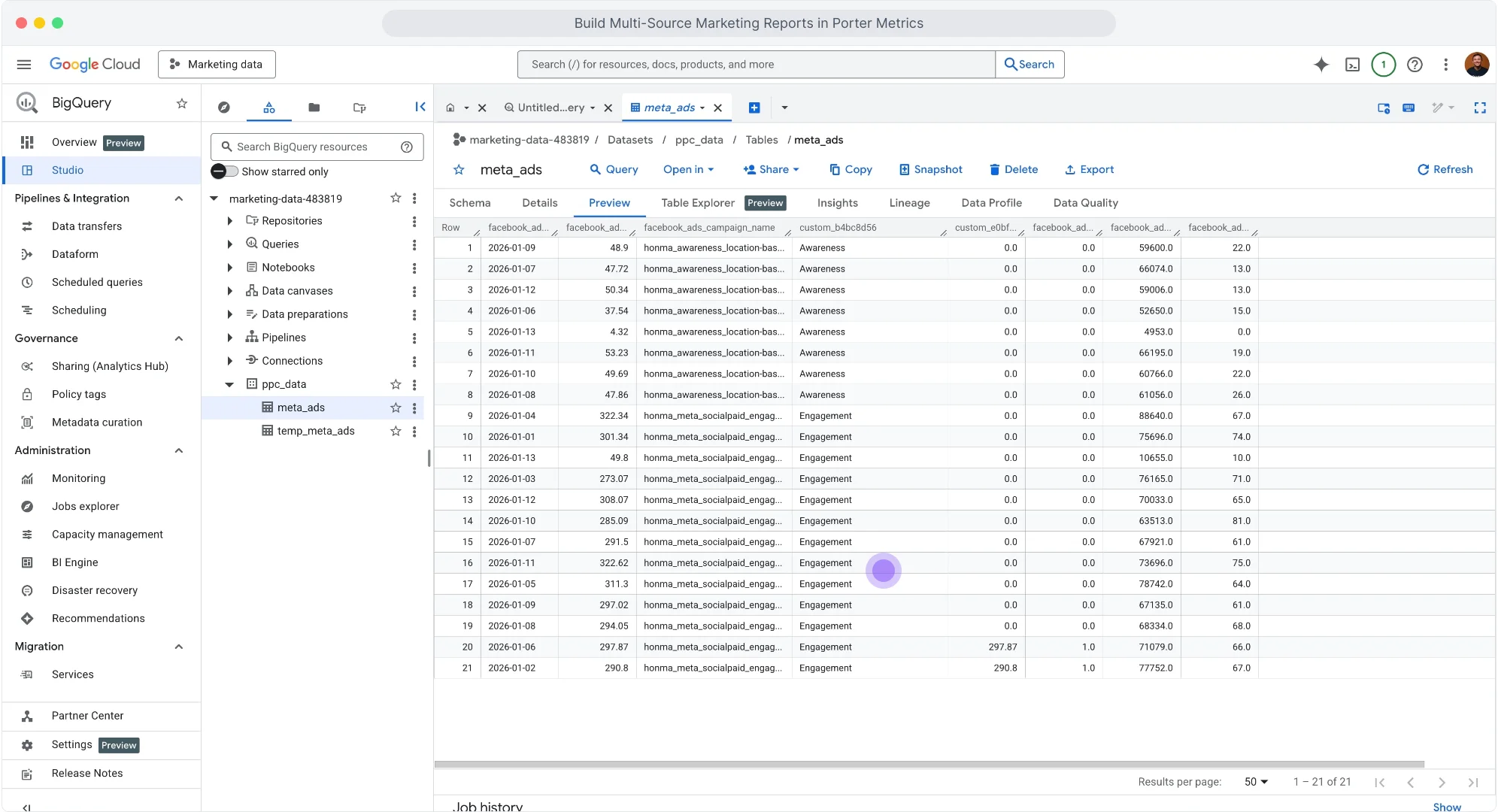
When you select a table, BigQuery shows the Schema view first. This is the metadata: field names, field types, and modes. To see your exported data, go to the Preview tab. Once your query executes, you’ll see the complete table with your data.
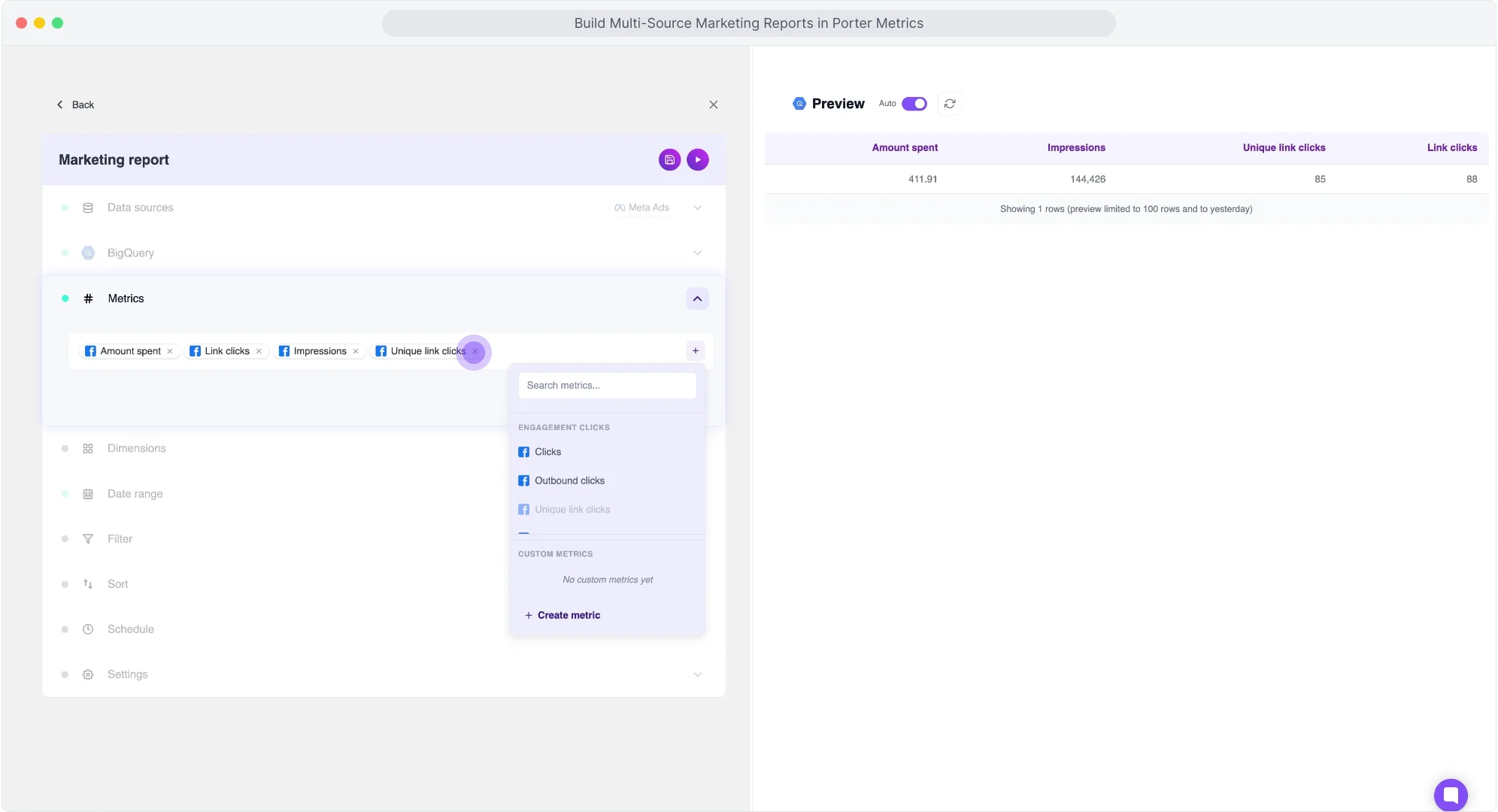
Choose metrics
In the metrics dropdown, search and select: e.g., Average Unit Price, Number Of Items Shipped, Item Price, Number Of Items, Fulfillable Quantity.
Choose dimensions
To segment your data, in the dimensions dropdown, search and select: e.g., ASIN, Fulfillment Channel, Date.
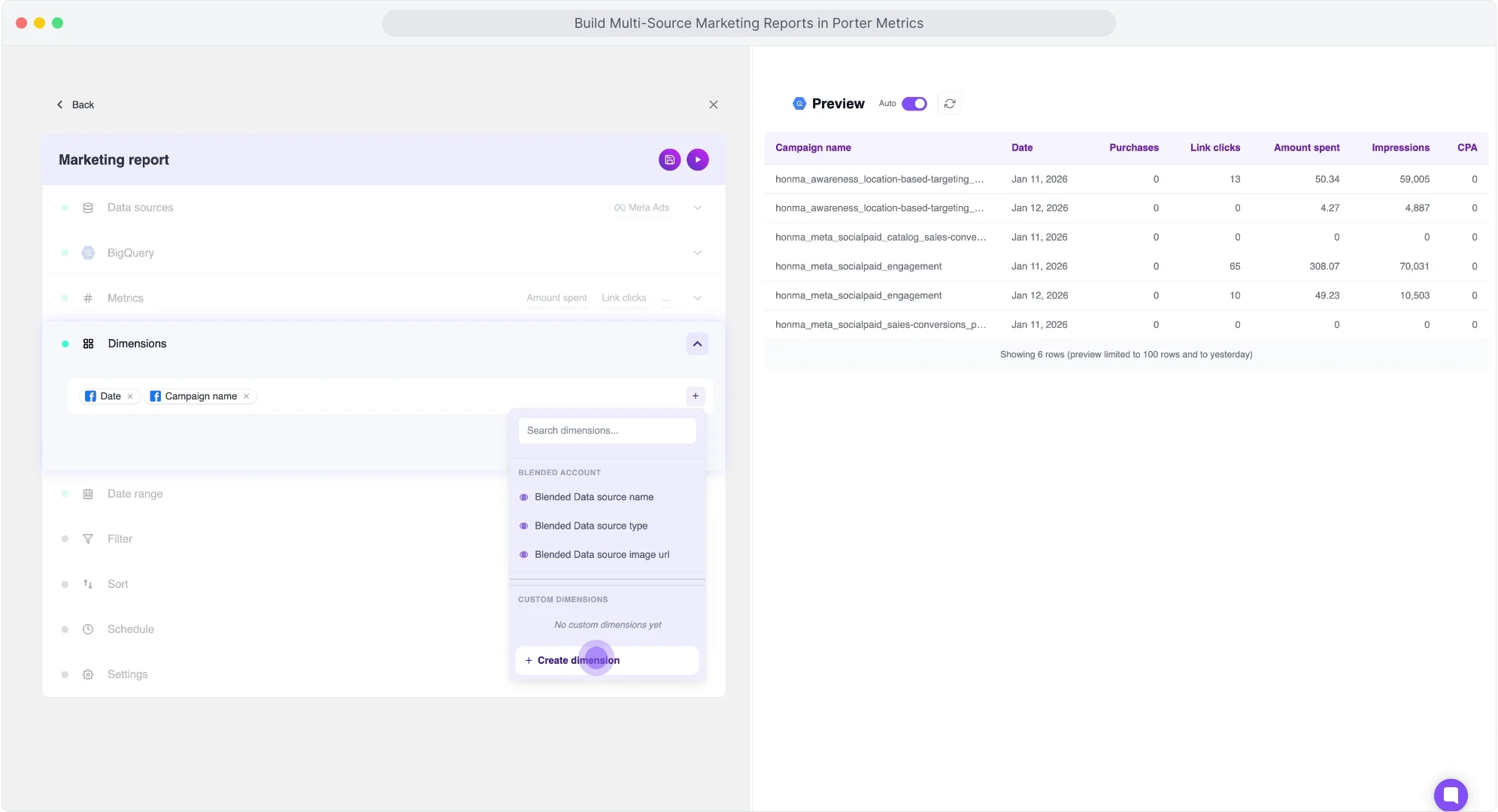
- Other dimensions: ASIN, Date, Seller SKU, Fulfillment Network SKU, Product Name, Product Type, Deemed Reseller Category.
- Time dimensions: Date, Week, Month, Quarter, Year available for trending analysis.
- Full field list: Check the Porter documentation for all available fields and dimensions.
See all Amazon Seller Central fields
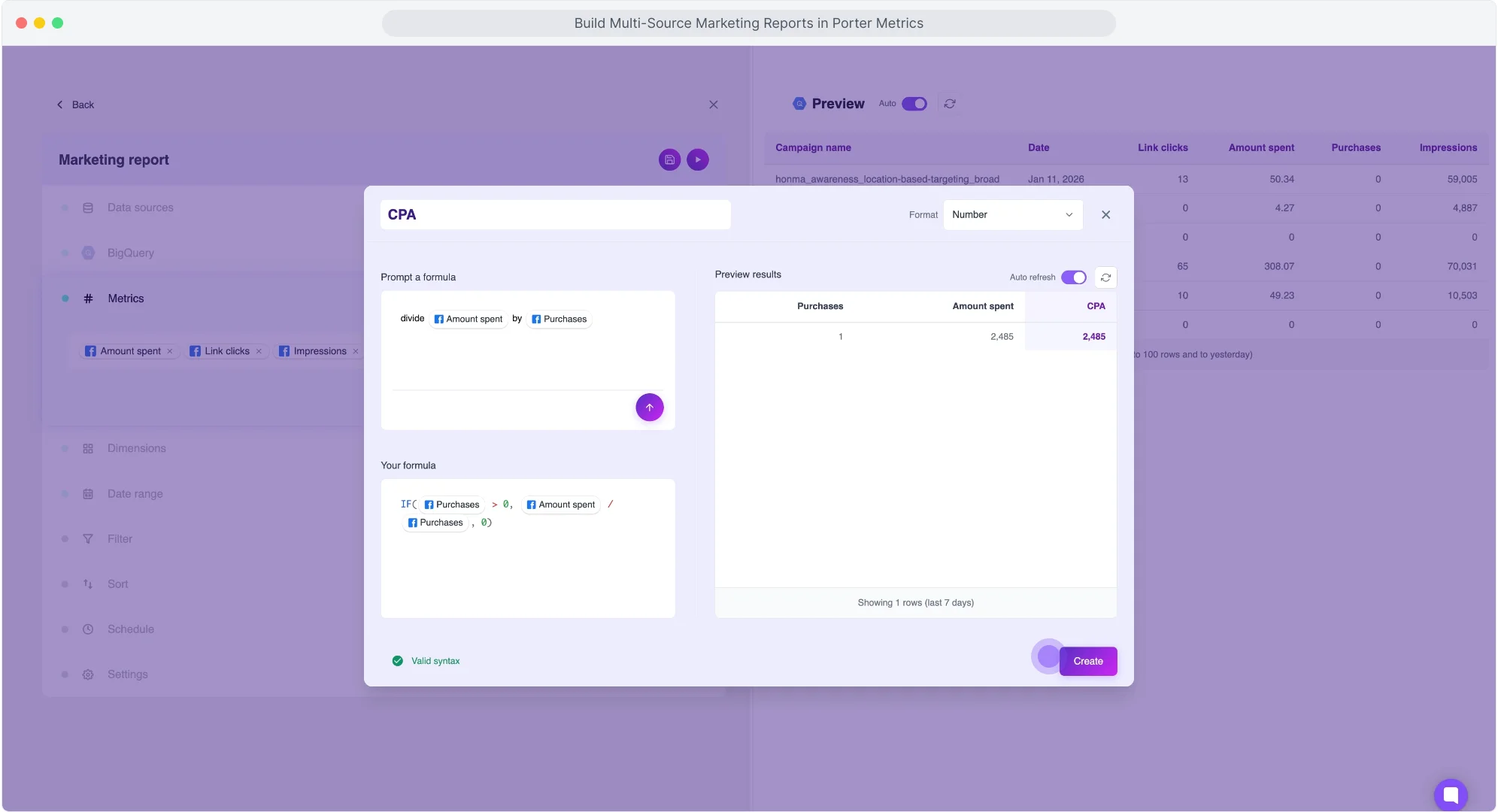
Create custom fields
For custom metrics, add a new metric, prompt your formula in natural language, and check the formula generated and a preview of the query. Choose the format of your metric (number, currency, percentage). For this example: AOV = “Order Total Amount / Quantity Ordered”, Sell-through Rate = “Number Of Items Shipped / Number Of Items”.
For custom dimensions, prompt your formula to segment data based on naming conventions. If your naming conventions include objective, funnel stage, or products, prompt a formula like: “If fulfillment channel contains ‘FBA’, tag as ‘FBA’. If contains ‘FBM’, tag as ‘FBM’. Else ‘Other’.” In the preview, see how Porter transforms conditionals into regex for custom segmentations.
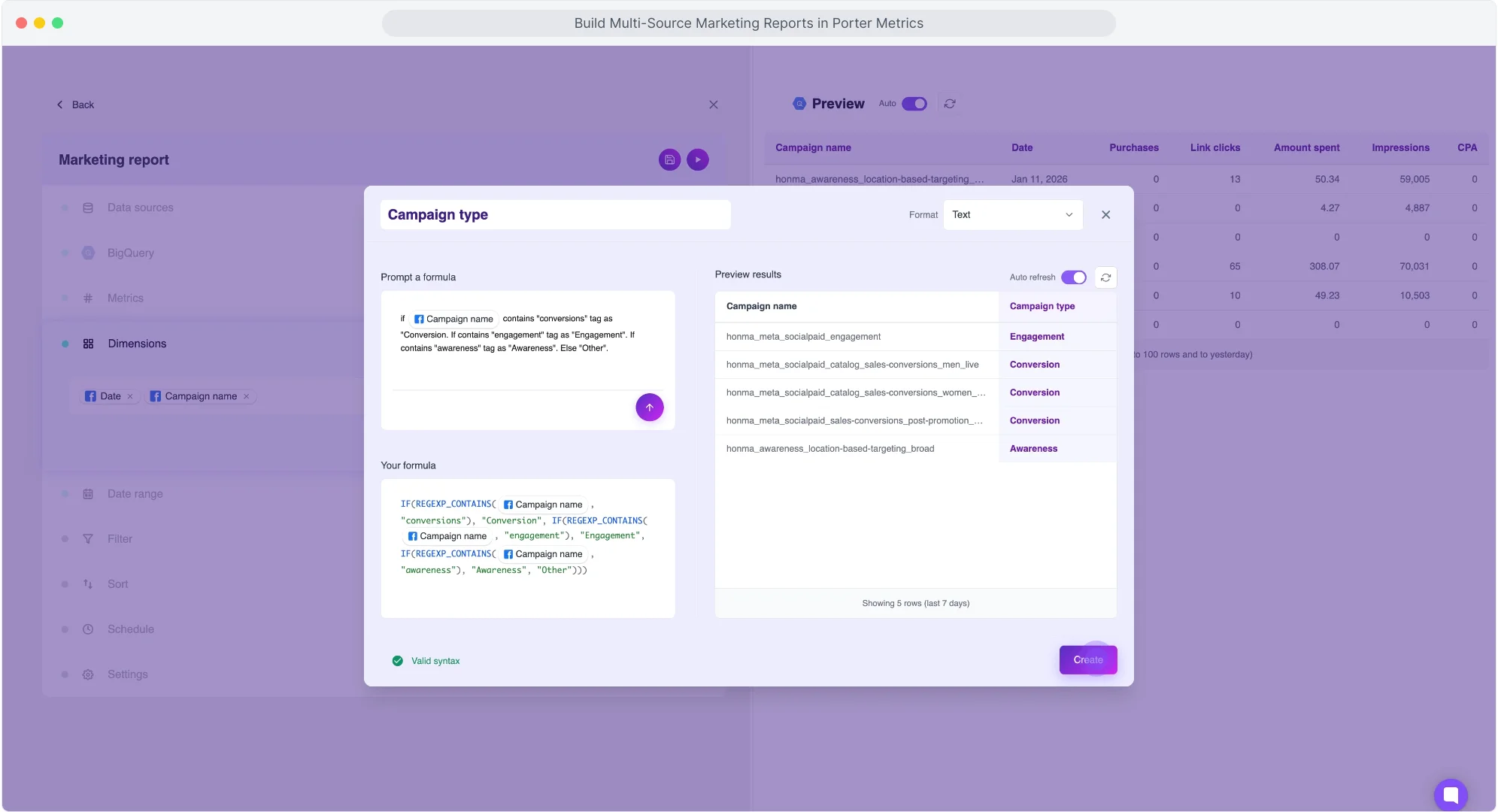
Create your own metrics or dimensions so no SQL or transformation is needed in BigQuery. Your data is ready to be connected to Data Studio. Supported operations: math (sum, subtract, divide, multiply), conditionals (if/then/else), regex (pattern matching). Same capabilities as Data Studio calculated fields.
Set date range
Select a date range from the dropdown. For this example: last 30 days.
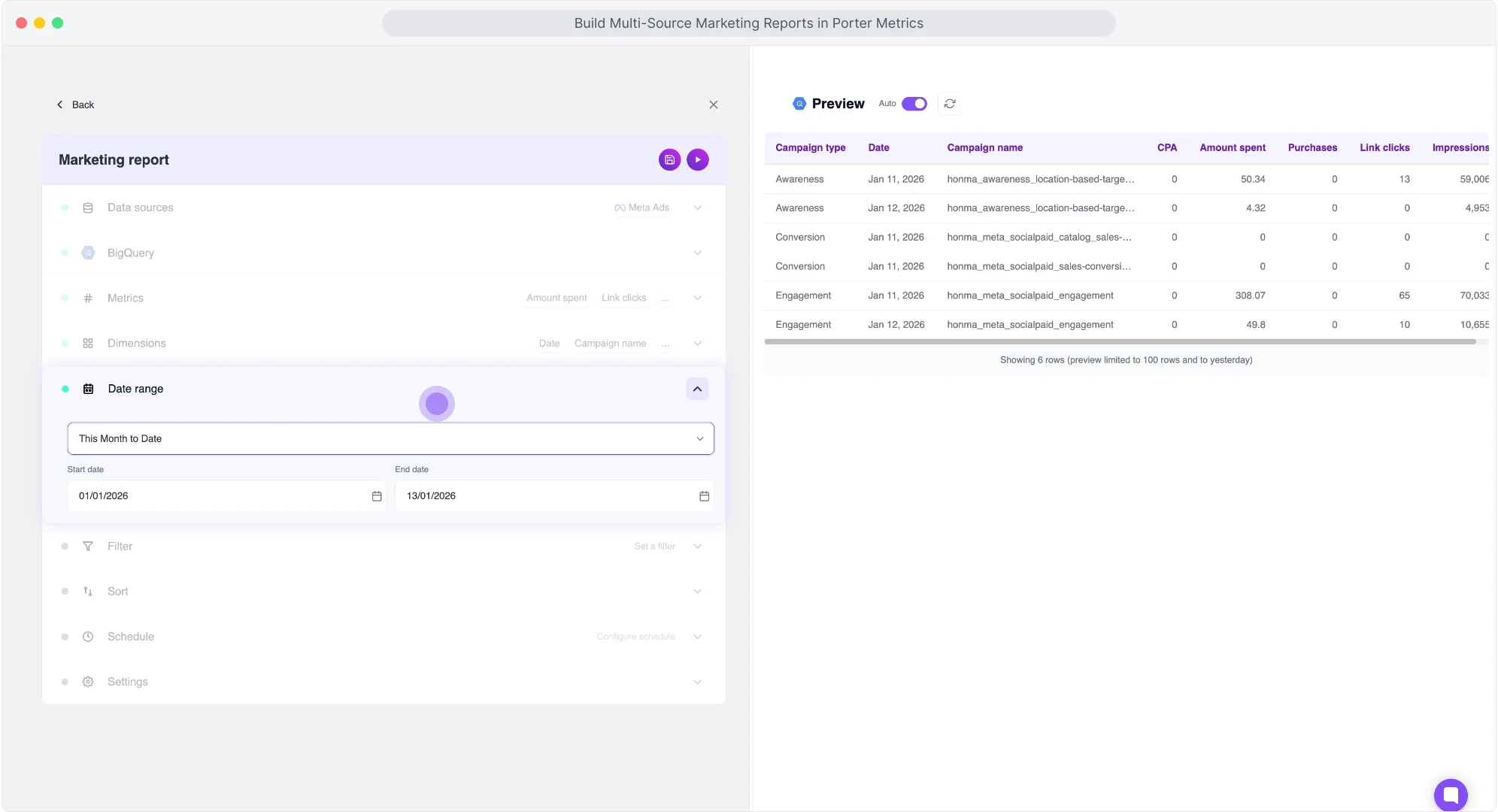
- Dynamic ranges: today, yesterday, last 7/14/28/30/90 days, this week/month/quarter/year to date, last week/month/quarter/year.
- Fixed ranges: specific start and end dates.
- Auto-update: data refreshes automatically based on dynamic range.
Add filters
The Amazon Seller Central connector may return records with no activity. We’ll create a filter to exclude them.
For this example:
- Condition: Exclude
- Field: Units Ordered
- Operator: equals
- Value: 0
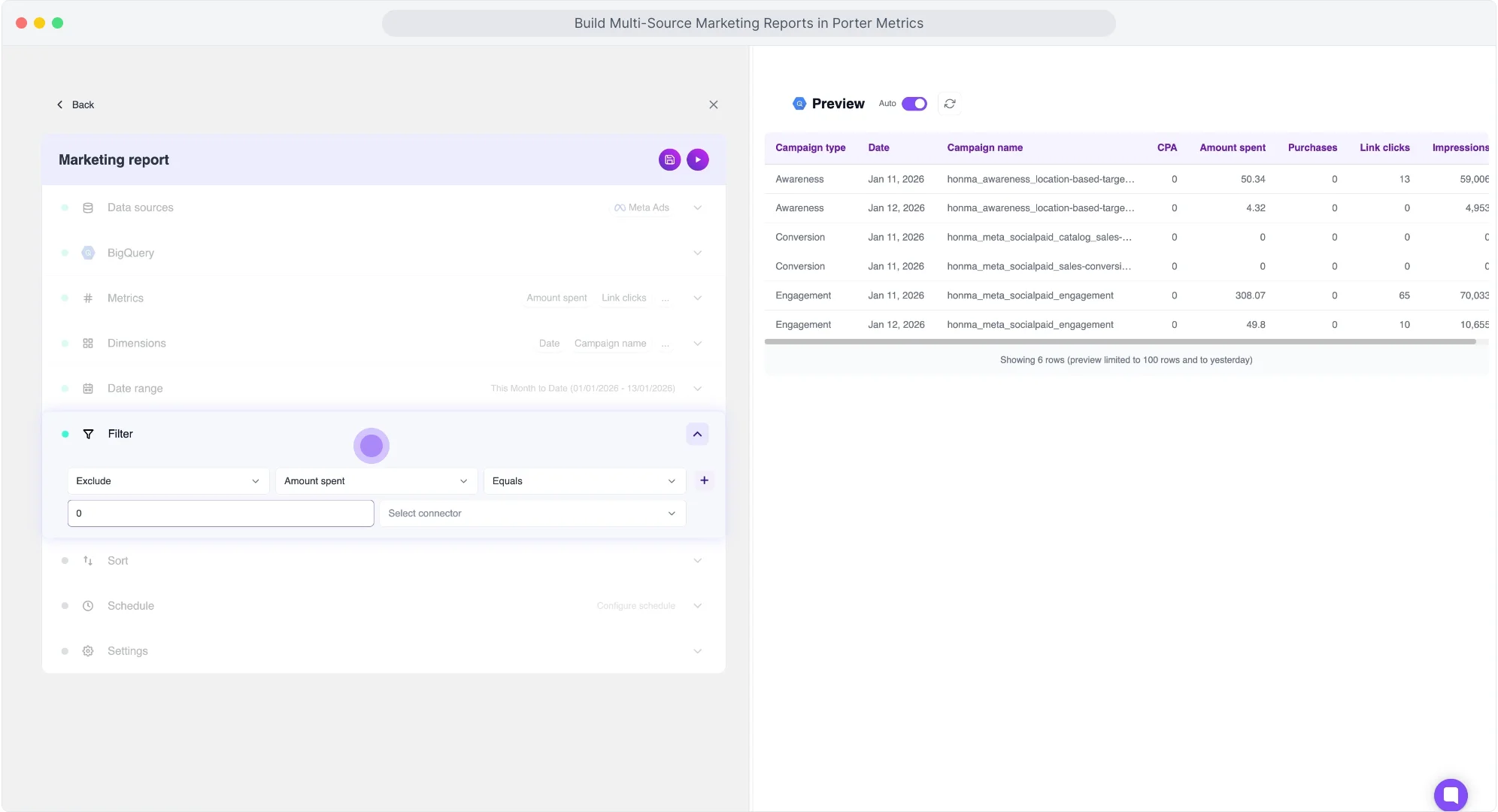
This excludes all campaigns without activity, so your query only returns campaigns with spend.
- Available operators: equals, contains, not contains, greater than, less than, starts with, ends with.
- Value detection: Porter detects if the field is a number or text automatically.
- Combine filters: add AND/OR logic within the same condition or create multiple filters in one query.
Schedule refresh
Prompt your schedule in natural language. For this example: “every day at 8am”.
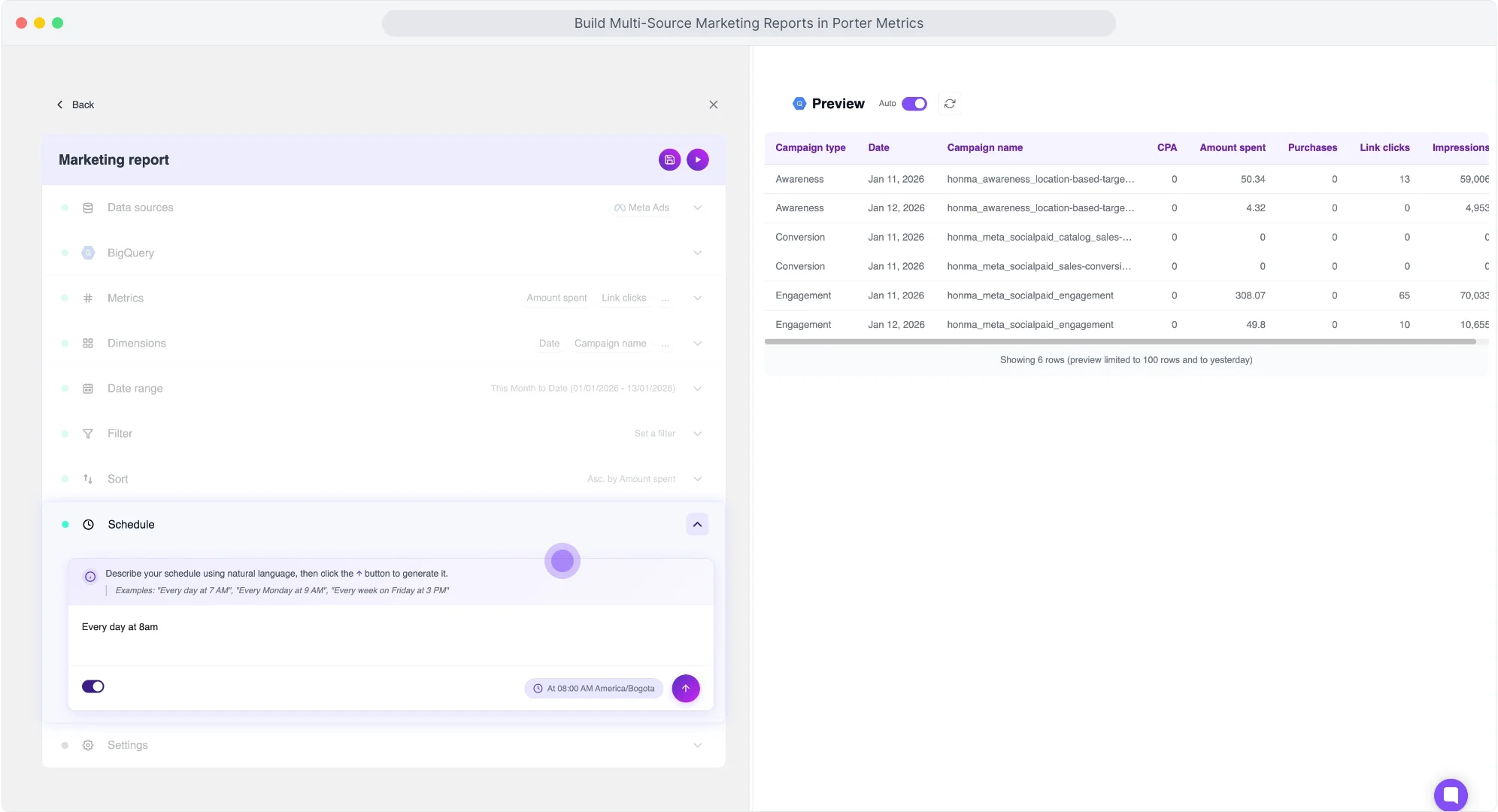
- Examples: “Every Monday at 5am”, “Weekdays at 7pm”, “Every hour”, “Every Tuesday and Friday at 9am”.
- Auto-convert: Porter converts prompts into cron expressions.
- Timezone: detected automatically from your browser.
- Minimum frequency: every minute. No extra cost for frequent refreshes.
Choose write mode
Select how Porter writes data to BigQuery. For this example: Overwrite.
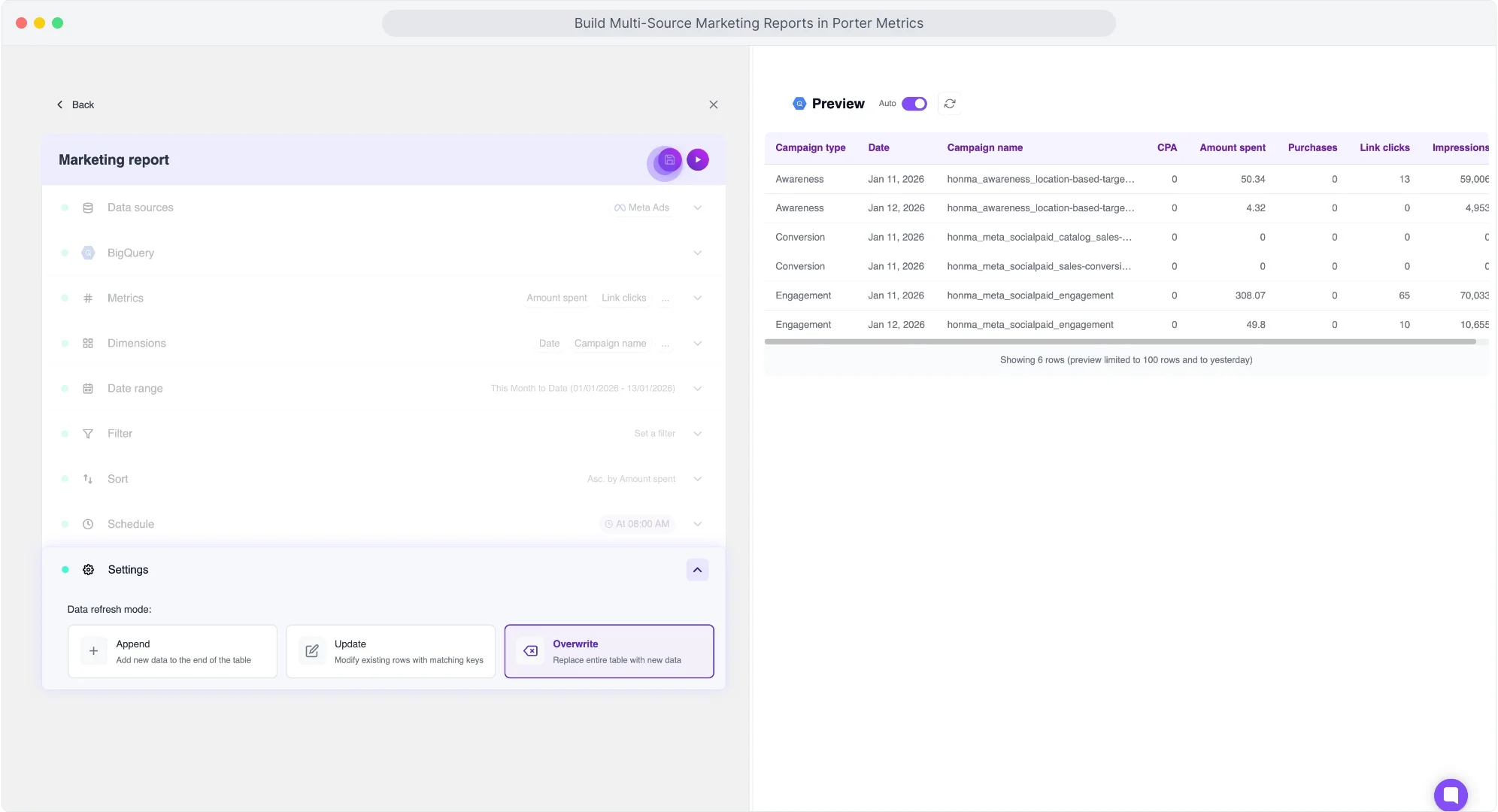
- Overwrite (recommended): deletes existing table and writes fresh data. No duplicates.
- Append: adds new rows below existing data. Risk of duplicates if same date range runs twice.
- Update: matches rows by dimension and updates values. For CRM data with changing values.
Send, monitor, and organize
Click “Save” to save your query and click “Send” to deliver the data to Google BigQuery. The transfer takes a few seconds depending on the volume of data. Once finished, you can refresh it or create more queries.
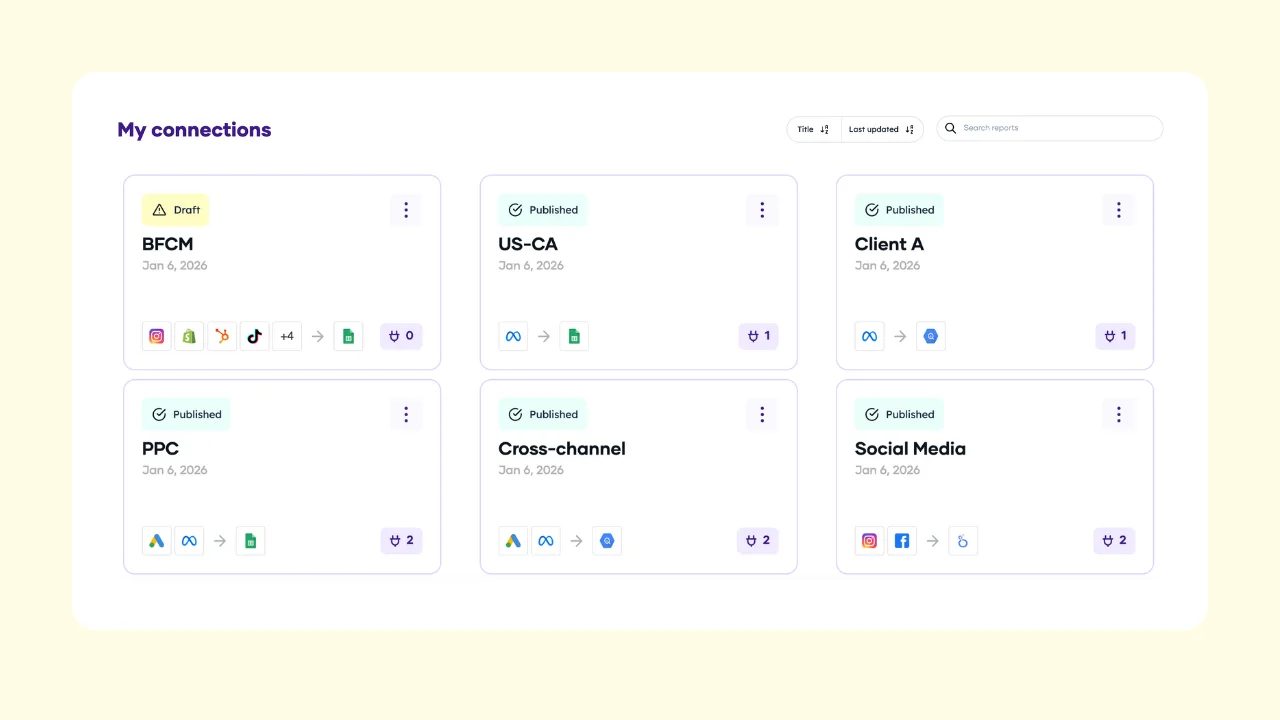
To create more queries: go back to the query manager inside your connection, or go to Porter Metrics → Account → Reports → Connections. In the Queries tab, you’ll see all queries running from your account with their associated connection, name, data sources, last run time, latest status, and option to run manually.
To monitor executions: click the ellipses icon and select “History.” You’ll see logs with exact date and time, execution type (manual or scheduled), and status. If an error occurs, you’ll see the specific error message.
To organize your data: manage connections and queries within them. Name connections by campaign (e.g., “Black Friday”), by client, or by data source. Within each connection, create as many queries or tables as needed and rename them. You can enable/disable queries or connections, and update any query anytime—Porter refreshes and updates the schema on BigQuery automatically.
How to Connect Your BigQuery Table to Google Data Studio
First, verify your data in BigQuery:
Go to console.cloud.google.com/bigquery. In the left menu, under Products, find BigQuery → Studio. This is where you manage your tables.
BigQuery hierarchy:
- Project (e.g., “Marketing Data”): your top-level container.
- Dataset (e.g., “Sales_Data”): a collection of tables within a project.
- Table (e.g., “Amazon Seller Central”): your actual data.
In BigQuery Studio, go to “Classic Explorer” and select your project. Click the ellipsis to create a new dataset if needed (set a name and location, e.g., US or Europe). Navigate to your dataset and table. In “Schema,” see the list of fields and their types. In “Preview,” see your actual data. To refresh data, go back to Porter and resend—Porter overwrites the table.
Connect BigQuery to Data Studio:
Go to Data Studio. Click “Create” and select “Report” to start a blank report. Data Studio will prompt you to add a data source. Search for “BigQuery” and connect your Google account.
You’ll see options: Recent Projects, My Projects, Shared Projects, Custom Query, Public Datasets.
Select “My Projects” and navigate to your project, dataset, and table. In this example: Project “Marketing Data” → Dataset “Sales_Data” → Table “Amazon Seller Central”. Click “Add” to connect.
Once connected, Data Studio loads the fields from your table. Create a chart, add your dimensions (e.g., date) and metrics (e.g., Order Total Amount). Make sure to set a date range that matches your query in Porter.
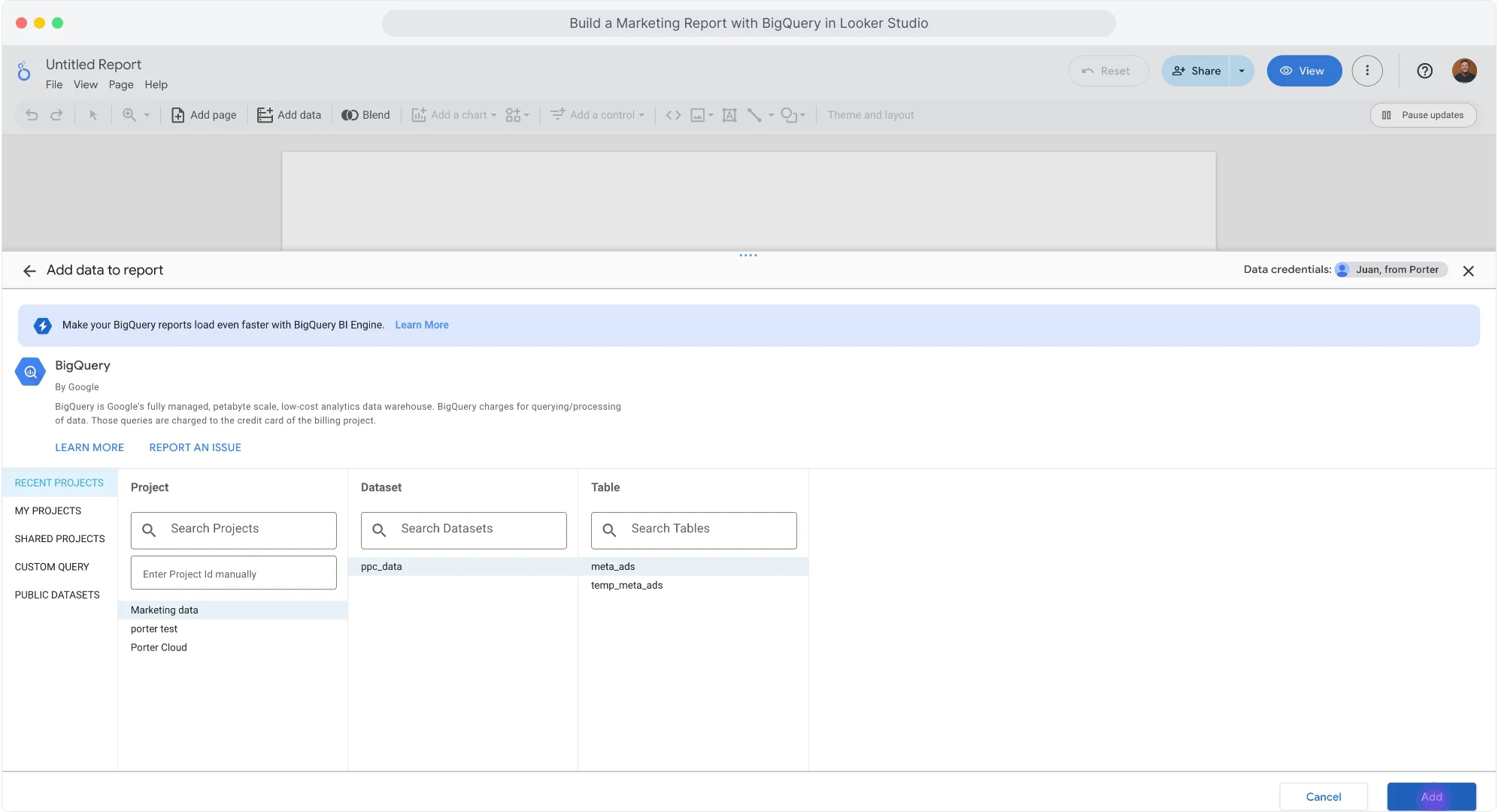
Your BigQuery data is now connected to Data Studio.
Why Marketers Move Amazon Seller Central Data to BigQuery
- Connect any reporting tool: BigQuery connects to Data Studio, Power BI, Tableau, or any BI tool. One warehouse, every destination.
- Multi-touch attribution: Join Amazon Seller Central with raw GA4 event data. Trace the full user path from ad click to conversion.
- Source of truth: Define what “conversion” means for your company. Compare Meta vs. GA4 vs. HubSpot. Pick one source for CAC, ROAS, and CPA. End the “which number is right” debate.
- Company-wide access without platform permissions: Managing permissions across platforms is a pain. With BigQuery, anyone can access marketing data without accounts or roles in each platform. One permission model, all data.
- Make data available for AI: AI needs clean, structured data with context. Every AI tool feels siloed. Integrating sources is complicated. With BigQuery as your universal warehouse, any AI tool can access your marketing data. No custom integrations. No complicated setup.
- Data blending: Combine Amazon Seller Central with CRM, GA4, Shopify, Google Ads in one warehouse. Measure real profit, not platform ROAS. Calculate blended CAC across all channels.
What’s Next
Now that your Amazon Seller Central data is in BigQuery:
- Connect to BigQuery: learn Google BigQuery for marketers and read tutorials to connect other data sources.
- Connect to Data Studio: Build dashboards that load in seconds. Use Porter templates or create your own.
- Connect to Google Sheets: Export BigQuery data to Sheets for quick analysis, sharing with clients, or custom calculations.
- Blend data from multiple sources: Add Google Ads, GA4, Shopify, CRM to the same connection. Porter auto-maps equivalent fields. Create cross-channel reports without SQL joins.
- Create AI workflows: Automate alerts and reports with natural language. Example: “Every Monday at 9am, get Amazon Seller Central spend for last 7 days, analyze performance with AI, send summary to Slack.”
- Use templates: Start with pre-built Data Studio templates. Campaign performance, creative analysis, audience breakdowns—ready to connect.
- Explore other destinations: Send Amazon Seller Central data to Google Sheets, PostgreSQL, or other warehouses. Same setup process.
Browse all Amazon Seller Central templates
Ready to connect Amazon Seller Central to BigQuery?
Start your free trial and get your marketing data flowing in minutes.
Book a call →