







To connect Google Analytics 4 to ChatGPT:
- Sign up free at portermetrics.com and connect your Google Analytics 4 account with your Google account.
- In ChatGPT, click + → Connectors → Manage connectors → Add custom connector, name it Porter, paste
https://mcp.portermetrics.com/mcp, then click Add and authenticate with Google.
That’s it, you’re connected. Porter’s free plan covers up to 3 Google Analytics 4 properties with no usage limits on ChatGPT’s free plan. No credit card required.
What makes Porter different:
- 288+ Google Analytics 4 fields and metrics, across every reporting level in one connection.
- Universal Google Analytics 4 MCP. Hosted white-label dashboards and client portals, cross-channel attribution with ad spend data, and automated anomaly detection and alerting. Your whole Google Analytics 4 operation runs from one chat.
Prerequisites
- A Porter Metrics account with your Google Analytics 4 account connected (free tier is enough to try it end-to-end)
- A ChatGPT account — the free plan works for ChatGPT Web; a Pro subscription is needed for Codex and Desktop MCP features
- Admin or standard access to the Google Analytics 4 properties you want to connect
Connect Google Analytics 4 to ChatGPT with MCP
For this tutorial we’re going with the MCP method. Here’s a quick explainer of what MCP is and why it’s the best path for Google Analytics 4.
MCP (Model Context Protocol) is the open standard that lets AI tools like Claude, ChatGPT, Codex and others access and use external APIs — the things that make tools like Google Analytics 4 work under the hood. Instead of building a custom integration for every AI tool you use, you install one MCP and every compatible AI gets access to the same data.
The full setup takes under 5 minutes and breaks into three moves: connect Google Analytics 4 to Porter, point ChatGPT at the Porter MCP, and ask your first question.
1. Connect your Google Analytics 4 data to Porter
Porter sits between Google’s Analytics Data API and ChatGPT. It handles OAuth, rate limiting, pagination and all the plumbing so ChatGPT only ever sees clean, structured data.
Sign up for Porter. Create a free account at portermetrics.com. The free tier is enough to run this full workflow end-to-end.
Connect your Google account. In Porter, click Create → pick ChatGPT as the destination → select Google Analytics 4 as the source → sign in with Google to grant access to your properties.
Select your properties. Choose the Google Analytics 4 properties you want ChatGPT to query. When you select multiple properties under a single connection, Porter automatically blends their data together so you can query them as one.
Optional: enable automatic BigQuery storage if you’re connecting multiple properties with large data volumes. This keeps ChatGPT’s responses fast even at scale.
2. Connect the MCP to ChatGPT
Porter’s MCP URL is what you paste into ChatGPT. Once added, ChatGPT can query Google Analytics 4 data on demand in any conversation.
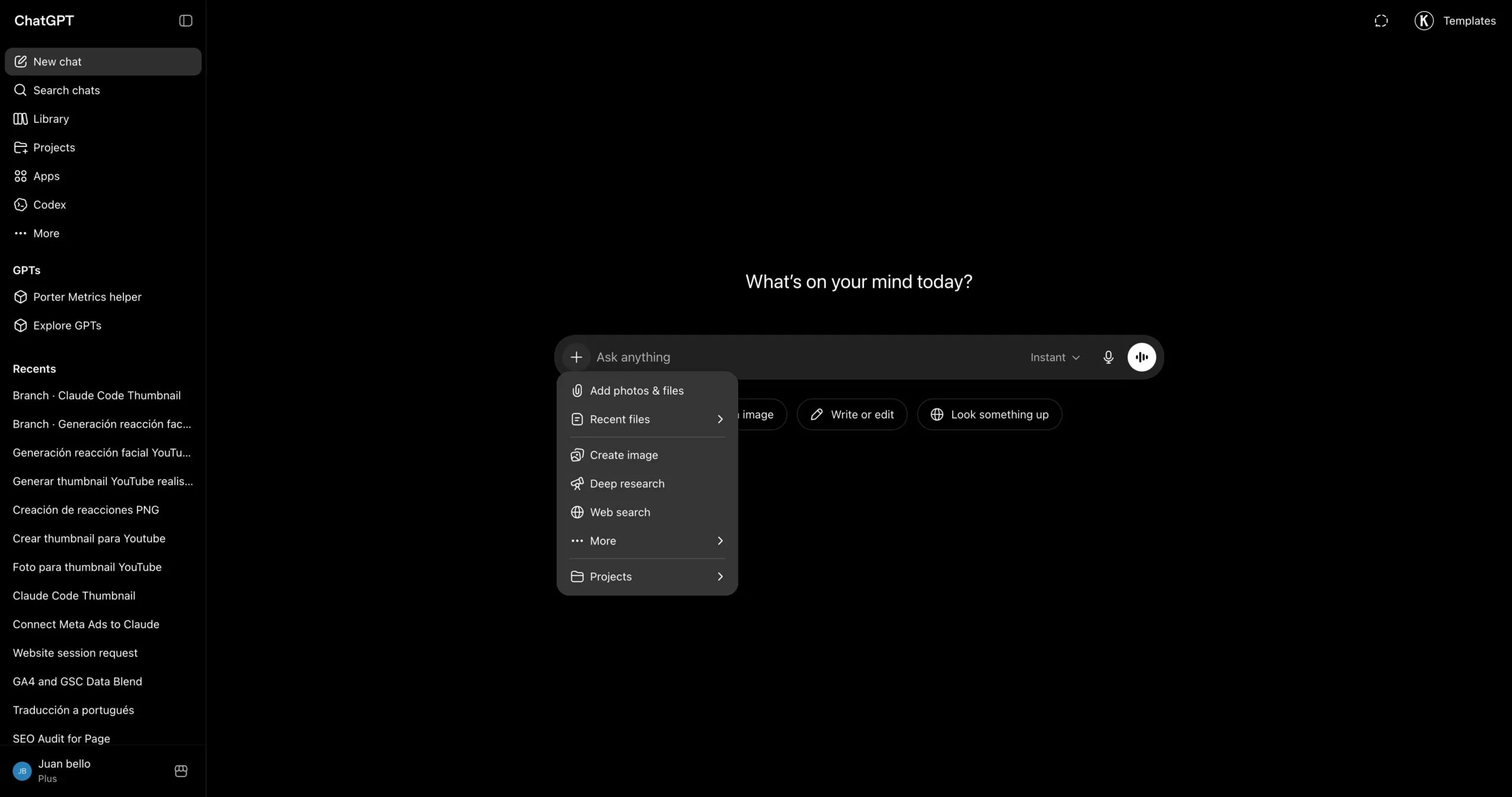
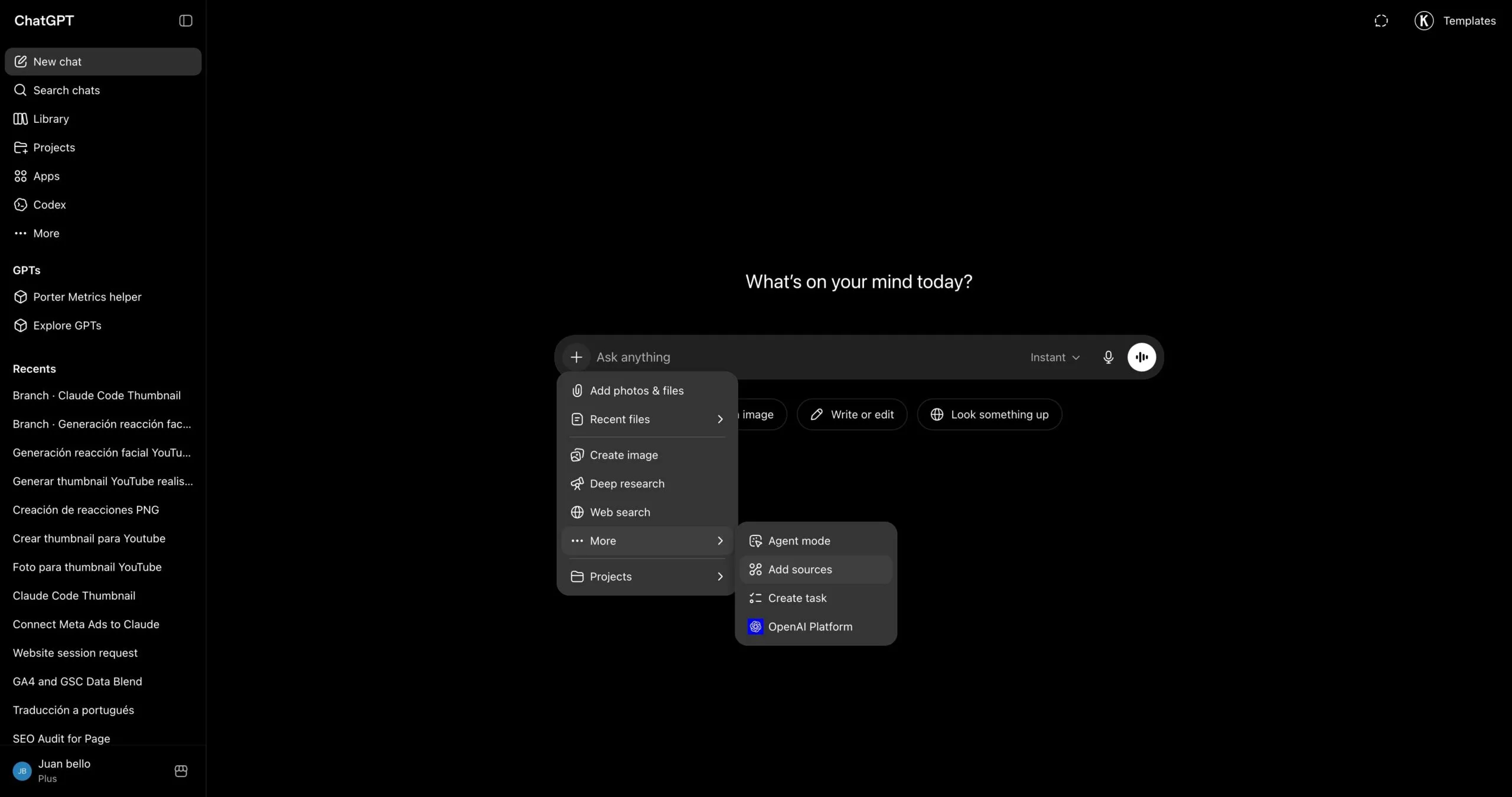
Go to chatgpt.com and click the + icon in the chat input to open the tools menu.
In the menu that opens, hover over Connectors and click Manage connectors.
In the Connectors panel, click the + button at the top of the list to start adding a new connector.
Pick Add custom connector from the dropdown that appears.
A dialog opens with the name and URL fields. Type Porter in the first field to name the connector.
In the second field, paste https://mcp.portermetrics.com/mcp. Leave the advanced settings alone.
Click Add at the bottom right of the dialog. ChatGPT opens a sign-in window — use the same Google account linked to your Porter workspace and approve access.
Once the authorization finishes, you’ll see Porter’s tools appear in the connectors panel. You’re ready to start asking questions.
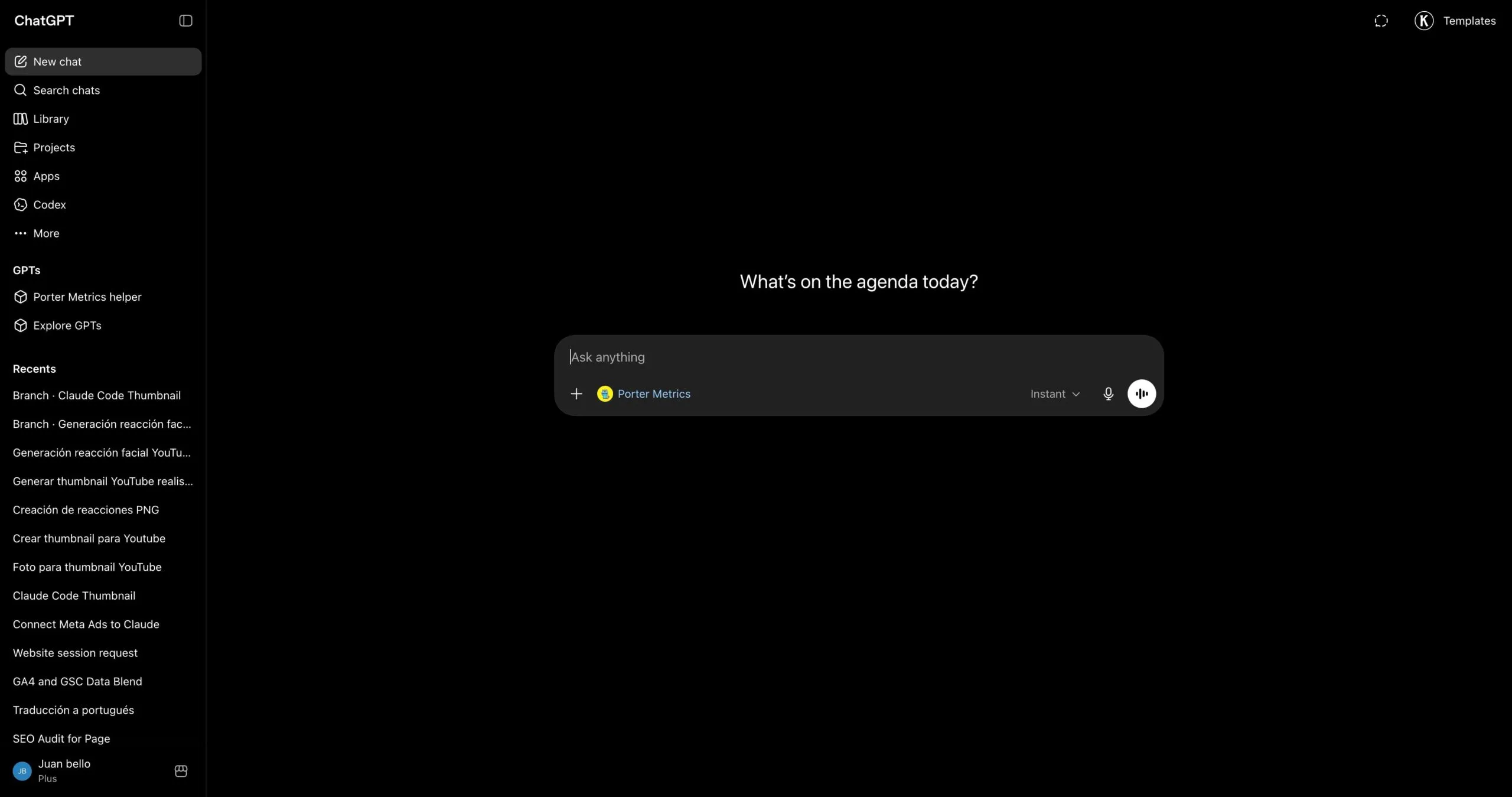
For a fuller walkthrough with screenshots at every step, see the Porter MCP tutorial.
3. Start building questions and dashboards
With Porter connected, open a new ChatGPT chat and ask anything about your Google Analytics 4 in plain English. ChatGPT calls Porter behind the scenes, pulls live data from Google, and answers with tables, charts, or summaries.
Try one of these to verify the setup is working:
For a full catalogue of copy-paste prompts organized by use case (agencies, SEO/SEM teams, e-commerce, cross-channel), jump to the prompts section below.
Alternative ways to connect Google Analytics 4 to ChatGPT
Porter MCP is the path we just walked through and the one we recommend for most marketers. It is not the only way to get Google Analytics 4 data in front of ChatGPT, though. The most common alternatives are Google Analytics 4’s direct API, a live Google Sheets bridge or CSV upload, and BigQuery for scale. Each has trade-offs, so pick the one that fits how your team already works.
- 🔌 Google Analytics 4’s direct API — Talk to Google’s Analytics Data API yourself. Maximum control, but you handle auth, rate limits and pagination — and you only get one source. (Google doesn’t ship an official MCP yet.)
- 📊 Google Sheets — Live Sheet or one-off CSV upload. Auditable, familiar, faster for big exports — but aggregation happens in the Sheet, not the API.
- 🗄️ Google BigQuery — For large properties or agencies running multi-property analysis. BigQuery aggregates; ChatGPT only queries pre-built summaries.
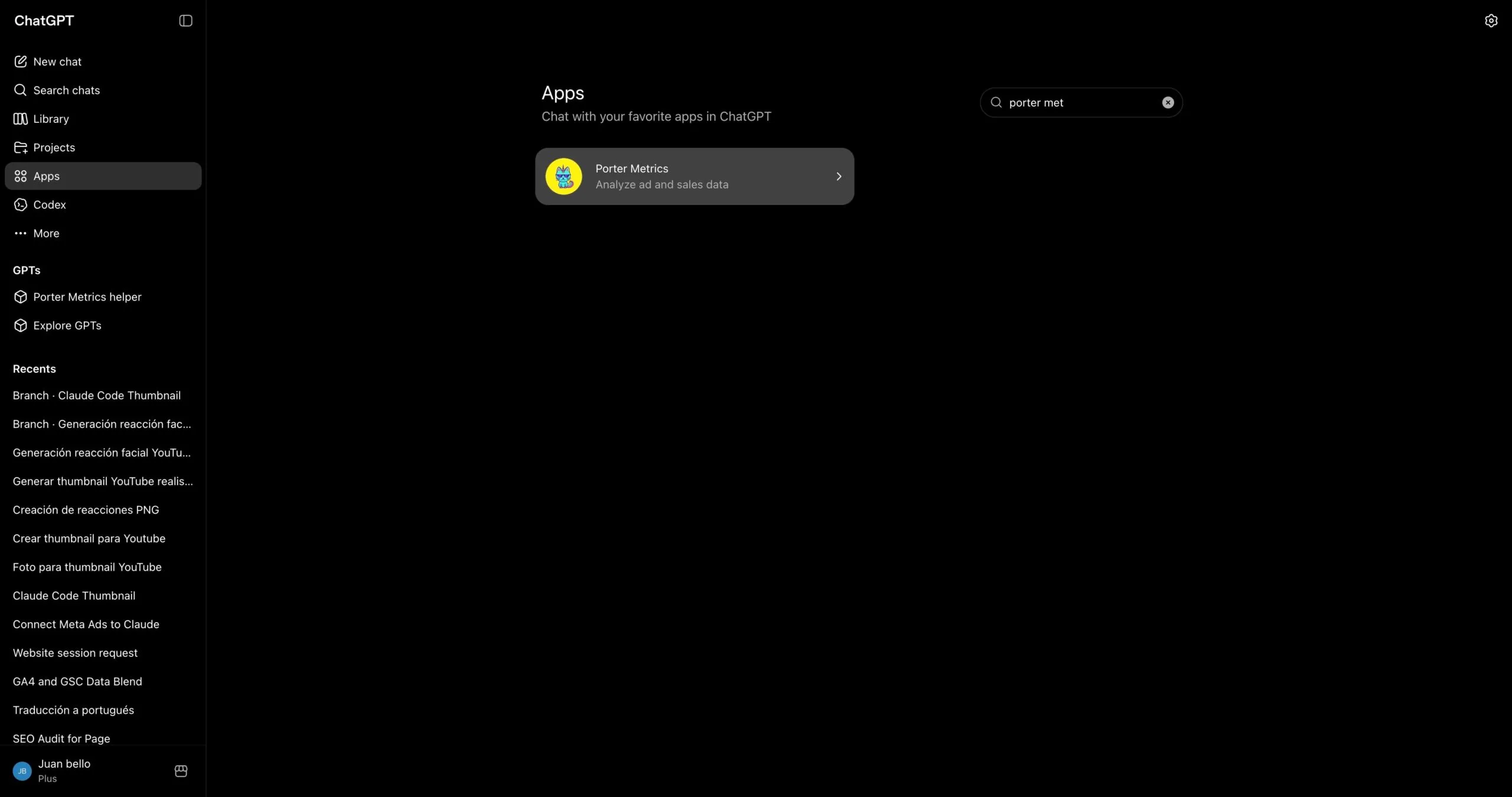
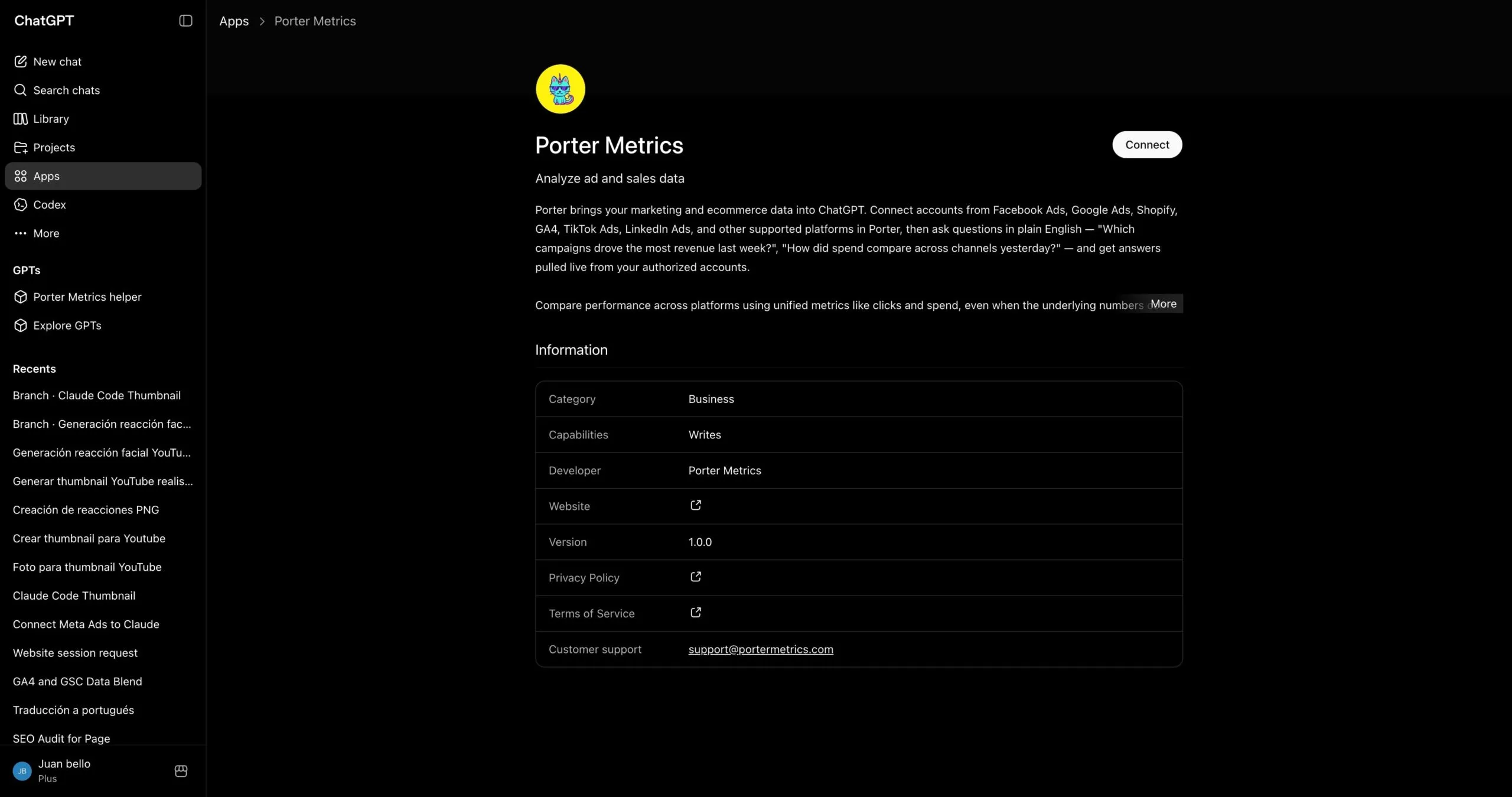
Via the Porter Metrics app in the ChatGPT marketplace
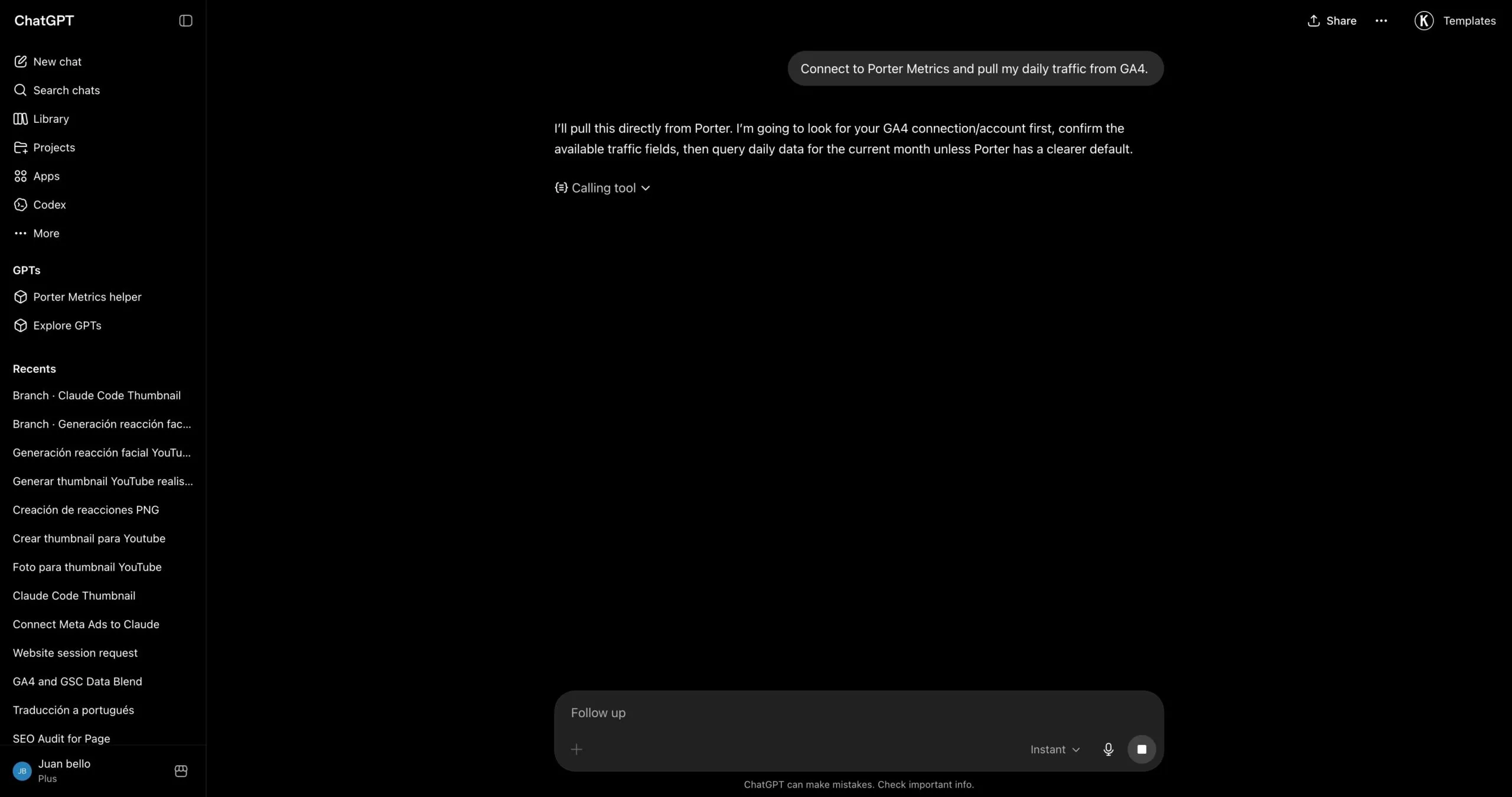
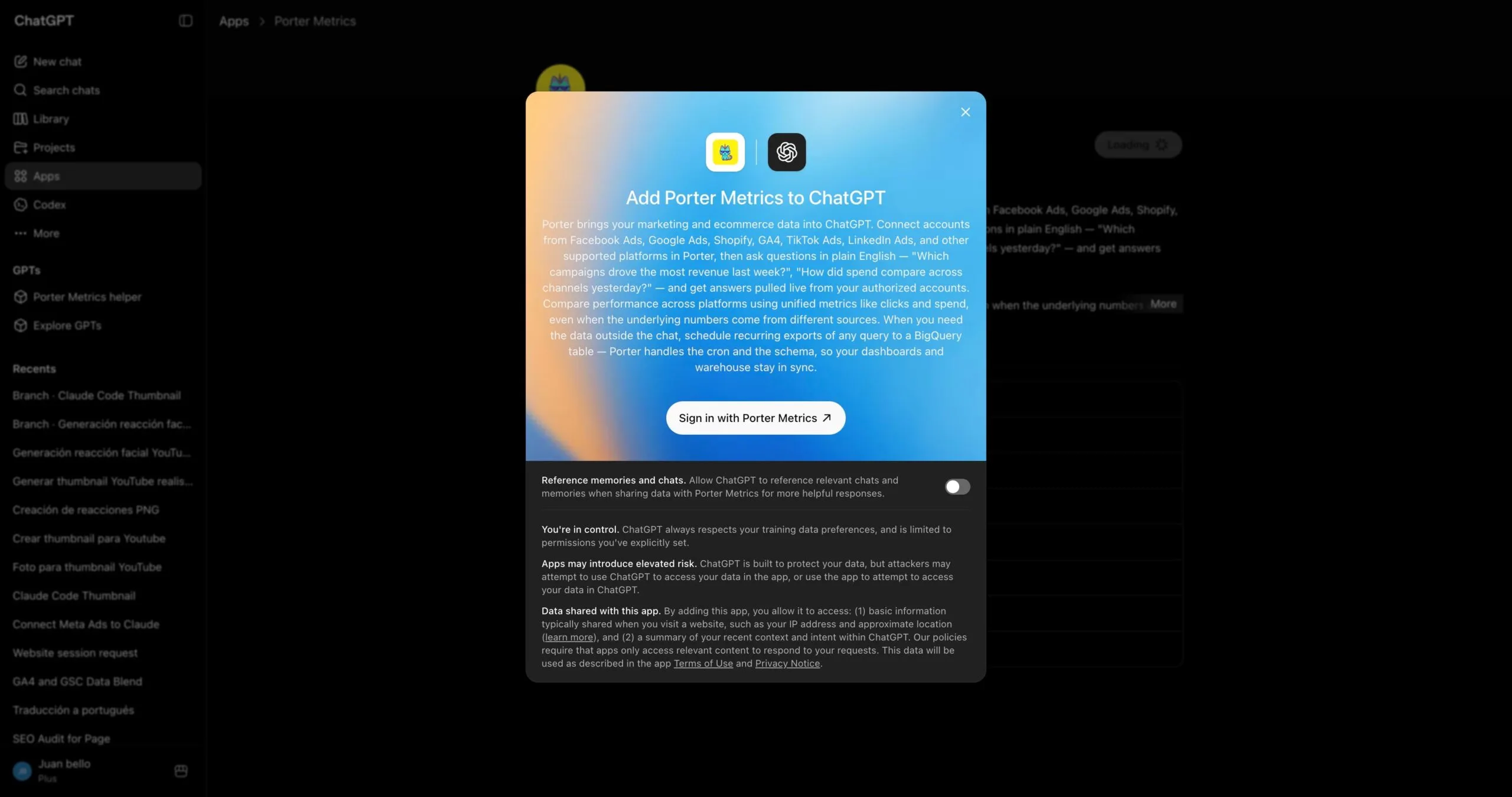
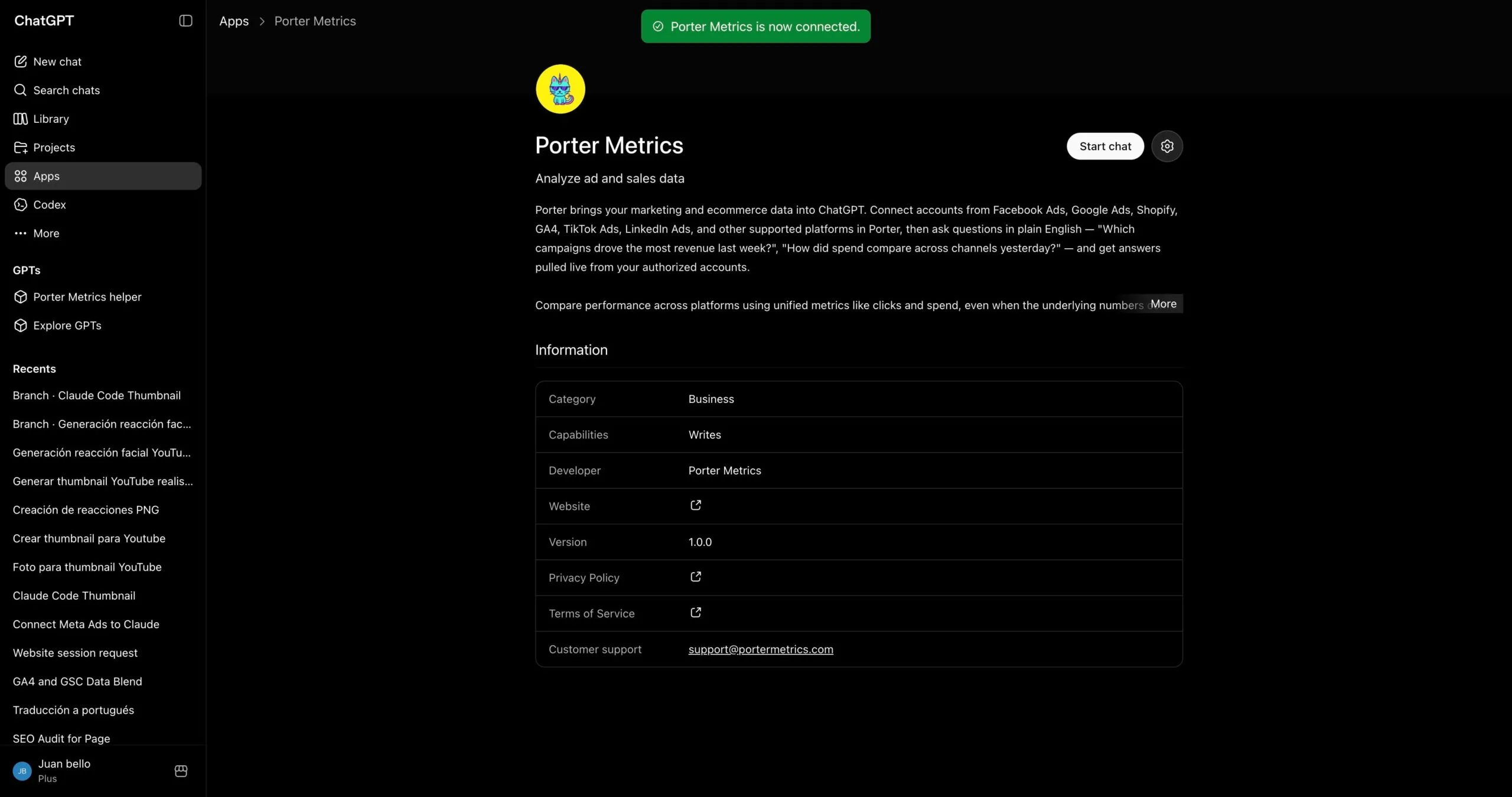
If you’d rather not paste a connector URL, install Porter straight from ChatGPT’s app gallery — it’s the same Porter connection behind the scenes, published as an approved ChatGPT app:
- Open the Porter Metrics app page in ChatGPT (or search “Porter Metrics” in the apps gallery).
- Click Connect and sign in with the same account you use in Porter.
- Authorize it and ask your first Google Analytics 4 question — same live data as the MCP.
The trade-off to know: the marketplace app only updates after each ChatGPT review cycle, while the MCP updates the moment Porter ships. If you want every new tool and data source immediately, use the MCP; if you want the one-click install and don’t mind waiting for new features, the marketplace app is the shortest path — including write actions through your connected Porter account.
Via Google Analytics 4’s direct API
If you’re building a product around Google Analytics 4 — or you’re a developer who’d rather own every layer of the integration — the most direct path is talking to Google’s Analytics Data API yourself. Google does not ship an official MCP for GA4 as of June 2026. Google publishes an experimental open-source MCP server that users must self-host locally. Whichever route you pick, you still follow Google’s rate limits & quotas. Either way you skip Porter and call Google from your own code, from Codex, or from Google Analytics 4’s own connector.
The trade-off to know. Going direct gives you maximum control and the freshest possible data — every endpoint, every parameter, no abstraction layer in between. But you’re now responsible for OAuth flows, refresh tokens, rate limits, pagination, schema changes, and error retries. And critically, you only get one source. The moment you also want Google Ads, Shopify or HubSpot in the same conversation, you’re back to building (or stitching together) more integrations.
When this makes sense: engineering teams that need a single source with full control, products that ship Google Analytics 4 data as a feature (where you own the integration anyway), or one-off scripts where you don’t mind writing the auth and pagination code yourself. For marketers who want to ask questions in plain English and blend Google Analytics 4 with the rest of their stack in a single conversation, the Porter MCP path is dramatically less work.
Via Google Sheets (live Sheet or manual CSV)
If your team already lives in Google Sheets — or you want a paper trail before ChatGPT touches anything — feed Google Analytics 4 into a Sheet, then let ChatGPT read the Sheet. You can automate the Google Analytics 4 → Sheets pipeline with Porter so it refreshes daily, or do one-off CSV exports from Google Analytics 4’s native UI for static analysis.
The trade-off to know. With the MCP path, ChatGPT calls Google’s Analytics Data API directly and Google does the filtering and aggregation on its side — clean and deterministic. With the Sheets path, ChatGPT aggregates inside the Sheet itself, which can introduce hallucinations on totals, averages, and joins when you have thousands of rows. The upside is speed: for very large date ranges or historical analysis, a pre-built Sheet is dramatically faster than live API calls.
When this makes sense: finance teams that want to review numbers before ChatGPT acts on them, agencies already delivering client reports in Sheets, historical analysis across years of data, or any case where you care more about speed than real-time freshness.
Read the full Sheets tutorial →
Via Google BigQuery (for scale)
This is the path most people overlook — and it’s the one that saves you when your Google Analytics 4 property gets serious. A single large website/app owner or an agency managing 10+ properties will hit API rate limits and latency problems querying ChatGPT directly. ChatGPT will literally tell you it’s taking too long or timing out on big pulls.
BigQuery fixes that. You load Google Analytics 4 data into BigQuery tables on a schedule, then connect BigQuery to ChatGPT — either through a BigQuery MCP or via Codex with SQL queries. Instead of asking ChatGPT to pull raw Google Analytics 4 data, you let BigQuery aggregate into small, optimized tables, and ChatGPT only queries the summarized output. Scale problem solved.
When this makes sense: enterprise properties with millions of events, agencies running multi-property analysis across 10+ clients, or any team already using BigQuery as a data warehouse. Porter loads Google Analytics 4 (and 25+ other sources) directly into BigQuery so you don’t have to build your own ETL.
Read the full BigQuery tutorial →
Connecting Google Analytics 4 to Codex
Most marketers lump ChatGPT and Codex together and miss the biggest advantage of the entire MCP ecosystem. They’re not the same tool — and the difference matters enormously once you start working with Google Analytics 4 data seriously.
ChatGPT is a chat interface. You ask a question, ChatGPT pulls live data through the MCP, answers, maybe builds a quick dashboard inside the conversation. Great for one-off analysis. The problem: everything is ephemeral. Want to refresh the dashboard tomorrow? You regenerate it from scratch. Want the same report every Monday? You re-ask the question every Monday.
Codex is ChatGPT running inside your computer’s terminal. Because it has access to your filesystem, runtime, and other developer tools, it doesn’t just answer questions — it can build real software. Persistent scripts, scheduled routines, HTML apps, internal dashboards, integrations that run 24/7 without your input. Once it’s connected to Porter’s MCP for Google Analytics 4, a whole category of work becomes possible.
What Codex unlocks that ChatGPT alone cannot
This is where the MCP ecosystem pays off most. Because Codex can combine Porter’s MCP with other MCPs — Firecrawl for web scraping, Airtable for structured data, Notion for wikis, Vercel for deployment, Slack and Gmail for delivery — you’re no longer querying data. You’re building tools.
Feed Codex your Google Analytics 4 targets and goals — conversion goals, engagement thresholds, revenue targets — and ask it to generate a custom performance dashboard for each client. It builds the HTML, pulls live data, deploys to a URL. No Data Studio embed to break when the vendor changes pricing, no template constraints. The dashboard updates automatically because it queries Porter’s MCP on every page load.
Best for:agencies that want white-label client dashboards without Looker or Data Studio dependencies.
Combine your own Google Analytics 4 performance from Porter with competitor landing pages and traffic sources scraped via Firecrawl. Codex stitches both into a weekly competitive intelligence report — your numbers next to their content strategy and engagement metrics, with an LLM summary on top of what changed week over week. Runs on cron, lands in your inbox every Monday morning.
Best for:in-house teams that need market context, not just internal numbers.
Use Airtable or Notion as the schema, Porter as the data source. Codex keeps every page populated with current sessions, conversion rate, and revenue for every property — no stale screenshots, no copy-paste from Excel. New hires read one wiki entry and have full context on a client’s account.
Best for:agencies and ops teams onboarding analysts or rotating account managers frequently.
A Codex routine on cron pulls Google Analytics 4 via Porter, evaluates thresholds — sessions drop 20% vs last week, bounce rate jumps above 70%, conversion rate falls below 2% — and pushes Slack or Gmail alerts the moment something crosses the line. You stop checking dashboards reactively; the dashboard checks itself and tells you when to look.
Best for:any team that’s ever discovered a problem 48 hours too late because nobody opened the report.
Bottom line: ChatGPT is for quick questions and ad-hoc dashboards. Codex is for building apps, live dashboards, alerts, and actual tools — anything you want to run on its own without re-asking. Same Porter MCP URL works in both, so you don’t pick once and lock in.
Use cases: what you can actually do once Google Analytics 4 is connected to ChatGPT
Getting the connection right is half the battle. The real value shows up in what you do next. Here are the use cases Porter users build around their Google Analytics 4 data — from simple Q&A to full client-facing workflows.
1. Chat and ask questions directly
The simplest use case — and still the one 80% of marketers start with. Open ChatGPT, ask a question, get an answer grounded in live data.
It’s the fastest way to replace a daily GA4 reports check-in. But chat is table stakes — the interesting use cases come next.
2. Blend Google Analytics 4 with your revenue data (Meta Ads, Google Ads, Shopify)
This is where a 360° view gets real. When you connect Google Analytics 4 and your revenue source (Meta Ads for campaign attribution, Google Ads for ROAS analysis, Shopify for ecommerce validation), ChatGPT can map website traffic and conversions to actual purchases and revenue — using UTMs, campaign names, and timestamps — and give you attribution that no platform-side number can.
ChatGPT handles the UTM, campaign name, and timestamp mapping and joins. You get a client-ready attribution report that no single platform can generate on its own.
3. Automated alerts and notifications on Slack or Gmail
With Codex you can turn Google Analytics 4 monitoring into a routine that runs on its own. Hook Porter’s MCP (for the data) together with a Slack or Gmail MCP (for delivery), then write a Codex scheduled task that pulls performance every morning and pings you only when something actually needs attention.
No dashboards, no daily check-ins. The report comes to you — and only when it matters.
4. Client-ready presentations with live data (Gamma, HTML, PDF)
A common agency pain: you send clients a Data Studio link, Looker breaks, the client panics — and you spend an hour explaining a broken dashboard. With ChatGPT you can build the presentation itself — as a Gamma deck, a custom HTML page, or a PDF — populated with live numbers each time.
The presentation becomes a delivery artifact you send to the client, not a dashboard that depends on another tool staying up. No broken iframe, no login prompts, just the content.
Google Analytics 4 fields and metrics you can query with ChatGPT
Before you start writing prompts, it helps to know what data is actually available. Porter MCP gives ChatGPT access to 288 Google Analytics 4 fields and metrics across every reporting level, plus breakdowns by audience, device, geography, and channel. And the same MCP URL also unlocks 25+ other sources — so ChatGPT can blend Google Analytics 4 with Google Ads, Shopify, HubSpot and more in a single prompt.
Prompts you can copy-paste today
…organized by job: agencies, SEO/SEM teams, e-commerce teams, and cross-channel blends.
For agencies
Managing multiple client GA4 properties and producing client-ready reports without logging into each interface.
For SEO/SEM teams
Understanding organic and paid search performance, landing page quality, and user engagement from search traffic.
For e-commerce teams
Tracking the purchase funnel, product performance, and revenue attribution to optimize the store.
Cross-channel
Blending GA4 with other marketing data to understand the full customer journey and true attribution.
Limits, auth, and best practices for Google Analytics 4 via ChatGPT
While this specific case refers to broader privacy concerns rather than API abuse, it illustrates the real cost marketers face when data handling goes wrong: loss of stakeholder trust and compliance exposure. For GA4 API users, the more common “horror story” isn’t a ban—it’s making a $50,000 budget decision based on sampled or thresholded data without realizing the numbers are incomplete. The cost isn’t account suspension; it’s bad decisions built on incomplete data.
A more representative technical caution: marketers running high-cardinality reports (e.g., breaking down 50+ landing pages × 30 traffic sources × 90 days) often hit GA4’s data thresholds silently. The API returns aggregated rows with (other) buckets instead of individual values, and the user never notices—leading to attribution models that ignore 15–30% of actual traffic. No ban, no warning, just quietly wrong data.
Google’s GA4 Data API enforcement is quota-based and token-based, not behavior-based or ban-oriented. Google doesn’t ban accounts because you used Claude, an MCP, or a third-party connector. It throttles or returns errors when you exceed property-level token quotas or concurrent request limits. Read-only access within quota is safe and expected. What triggers enforcement is burst traffic that exhausts hourly token budgets, sustained concurrent requests above the property limit, or attempting write operations (which the GA4 Data API doesn’t support for reporting data anyway). Staying within documented request and token limits is safe; aggressive programmatic polling, parallel unbatched requests, or sharing credentials across multiple tools simultaneously is not.
The two patterns that lead to inaccurate Google Analytics 4 reports
After reviewing official docs and community threads, two patterns come up again and again.
1. Ignoring sampling and thresholding in high-cardinality reports. GA4 applies data thresholding when user counts in a dimension combination fall below a privacy-protecting minimum—this is a platform-level privacy feature, not a connector bug. The API reduces thresholding compared to UI exports but does not eliminate it for low-volume properties. The result: reports that look complete but silently omit rows. What to do instead: always check the dataLossFromOtherRow and samplingMetadatas fields in API responses, and avoid breaking down micro-segments on small properties.
2. Unbatched, parallel API bursts that exhaust token quotas. The GA4 Data API uses a token bucket system where complex reports (many dimensions, long date ranges, high cardinality) consume more tokens per request than simple ones. Running 20 concurrent complex reports can burn through a property’s hourly token budget in minutes, causing 429 errors for all tools connected to that property—including your own internal dashboards. What to do instead: batch requests, use date-range partitioning, and cache results when freshness isn’t critical.
The 5-rule accuracy protocol
Based on Google Analytics 4’s documented quotas and the behaviors that have actually caused incomplete reports — not guesswork:
-
Batch your dimension breakdowns. Each additional dimension in a GA4 Data API request increases token consumption. Break complex multi-dimensional queries into smaller, sequential requests rather than one massive report. If you ignore this, you’ll hit
429 RESOURCE_EXHAUSTEDerrors that block all API access to the property for the remainder of the hour. Porter MCP handles this automatically by batching large requests and caching responses. -
Respect the 10M-event sampling threshold. GA4 may sample data when the number of events in your query’s date range exceeds platform thresholds. For unsampled data, reduce date ranges or filter to specific event types before requesting broad historical reports. If you ignore this, you’ll build attribution models on sampled data that under-represents long-tail traffic sources.
-
Stay under the concurrent request ceiling. The GA4 Data API enforces a limit on simultaneous requests per property. Queue your MCP queries sequentially rather than firing them in parallel. If you ignore this, concurrent requests from multiple team members or tools can trigger throttling that delays all reporting workflows.
-
Never rely on API data for same-day operational decisions. GA4 data processing has a documented freshness lag. Use the API for strategic reporting (weekly trends, monthly audits, quarterly reviews) and the GA4 UI’s real-time view—not the Data API—for intra-day checks. If you ignore this, you may pause campaigns or shift budget based on incomplete conversion counts.
-
Minimize OAuth scopes to read-only reporting. The GA4 Data API requires only the
https://www.googleapis.com/auth/analytics.readonlyscope for reporting access. Never grant broaderanalyticsoranalytics.editscopes to a connector that only needs to read data. If you ignore this, a compromised MCP token could theoretically modify property settings or data streams—though the Data API itself is read-only for reporting, broader scopes increase attack surface. Porter MCP requests only the minimum read-only scope by default.
What Porter MCP does differently: it enforces these safeguards at the platform level. Porter’s GA4 connector is read-only by default with no write permissions requested. It implements request batching and automatic backoff when approaching GA4 token quotas, preventing 429 errors that would disrupt your other tools. It caches API responses for non-real-time queries, reducing redundant token consumption. It requests the minimum OAuth scope (analytics.readonly) and never stores credential material beyond the session token. That’s the behavior Google’s automated quota systems handle gracefully—no flags, no throttling, no surprises.
Frequently asked questions

Ready to chat with your Google Analytics 4?
Open ChatGPT, add the Porter connector, and ask your first question. If you don’t have Porter yet, start a free trial and connect your Google Analytics 4 account — you’ll be chatting with your campaigns in under five minutes.
rocket_launchStart free Porter trialopen_in_newOpen ChatGPT