






To connect Google Ads to Claude via MCP: copy mcp.portermetrics.com/mcp, go to Claude.ai, open Connectors → Manage connectors → Add custom connector, paste the URL, and sign in. From there, ask Claude anything about your Google Ads campaigns in plain English.
Once connected, you can automate your Google Ads reporting and analysis — ask questions about your data, build dashboards, trigger alerts, or ship client-ready reports like the one below.
Prerequisites
- A Porter Metrics account with your Google Ads account connected (free tier is enough to try it end-to-end)
- A Claude account — the free plan works for Claude Web; a Pro subscription is needed for Claude Code and Desktop MCP features
- Admin or standard access to the Google Ads accounts you want to connect
Connect Google Ads to Claude with MCP
For this tutorial we’re going with the MCP method. Here’s a quick explainer of what MCP is and why it’s the best path for Google Ads.
MCP (Model Context Protocol) is the open standard that lets AI tools like Claude, ChatGPT, Claude Code and others access and use external APIs — the things that make tools like Google Ads work under the hood. Instead of building a custom integration for every AI tool you use, you install one MCP and every compatible AI gets access to the same data.
The full setup takes under 5 minutes and breaks into three moves: connect Google Ads to Porter, point Claude at the Porter MCP, and ask your first question.
1. Connect your Google Ads data to Porter
Porter sits between Google’s Google Ads API and Claude. It handles OAuth, rate limiting, pagination and all the plumbing so Claude only ever sees clean, structured data.
Sign up for Porter. Create a free account at portermetrics.com. The free tier is enough to run this full workflow end-to-end.
Connect your Google account. In Porter, click Create → pick Claude as the destination → select Google Ads as the source → sign in with Google to grant access to your accounts.
Select your accounts. Choose the Google Ads accounts you want Claude to query. When you select multiple accounts under a single connection, Porter automatically blends their data together so you can query them as one.
Optional: enable automatic BigQuery storage if you’re connecting multiple accounts with large data volumes. This keeps Claude’s responses fast even at scale.
2. Connect the MCP to Claude
Porter’s MCP URL is what you paste into Claude. Once added, Claude can query Google Ads data on demand in any conversation.
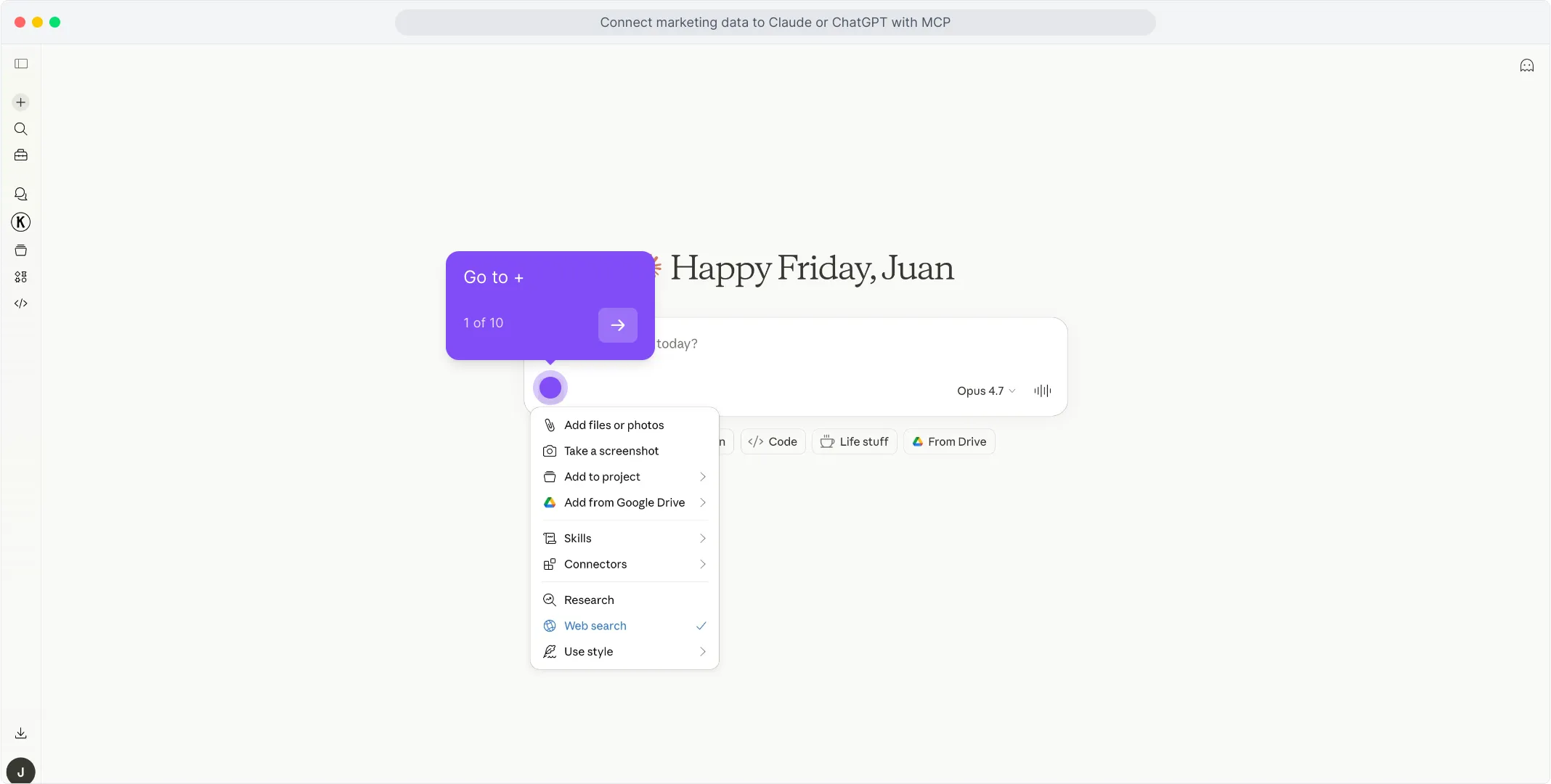
Go to claude.ai and click the + icon in the chat input to open the tools menu.
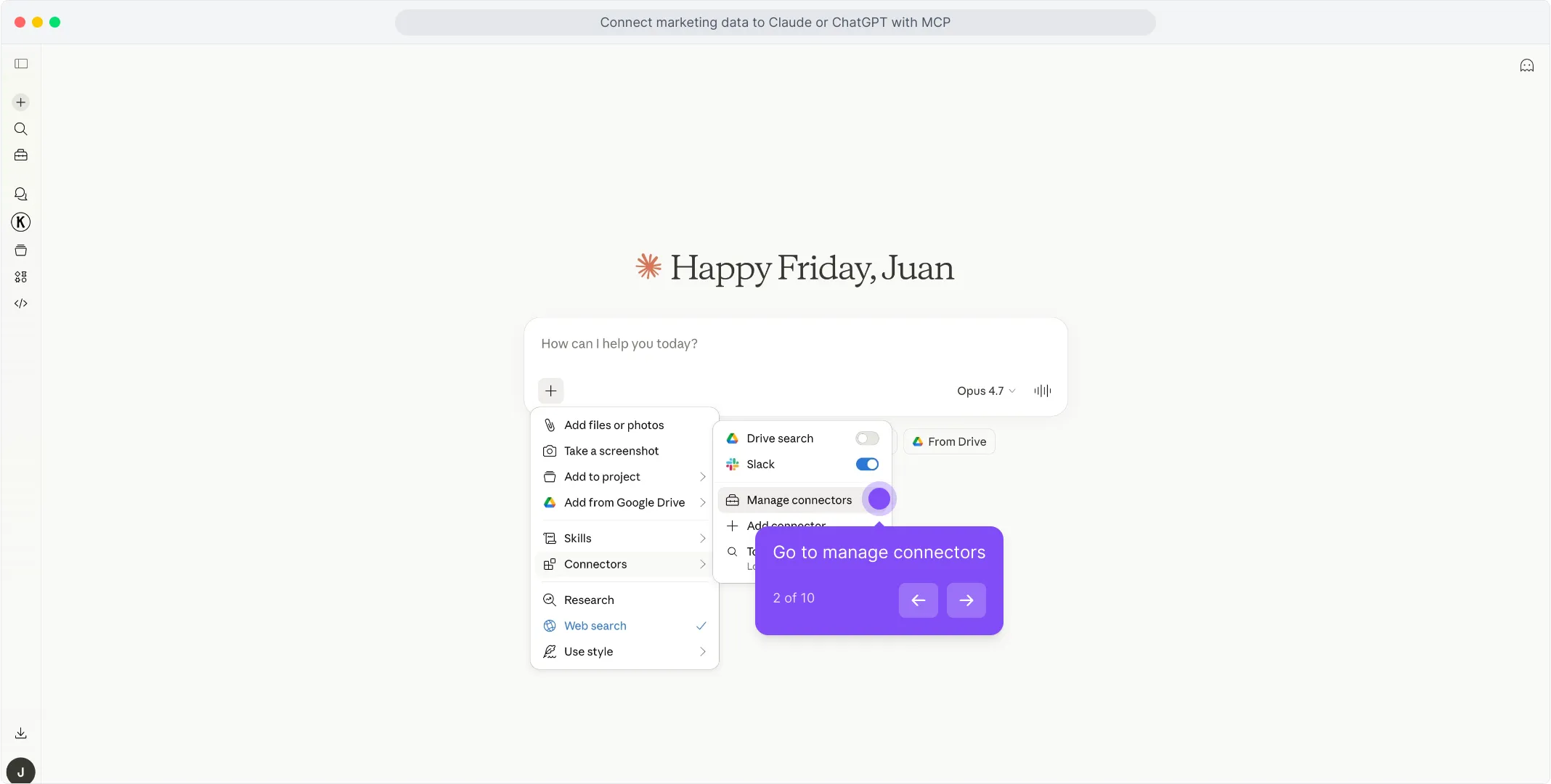
In the menu that opens, hover over Connectors and click Manage connectors.
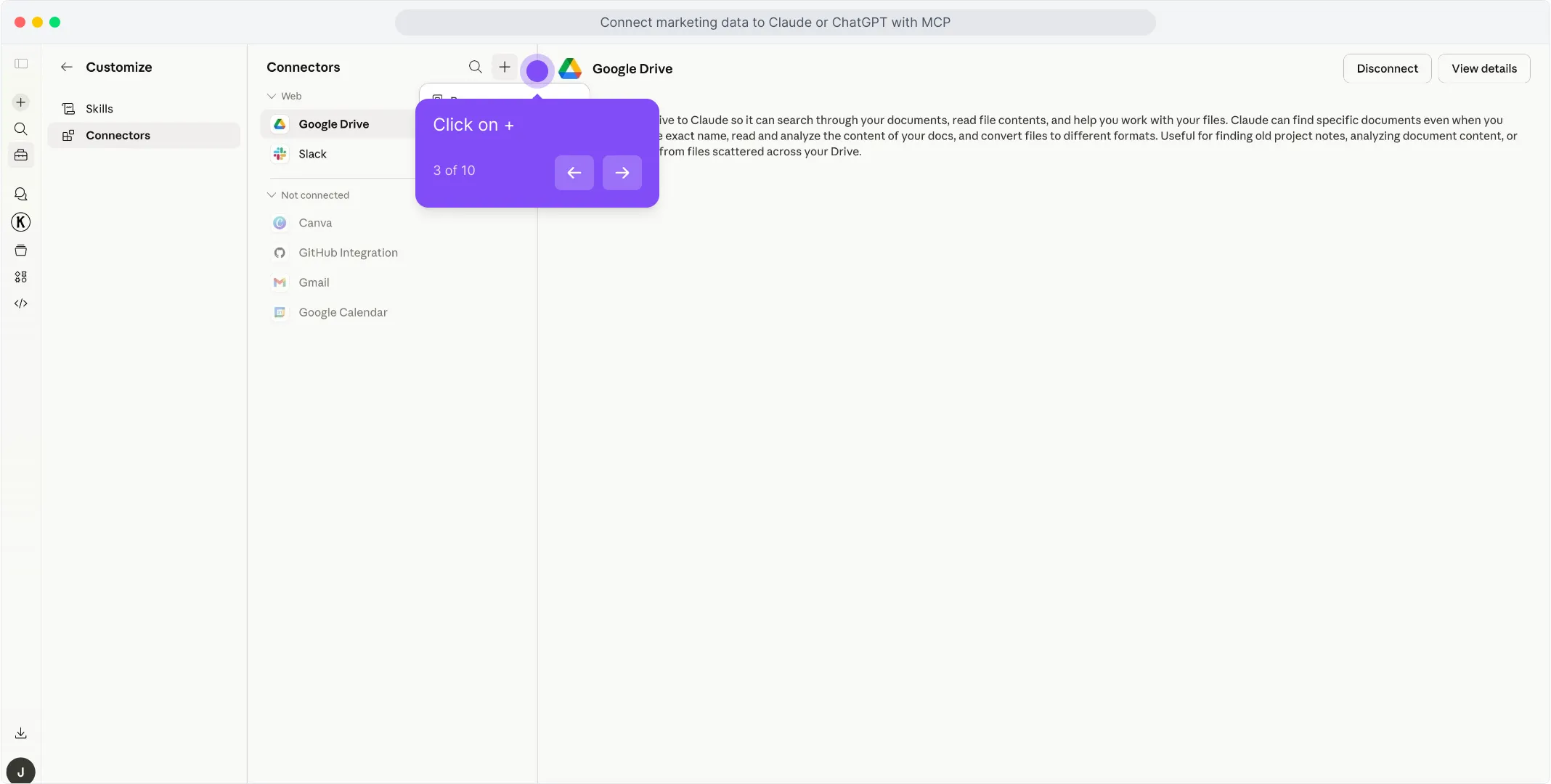
In the Connectors panel, click the + button at the top of the list to start adding a new connector.
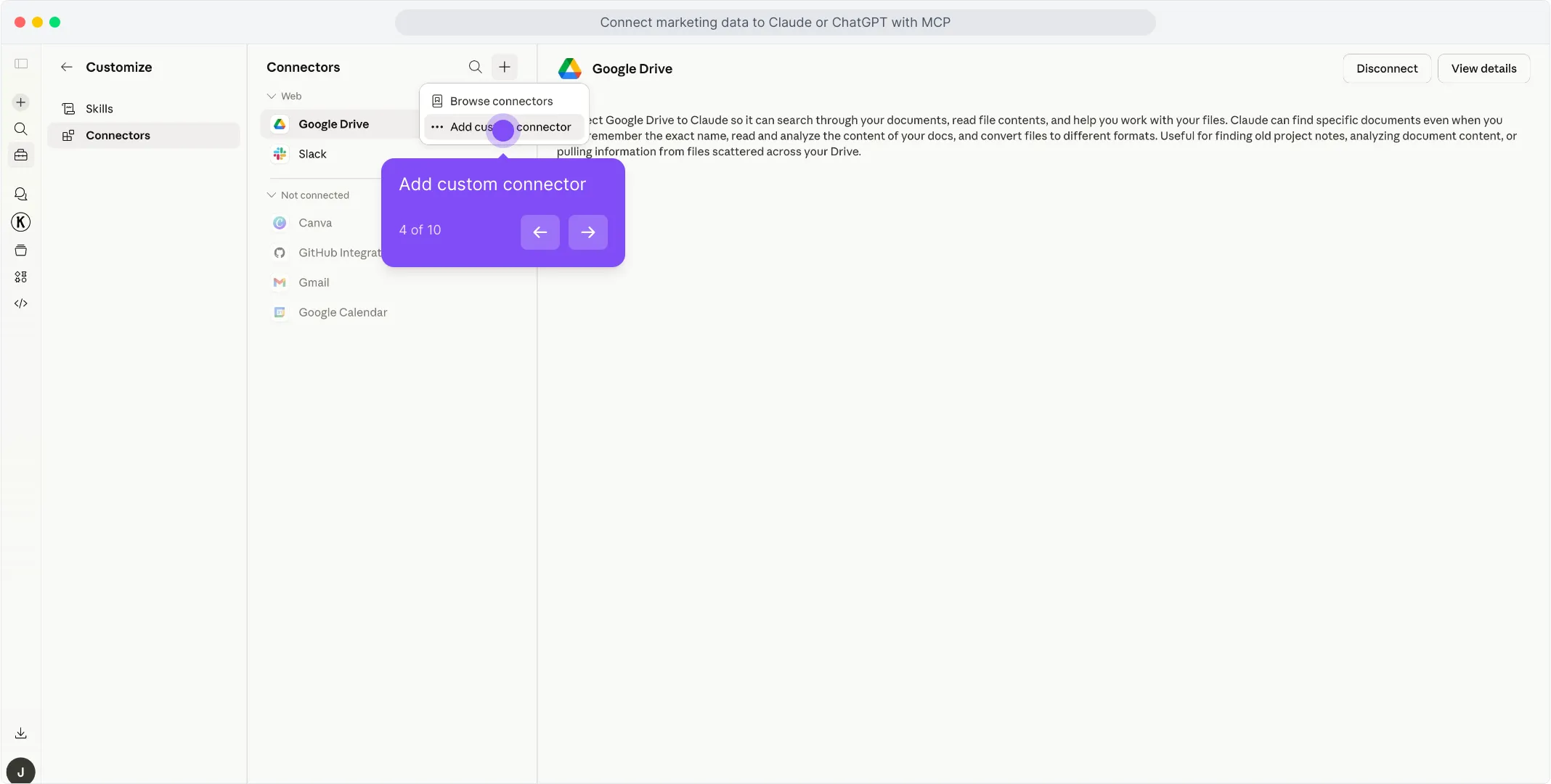
Pick Add custom connector from the dropdown that appears.
A dialog opens with the name and URL fields. Type Porter in the first field to name the connector.
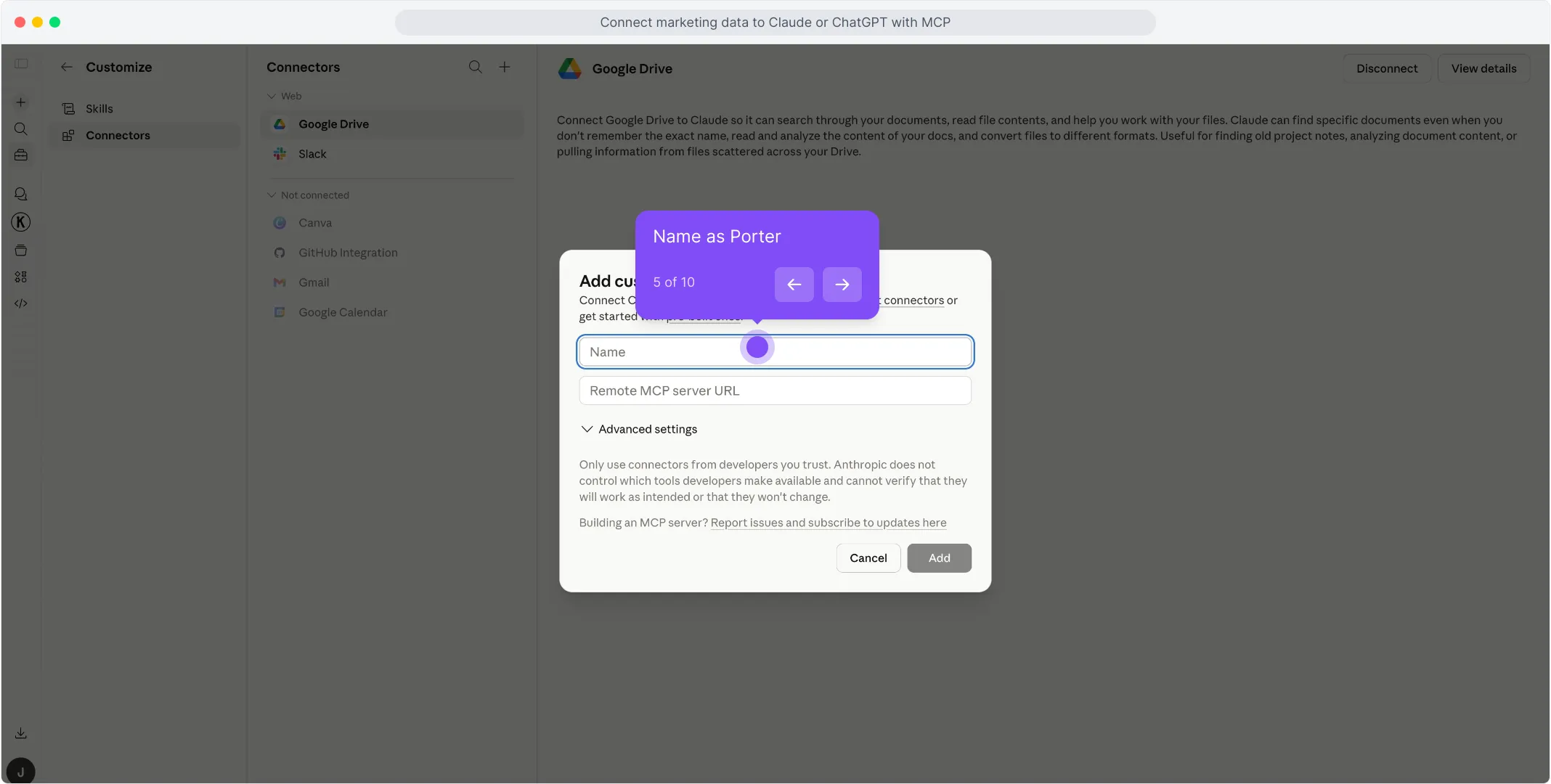
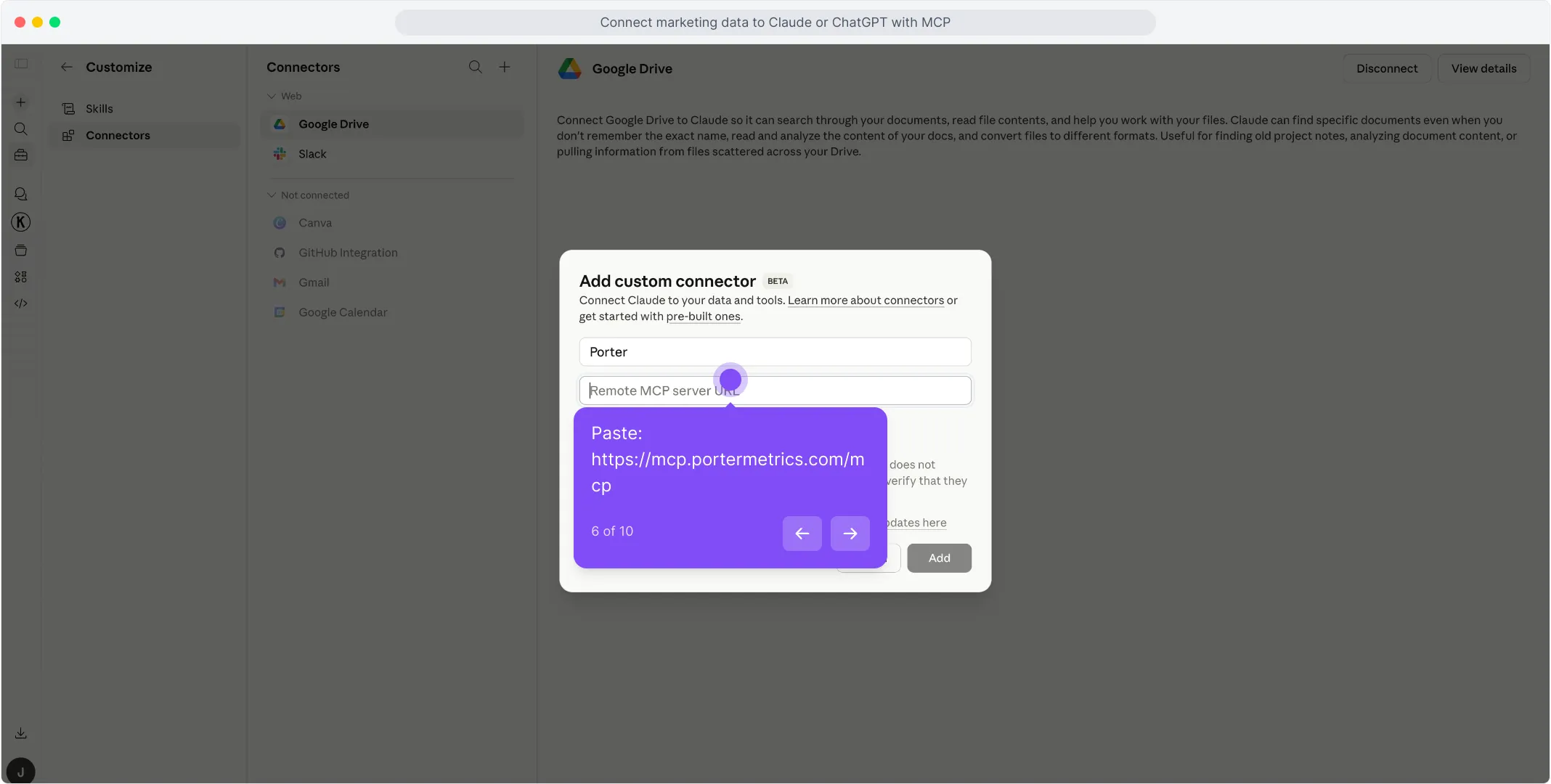
In the second field, paste https://mcp.portermetrics.com/mcp. Leave the advanced settings alone.
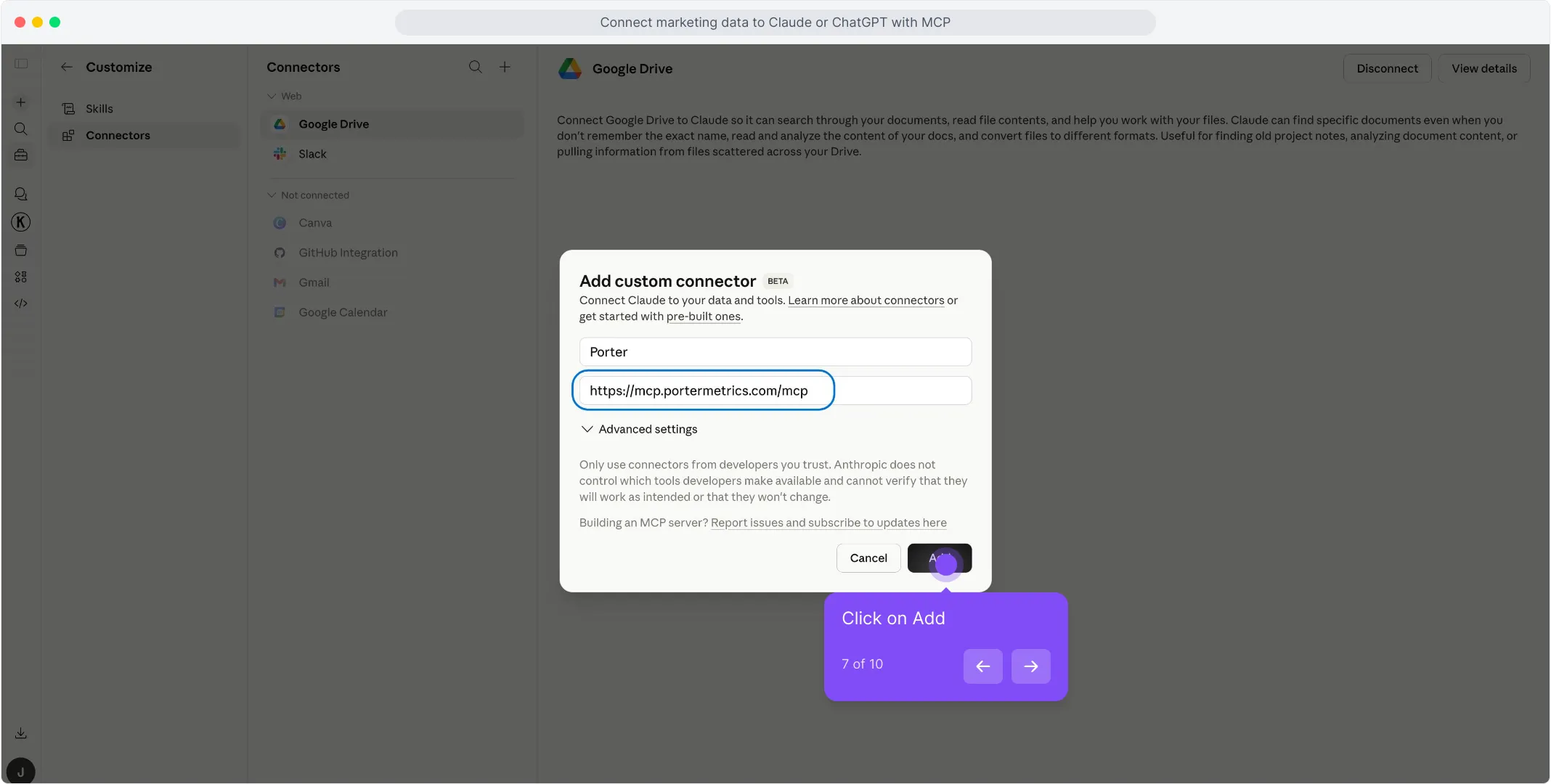
Click Add at the bottom right of the dialog. Claude opens a sign-in window — use the same Google account linked to your Porter workspace and approve access.
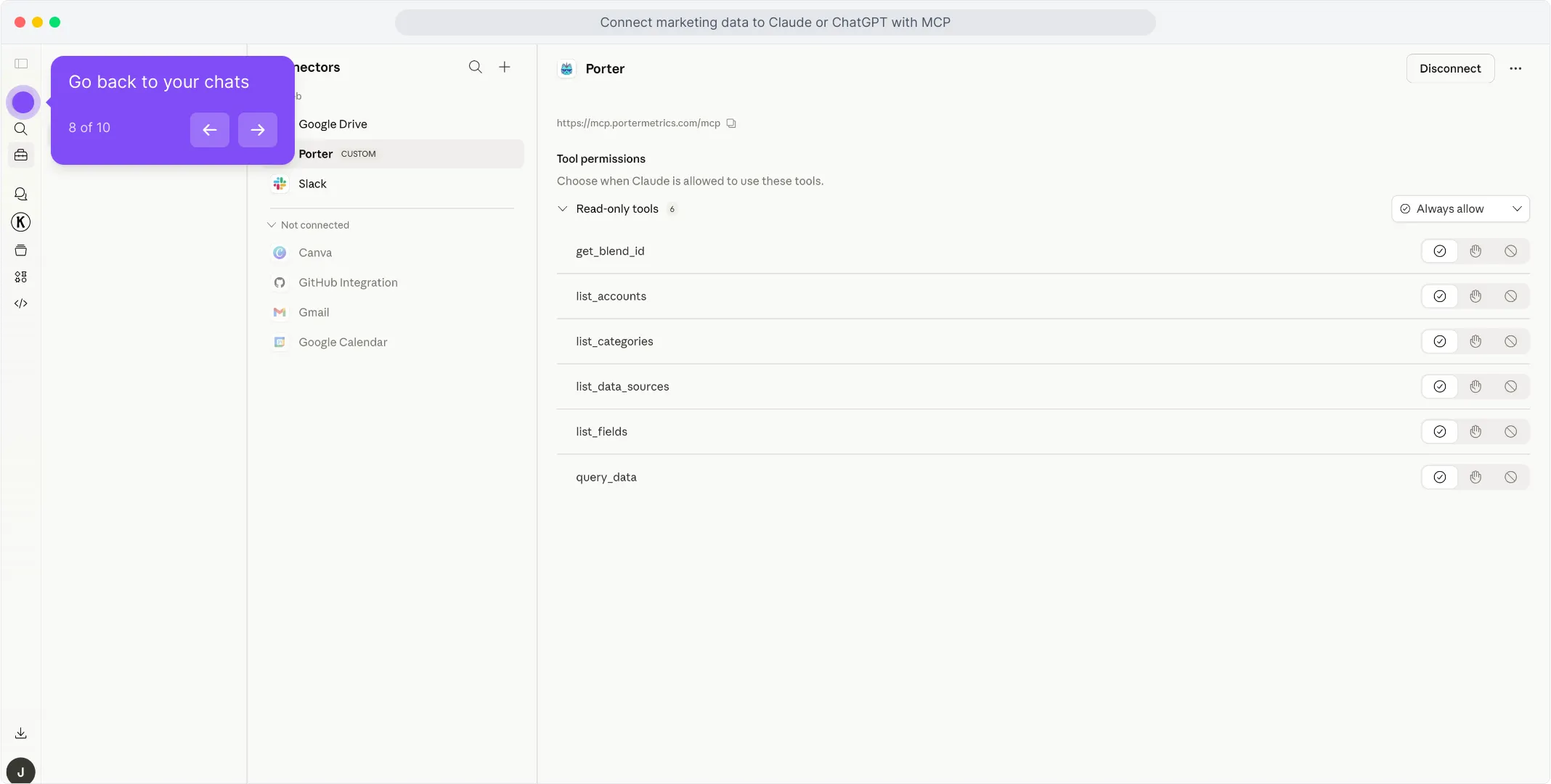
Once the authorization finishes, you’ll see Porter’s read-only tools appear in the connectors panel. You’re ready to start asking questions.
For a fuller walkthrough with screenshots at every step, see the Porter MCP tutorial.
3. Start building questions and dashboards
With Porter connected, open a new Claude chat and ask anything about your Google Ads in plain English. Claude calls Porter behind the scenes, pulls live data from Google, and answers with tables, charts, or summaries.
Try one of these to verify the setup is working:
For a full catalogue of copy-paste prompts organized by use case (performance, fatigue, budget, agency, B2B, e-commerce, cross-channel), jump to the prompts section below.
Alternative ways to connect Google Ads to Claude
MCP is the path we just walked through — and the one we recommend for most marketers. But it’s not the only way to get Google Ads data in front of Claude. The most common alternatives are Google Ads’s direct API (or its official MCP if it has one), a live Google Sheets bridge, and BigQuery for scale. Each has its trade-offs — pick the one that fits how your team already works.
- 🔌 Google Ads’s direct API (or official MCP) — Talk to Google’s Google Ads API yourself, or install Google Ads’s native MCP if one exists. Maximum control, but you handle auth, rate limits and pagination — and you only get one source.
- 📊 Google Sheets — Live Sheet or one-off CSV upload. Auditable, familiar, faster for big exports — but aggregation happens in the Sheet, not the API.
- 🗄️ Google BigQuery — For large accounts or agencies running multi-account analysis. BigQuery aggregates; Claude only queries pre-built summaries.
Via Google Ads’s direct API (or official MCP)
If you’re building a product around Google Ads — or you’re a developer who’d rather own every layer of the integration — the most direct path is talking to Google’s Google Ads API documentation yourself, or installing the Official Google Ads MCP server (if one exists). Google ships an official MCP server, but it requires Python 3.12, a Developer Token with Explorer access, OAuth Client ID/Secret, and ADC configuration — typically 2-4 hours of setup. You’ll need to follow Google’s Google Ads rate limits & quotas and request a Google Ads Developer Token / API access where applicable. Either way, you skip Porter entirely and call Google from your own code or from Claude Code with raw HTTP requests.
The trade-off to know. Going direct gives you maximum control and the freshest possible data — every endpoint, every parameter, no abstraction layer in between. But you’re now responsible for OAuth flows, refresh tokens, rate limits, pagination, schema changes, and error retries. And critically, you only get one source. The moment you also want Google Analytics 4, Shopify or HubSpot in the same conversation, you’re back to building (or stitching together) more integrations.
When this makes sense: engineering teams that need a single source with full control, products that ship Google Ads data as a feature (where you own the integration anyway), or one-off scripts where you don’t mind writing the auth and pagination code yourself. For marketers who want to ask questions in plain English and blend Google Ads with the rest of their stack in a single conversation, the Porter MCP path is dramatically less work.
Via Google Sheets (live Sheet or manual CSV)
If your team already lives in Google Sheets — or you want a paper trail before Claude touches anything — feed Google Ads into a Sheet, then let Claude read the Sheet. You can automate the Google Ads → Sheets pipeline with Porter so it refreshes daily, or do one-off CSV exports from Google Ads’s native UI for static analysis.
The trade-off to know. With the MCP path, Claude calls Google’s API directly and Google does the filtering and aggregation on its side — clean and deterministic. With the Sheets path, Claude aggregates inside the Sheet itself, which can introduce hallucinations on totals, averages, and joins when you have thousands of rows. The upside is speed: for very large date ranges or historical analysis, a pre-built Sheet is dramatically faster than live API calls.
When this makes sense: finance teams that want to review numbers before Claude acts on them, agencies already delivering client reports in Sheets, historical analysis across years of data, or any case where you care more about speed than real-time freshness.
Via Google BigQuery (for scale)
This is the path most people overlook — and it’s the one that saves you when your Google Ads account gets serious. A single large advertiser or an agency managing 10+ accounts will hit API rate limits and latency problems querying Claude directly. Claude will literally tell you it’s taking too long or timing out on big pulls.
BigQuery fixes that. You load Google Ads data into BigQuery tables on a schedule, then connect BigQuery to Claude — either through a BigQuery MCP or via Claude Code with SQL queries. Instead of asking Claude to pull raw Google Ads data, you let BigQuery aggregate into small, optimized tables, and Claude only queries the summarized output. Scale problem solved.
When this makes sense: enterprise accounts with millions of impressions, agencies running multi-account analysis across 10+ clients, or any team already using BigQuery as a data warehouse. Porter loads Google Ads (and 25+ other sources) directly into BigQuery so you don’t have to build your own ETL.
Read the full BigQuery tutorial →
Connecting Google Ads to Claude Code
Most marketers lump Claude and Claude Code together and miss the biggest advantage of the entire MCP ecosystem. They’re not the same tool — and the difference matters enormously once you start working with Google Ads data seriously.
Claude is a chat interface. You ask a question, Claude pulls live data through the MCP, answers, maybe builds a quick dashboard inside the conversation. Great for one-off analysis. The problem: everything is ephemeral. Want to refresh the dashboard tomorrow? You regenerate it from scratch. Want the same report every Monday? You re-ask the question every Monday.
Claude Code is Claude running inside your computer’s terminal. Because it has access to your filesystem, runtime, and other developer tools, it doesn’t just answer questions — it can build real software. Persistent scripts, scheduled routines, HTML apps, internal dashboards, integrations that run 24/7 without your input. Once it’s connected to Porter’s MCP for Google Ads, a whole category of work becomes possible.
What Claude Code unlocks that Claude alone cannot
This is where the MCP ecosystem pays off most. Because Claude Code can combine Porter’s MCP with other MCPs — Firecrawl for web scraping, Airtable for structured data, Notion for wikis, Vercel for deployment, Slack and Gmail for delivery — you’re no longer querying data. You’re building tools.
🛠️ Build your own budget management app
Stack: Porter MCP + Vercel MCP (or Cloudflare Pages, Netlify)
Feed Claude Code your Google Ads targets and goals — CPA goals, daily budgets, ROAS thresholds — and ask it to generate a custom ROI dashboard for each client. It builds the HTML, pulls live data, deploys to a URL. No Data Studio embed to break when the vendor changes pricing, no template constraints. The dashboard updates automatically because it queries Porter’s MCP on every page load.
Best for: agencies that want white-label client dashboards without Looker or Data Studio dependencies.
🔍 Full competitor + performance monitoring
Stack: Porter MCP + Firecrawl MCP
Combine your own Google Ads performance from Porter with competitor keywords and live ads from the Google Ads Auction Insights scraped via Firecrawl. Claude Code stitches both into a weekly competitive intelligence report — your numbers next to their bid strategies and ad copy angles, with an LLM summary on top of what changed week over week. Runs on cron, lands in your inbox every Monday morning.
Best for: in-house teams that need market context, not just internal numbers.
📚 Internal marketing wiki with live metrics
Stack: Porter MCP + Airtable MCP (or Notion MCP)
Use Airtable or Notion as the schema, Porter as the data source. Claude Code keeps every page populated with current spend, CPA, and ROAS for every account — no stale screenshots, no copy-paste from Excel. New hires read one wiki entry and have full context on a client’s account.
Best for: agencies and ops teams onboarding analysts or rotating account managers frequently.
🔔 24/7 alerts on spend, CTR, and quality drops
Stack: Porter MCP + Slack MCP (or Gmail MCP)
A Claude Code routine on cron pulls Google Ads via Porter, evaluates thresholds — CTR drops below 1%, daily spend spikes 2× the trailing average — and pushes Slack or Gmail alerts the moment something crosses the line. You stop checking dashboards reactively; the dashboard checks itself and tells you when to look.
Best for: any team that’s ever discovered a problem 48 hours too late because nobody opened the report.
Bottom line: Claude is for quick questions and ad-hoc dashboards. Claude Code is for building apps, live dashboards, alerts, and actual tools — anything you want to run on its own without re-asking. Same Porter MCP URL works in both, so you don’t pick once and lock in.
Use cases — what you can actually do once Google Ads is connected to Claude
Getting the connection right is half the battle. The real value shows up in what you do next. Here are the use cases Porter users build around their Google Ads data — from simple Q&A to full client-facing workflows.
1. Chat and ask questions directly
The simplest use case — and still the one 80% of marketers start with. Open Claude, ask a question, get an answer grounded in live data.
It’s the fastest way to replace a daily Google Ads UI check-in. But chat is table stakes — the interesting use cases come next.
2. Blend Google Ads with your revenue data (Stripe, HubSpot, Shopify)
This is where a 360° view gets real. When you connect Google Ads and your revenue source (Stripe for SaaS, HubSpot CRM for B2B, Shopify for e-commerce), Claude can map ad campaigns to actual closed-won deals or purchases — using UTM and campaign name — and give you attribution that no platform-side number can.
Claude handles the UTM and campaign name mapping and joins. You get a client-ready attribution report that no single platform can generate on its own.
3. Automated alerts and notifications on Slack or Gmail
With Claude Code you can turn Google Ads monitoring into a routine that runs on its own. Hook Porter’s MCP (for the data) together with a Slack or Gmail MCP (for delivery), then write a Claude Code scheduled task that pulls performance every morning and pings you only when something actually needs attention.
No dashboards, no daily check-ins. The report comes to you — and only when it matters.
4. Client-ready presentations with live data (Gamma, HTML, PDF)
A common agency pain: you send clients a Data Studio link, Looker breaks, the client panics — and you spend an hour explaining a broken dashboard. With Claude you can build the presentation itself — as a Gamma deck, a custom HTML page, or a PDF — populated with live numbers each time.
The presentation becomes a delivery artifact you send to the client, not a dashboard that depends on another tool staying up. No broken iframe, no login prompts, just the content.
Google Ads fields and metrics you can query with Claude
Before you start writing prompts, it helps to know what data is actually available. Porter MCP gives Claude access to 1,042 Google Ads fields and metrics across every reporting level, plus breakdowns by audience, device, geography, and search term. And the same MCP URL also unlocks 25+ other sources — so Claude can blend Google Ads with Google Analytics 4, Shopify, HubSpot and more in a single prompt.
 Active View CPMActive View CTRActive View ImpressionsActive View MeasurabilityActive View Measurable CostActive View Measurable ImpressionsActive View ViewabilityAvg. Impression Frequency per UserAuto-tagging EnabledAccepted Customer Data TermsCurrency CodeAccount name / descriptionCustomer Edit LinkFinal URL Suffix (Customer)Has Partners BadgeCustomer IDAd Group Asset IDBook on Google AssetCall Asset Ad Schedule TargetsCall Asset Conversion ActionCall Asset Conversion Reporting StateCountry Code (Call Asset)Phone Number (Call Asset)Call to Action AssetAd Action ItemsAdded by Google AdsApp Ad DescriptionsApp Ad HeadlinesApp Ad HTML5 Media BundlesApp Ad ImagesApp Ad Mandatory TextApp Ad YouTube VideosCampaign Accessible Bidding StrategyAd Serving Optimization StatusAdvertising channel subty…Advertising channel typeApp Campaign App IDApp Campaign App StoreApp Campaign Bidding GoalUse Audience GroupedAll conv.All Conv. (by Conv. Date)All conversions from click-to-callAll conversions from directionsAll conv. rate from InteractionsAll conv. from location asset click-to-callAll conv. from location asset directionsAll conv. from location asset menuAccessible Bidding Strategy IDAccessible Max Conv. Value Target ROASAccessible Max Conv. Target CPAAccessible Bidding Strategy NameAccessible Bidding Strategy Owner IDAccessible Bidding Strategy Owner NameAccessible Bidding Strategy Resource NameAccessible Target CPAActivity RatingAffiliate Location Chain IDsAffiliate Location Relationship TypeFeed AttributesFeed IDFeed Item Attribute ValuesFeed Item End Date/TimeFeed Item Geo-Targeting RestrictionAd Group Ad Label IDAd Group Label IDCampaign Label IDChange DateChange Date/TimeChange Resource NameChange Resource TypeChanged FieldsAd Group Audience View IDSearch keyword statusAgeAudience DescriptionAudience DimensionsAudience Exclusion DimensionAudience IDAudienceActivity CityActivity CountryActivity StateGeo Target AirportAirport IDGeo Target CantonCanton IDCityAd groupAd Rotation ModeAd Group Audience GroupedBase Ad GroupCampaign (Ad Group)CPC BidCPM BidCPV BidAvg. CostAvg. CPCAvg. CPEAvg. CPMAvg. CPVAverage Target CPAAverage Target ROASClicksImpression (Absolute Top) %Search Abs. Top IS (Auction)Search Impr. share (Auction)Search Outranking Share (Auction)Search Overlap Rate (Auction)Search Position Above Rate (Auction)Search Top IS (Auction)Display Lost IS (budget)Conversion categoryConversion Category NameConversion SourceConversion NameConversion Action OriginConversion Action Primary for GoalConversion Action Resource NameConversion Action StatusAll New Customer Lifetime ValueAverage Cart SizeAverage Order ValueCost of Goods SoldCross-Sell Cost of Goods SoldCross-Sell Gross ProfitCross-Sell RevenueCross-Sell Units SoldCall duration secondsCall statusCall Tracking Display LocationCaller Area CodeCaller Country CodeEnd Call Date/TimeCall View Resource NameStart Call DateGmail ForwardsGmail SavesGmail Secondary ClicksVideo played to 100%Video Played to 100% ViewsVideo played to 25%Video Played to 25% ViewsVideo played to 50%Pages / sessionAvg. session duration (se…)Bounce rateMobile Friendly Clicks Percentage% new sessionsSpeed ScoreUnique UsersValid AMP Clicks PercentageBiddable App Install ConversionsBiddable App Post-Install ConversionsSKAdNetwork InstallsSKAdNetwork Total Conversions
Prompts you can copy-paste today
1. Agencies
Use these when you need fast answers before client calls or want to automate weekly reporting across multiple accounts.
2. B2B marketers
Use these when lead quality and long sales cycles matter more than same-day purchases.
3. E-commerce teams
Use these when you need product-level profitability, search-term hygiene, and inventory-aware budget pacing.
4. Cross-channel analysis
Use these when you want to blend Google Ads with Shopify, HubSpot, GA4, or Search Console in a single conversation.
Limits, safety, and best practices for Google Ads via Claude
This is the representative experience, not a cautionary tale. The marketer above had a positive outcome because they used the API within its intended scope. The real vulnerability for Google Ads users is not “getting banned”—it is wasting hours on a self-hosted setup only to discover your developer token is locked to test accounts, or burning through your daily operation quota on inefficient GAQL queries and having your analysis session cut off mid-afternoon. For a marketing team managing $8K–$50K/month in ad spend, the cost is not account loss; it is lost productivity, delayed reporting, and decisions made on stale data because the API path you chose was too slow or too limited.
Google’s rate-limiting is quota-based and dynamically metered, not tool-based. Google does not ban or suspend accounts because you used Claude or an MCP server. It throttles or returns errors because of how the API was used: exceeding the Token Bucket capacity for your access tier, sending mutate requests above the 10,000-operation-per-request ceiling, or hitting the Planning Service at more than 1 QPS. Read-only queries within your daily operation budget are safe. Parallel bursts that spike QPS, mutate-at-scale workflows that batch too aggressively, or requests that exceed the 64 MB gRPC message size are not. Violations surface as RESOURCE_TEMPORARILY_EXHAUSTED or RESOURCE_EXHAUSTED errors—not account bans.
The three ways to burn through your Google Ads quota
After reviewing official docs and community threads, three patterns come up again and again.
1. Parallel API bursts that spike QPS beyond the Token Bucket. Sending high volumes of concurrent requests to the Google Ads API triggers dynamic throttling. Google’s system meters queries per second per client customer ID and developer token using a Token Bucket algorithm; there is no fixed QPS number published, but parallel bursts can exhaust the bucket and return RESOURCE_TEMPORARILY_EXHAUSTED errors that halt your analysis session. The safer approach is sequential or lightly parallelized requests with exponential backoff. Source: Google Ads API documentation
2. Mutate requests that batch too many operations into a single call. The Google Ads API allows up to 10,000 operations per mutate request, but approaching that ceiling with complex operations (e.g., campaign creation with multiple ad groups, ads, and keywords) increases the risk of partial failures, long execution times, and gRPC message size approaching the 64 MB maximum. A failed massive mutate can leave your account in an inconsistent state and burn quota without delivering results. Break large changes into smaller, validated batches. Source: Google Ads rate limits & quotas
3. Running Planning Service queries (KeywordPlanIdeaService, AudienceInsightsService) at production speed. These services have strict, low ceilings: KeywordPlanIdeaService is limited to 1 request per second per CID, and AudienceInsightsService is limited to 2 requests per second per developer token. Marketers used to pulling large keyword research datasets quickly will hit these walls immediately. The result is not a ban—it is a stalled workflow and incomplete keyword lists that lead to suboptimal campaign decisions. Source: Google Ads rate limits & quotas
All three behaviors trigger RESOURCE_EXHAUSTED or RESOURCE_TEMPORARILY_EXHAUSTED errors. If you want to use Claude for Google Ads safely, stay within your tier’s daily budget, batch mutates conservatively, and throttle Planning Service calls explicitly.
The 5-rule scaling protocol
Based on Google’s documented quotas and the behaviors that have actually caused quota exhaustion — not guesswork:
- Stay within your access tier’s daily operation budget. Explorer access allows 2,880 operations per day on production accounts and 15,000 operations per day on test accounts. Basic access allows 15,000 operations per day on production. Exceeding these hard caps returns
RESOURCE_EXHAUSTEDand stops all queries until the daily window resets. If you are running large historical pulls or cross-account analysis, upgrade to Basic access before you start. Source: Google Ads rate limits & quotas
- Cap mutate batches at 1,000–2,000 operations per request, not the 10,000 maximum. While the API technically accepts up to 10,000 operations per mutate request, staying well below that ceiling reduces partial-failure risk, keeps gRPC message size far from the 64 MB limit, and makes error debugging tractable. If one ad group in a 10,000-operation batch fails validation, the entire retry logic becomes complex. Smaller batches fail gracefully and preserve quota. Source: Google Ads rate limits & quotas
- Respect Planning Service rate limits: 1 QPS for KeywordPlanIdeaService, 2 QPS for AudienceInsightsService. These are hard, documented ceilings—not dynamic. If your Claude workflow includes keyword research or audience sizing, throttle these calls explicitly. Hitting the limit does not trigger a ban, but it does return errors that break prompt chains and produce incomplete outputs. Source: Google Ads rate limits & quotas
- Scope your OAuth to the minimum required permissions and rotate credentials every 90 days. The Google Ads API requires the
https://www.googleapis.com/auth/adwordsscope. Do not request broader Google Cloud or Gmail scopes alongside it. The MCP server documentation explicitly warns: “The MCP Server will expose your data to the Agent or LLM that you connect to it.” Minimizing scope limits blast radius if a token is compromised. Source: Official Google Ads MCP server
- Use test accounts for development and validate GAQL queries before production runs. Google Ads API test accounts do not serve real ads and have relaxed quota limits (15,000 operations/day under Explorer access vs. 2,880 on production). Running an untested, broad GAQL query against a production account with 50,000 keywords can burn your entire daily quota in a single call. Test first, scope your
WHEREclauses tightly, and paginate withLIMITandOFFSET. Source: Google Ads rate limits & quotas
What Porter MCP does differently: it enforces these limits and safeguards at the platform level. Porter handles OAuth scope minimization automatically, requesting only the adwords scope required for read-only analysis. Rate limiting with intelligent backoff is built into the connector—Porter batches requests to stay well within the Token Bucket and surfaces clear error messages if a query is too broad, rather than returning raw RESOURCE_EXHAUSTED gRPC errors. Per-account query batching means you can analyze multiple Google Ads accounts in the same Claude conversation without accidentally aggregating requests under a single developer token and hitting shared quota ceilings. That’s the behavior Google’s automated systems handle gracefully—and the behavior that keeps your analysis sessions running without interruption.
Frequently asked questions
A Google Ads MCP (Model Context Protocol) is an open standard that lets AI tools — Claude, Claude Code, ChatGPT, Cursor — connect to your Google Ads data without custom integrations. Porter’s MCP server makes your campaigns, ad groups, ads, keywords, and metrics available through one URL: no tokens, no scripts, no developer setup.
Claude is the conversational product (web, app, mobile). Claude Code is a terminal-based developer tool that can write scripts, save files, and automate workflows. Both can connect to Google Ads via MCP.
Google’s API refreshes reporting data regularly . Porter MCP pulls live, so your data is always within that window.
Yes. Google enforces tiered daily operation budgets (Explorer: 2,880/day on production; Basic: 15,000/day) and per-service QPS caps like 1 QPS for KeywordPlanIdeaService. Porter MCP batches and caches requests automatically so you rarely hit them.
Three common reasons: (1) Refresh lag — API data can lag behind the UI. (2) Status filtering — the API may include removed entities the UI hides by default. (3) Attribution windows — conversion counts differ based on lookback settings. The fix: align date ranges, status filters, and attribution settings across both sources.
No. Google doesn’t ban or restrict accounts for legitimate API usage, and Porter MCP is read-only by default — it stays well inside Google’s normal rate limits. The thing to watch is quota exhaustion from oversized batches or parallel bursts — see the limits section above.
Ready to chat with your Google Ads?
Open Claude, add the Porter connector, and ask your first question. If you don’t have Porter yet, start a free trial and connect your Google Ads account — you’ll be chatting with your campaigns in under five minutes.
rocket_launchStart free Porter trialopen_in_newOpen Claude