






To connect LinkedIn Pages to Claude via MCP: copy mcp.portermetrics.com/mcp, go to Claude.ai, open Connectors → Manage connectors → Add custom connector, paste the URL, and sign in. From there, ask Claude anything about your LinkedIn Pages Company Pages in plain English.
Once connected, you can automate your LinkedIn Pages reporting and analysis — ask questions about your data, build dashboards, trigger alerts, or ship client-ready reports like the one below.
Prerequisites
- A Porter Metrics account with your LinkedIn Pages account connected (free tier is enough to try it end-to-end)
- A Claude account — the free plan works for Claude Web; a Pro subscription is needed for Claude Code and Desktop MCP features
- Admin or standard access to the LinkedIn Pages Company Pages you want to connect
Connect LinkedIn Pages to Claude with MCP
For this tutorial we’re going with the MCP method. Here’s a quick explainer of what MCP is and why it’s the best path for LinkedIn Pages.
MCP (Model Context Protocol) is the open standard that lets AI tools like Claude, ChatGPT, Claude Code and others access and use external APIs — the things that make tools like LinkedIn Pages work under the hood. Instead of building a custom integration for every AI tool you use, you install one MCP and every compatible AI gets access to the same data. Four reasons MCP wins for LinkedIn Pages:- 📋 Copy-paste setup — No tokens, no scripts, no developer help — literally paste one URL into Claude and you’re done.
- 🔌 Works with every AI tool — Claude, Claude Code, ChatGPT, Cursor, Antigravity, Lovable, Vercel v0, Zapier. One MCP URL, every tool that speaks the protocol.
- 🔀 20+ sources in one connection — Porter’s MCP ships LinkedIn Pages plus Google Ads, GA4, Shopify, HubSpot, Klaviyo, Google Sheets and 20+ more. Query and blend them all in a single conversation.
- 🎛️ Perfect granularity — Spreadsheets lock you into the columns you exported. MCP hits LinkedIn’s API directly — so you can filter by post, break down by page section (About, Careers, Jobs) or device (Desktop vs Mobile), and add new dimensions on the fly without rebuilding tables.
The full setup takes under 5 minutes and breaks into three moves: connect LinkedIn Pages to Porter, point Claude at the Porter MCP, and ask your first question.
1. Connect your LinkedIn Pages data to Porter
Porter sits between LinkedIn’s Marketing API and Claude. It handles OAuth, rate limiting, pagination and all the plumbing so Claude only ever sees clean, structured data.
Sign up for Porter. Create a free account at portermetrics.com. The free tier is enough to run this full workflow end-to-end. Connect your LinkedIn account. In Porter, click Create → pick Claude as the destination → select LinkedIn Pages as the source → sign in with LinkedIn to grant access to your Company Pages. Require Super Admin or Content Admin role. LinkedIn Company Pages require administrative privileges to authorize analytics access. Ensure you have the proper role assigned on the Page before starting OAuth, or the connection will fail at the authorization step. Select your Company Pages. Choose the LinkedIn Pages Company Pages you want Claude to query. When you select multiple Company Pages under a single connection, Porter automatically blends their data together so you can query them as one.Optional: enable automatic BigQuery storage if you’re connecting multiple Company Pages with large data volumes. This keeps Claude’s responses fast even at scale.
2. Connect the MCP to Claude
Porter’s MCP URL is what you paste into Claude. Once added, Claude can query LinkedIn Pages data on demand in any conversation.
Go to claude.ai and click the + icon in the chat input to open the tools menu.
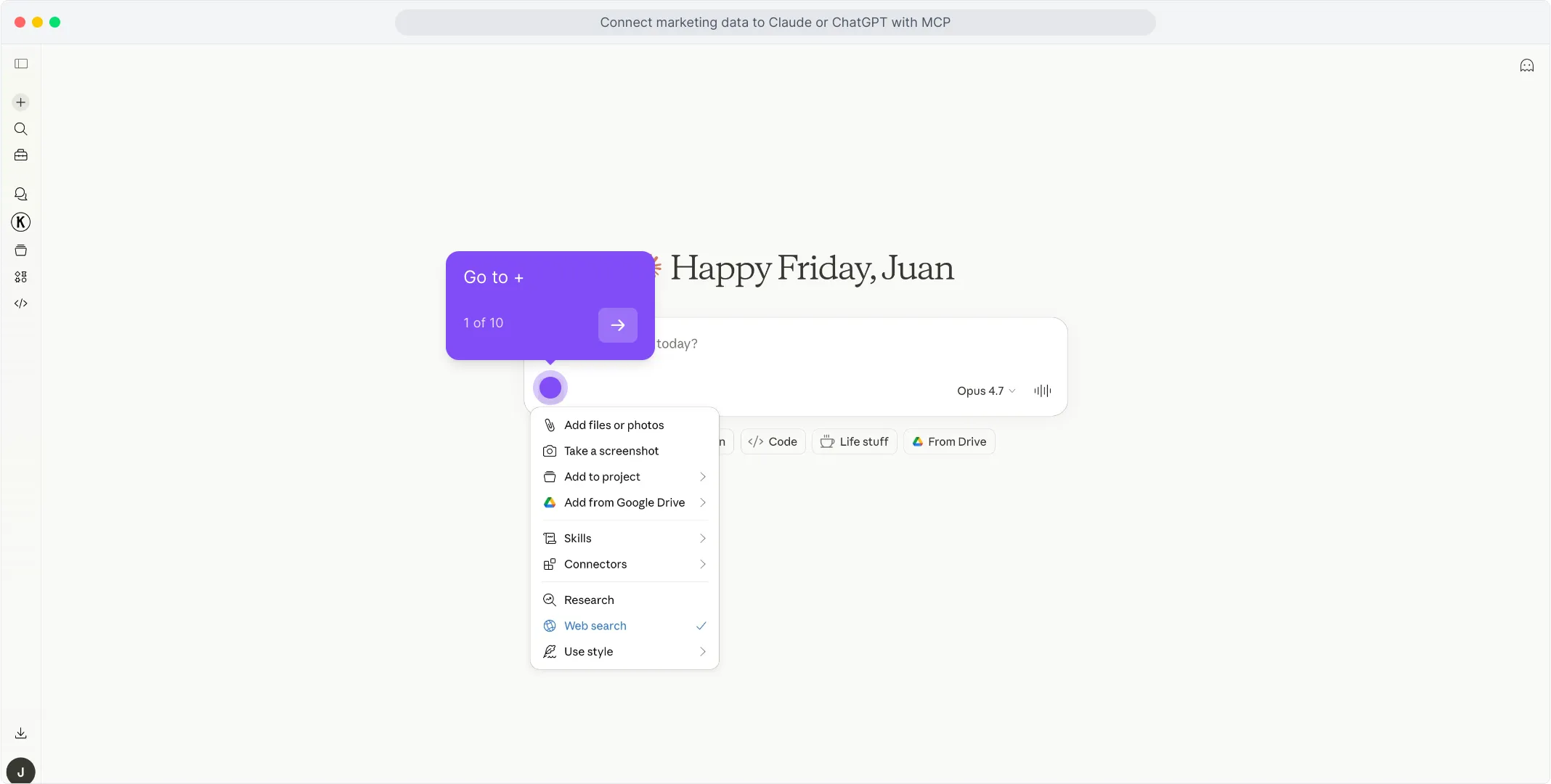
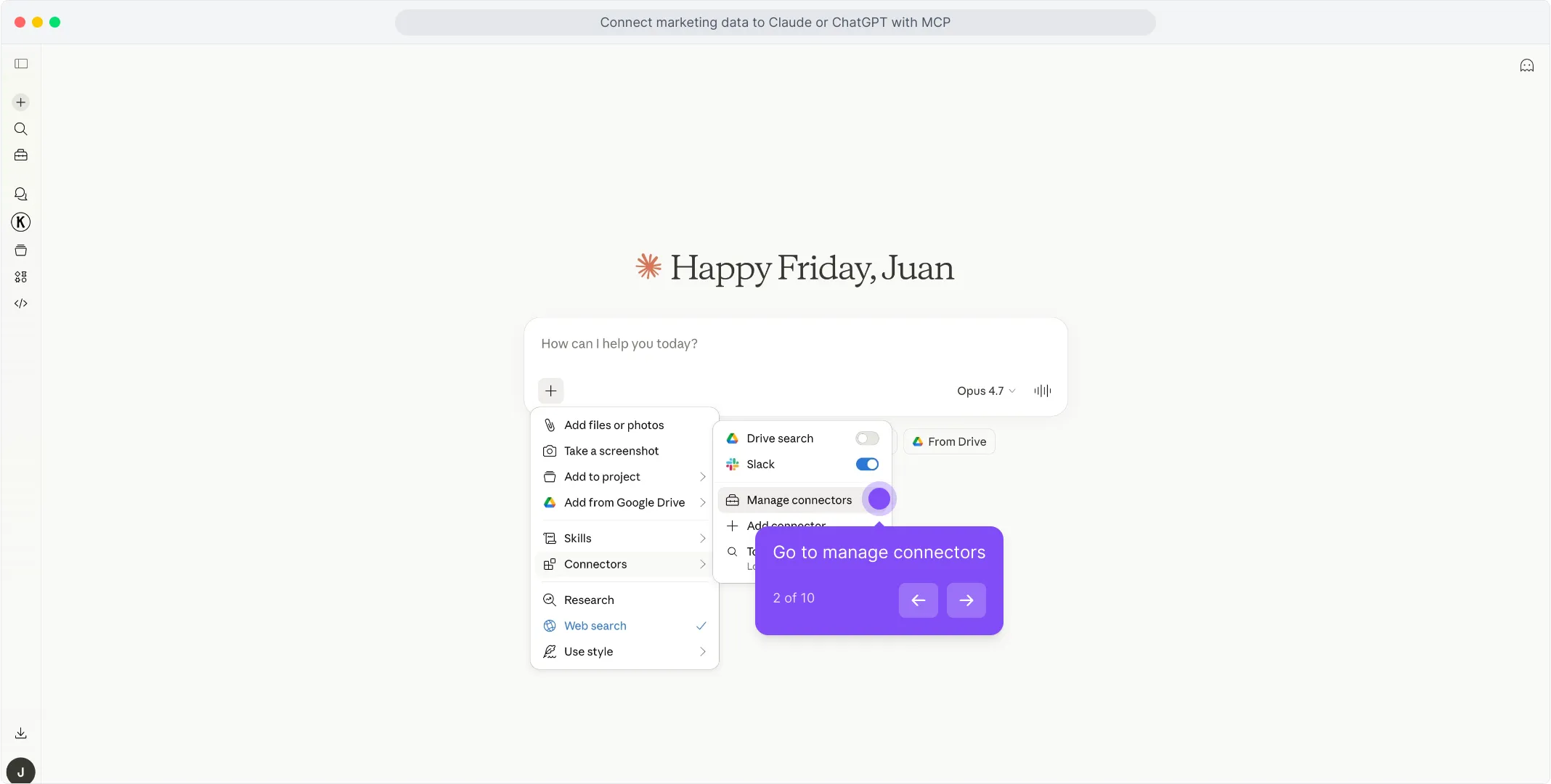
In the menu that opens, hover over Connectors and click Manage connectors.
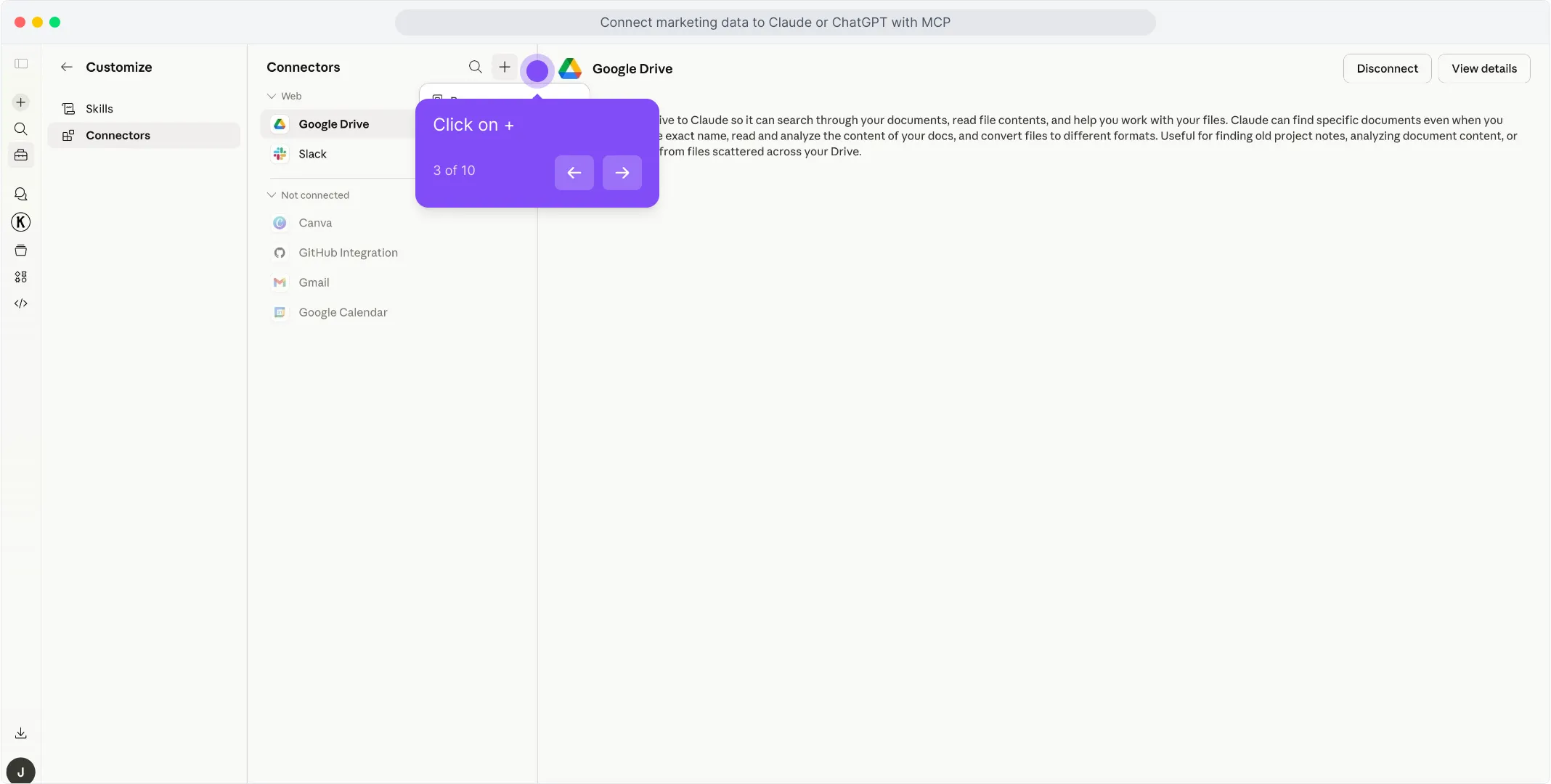
In the Connectors panel, click the + button at the top of the list to start adding a new connector.
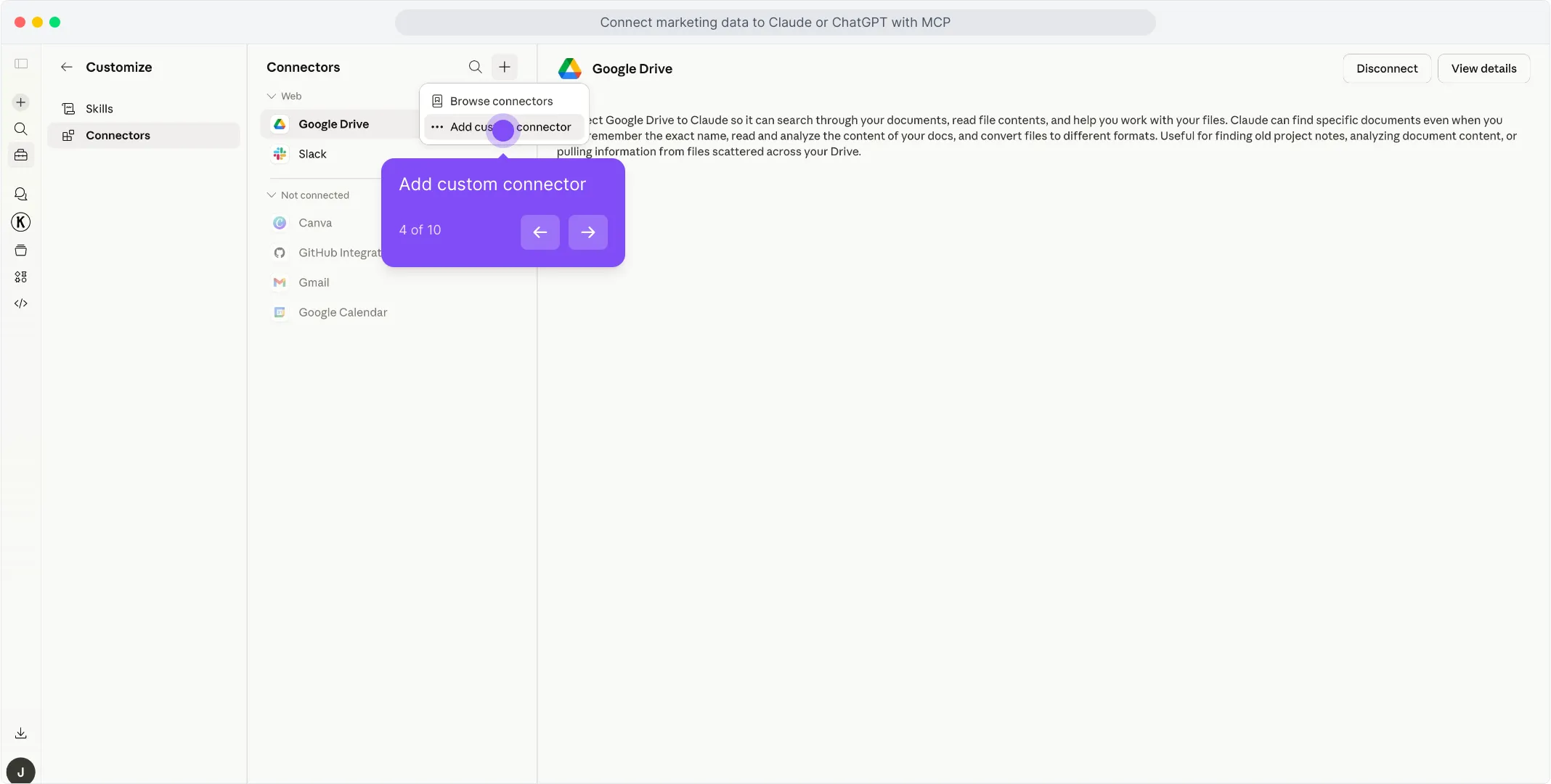
Pick Add custom connector from the dropdown that appears.
A dialog opens with the name and URL fields. Type Porter in the first field to name the connector.
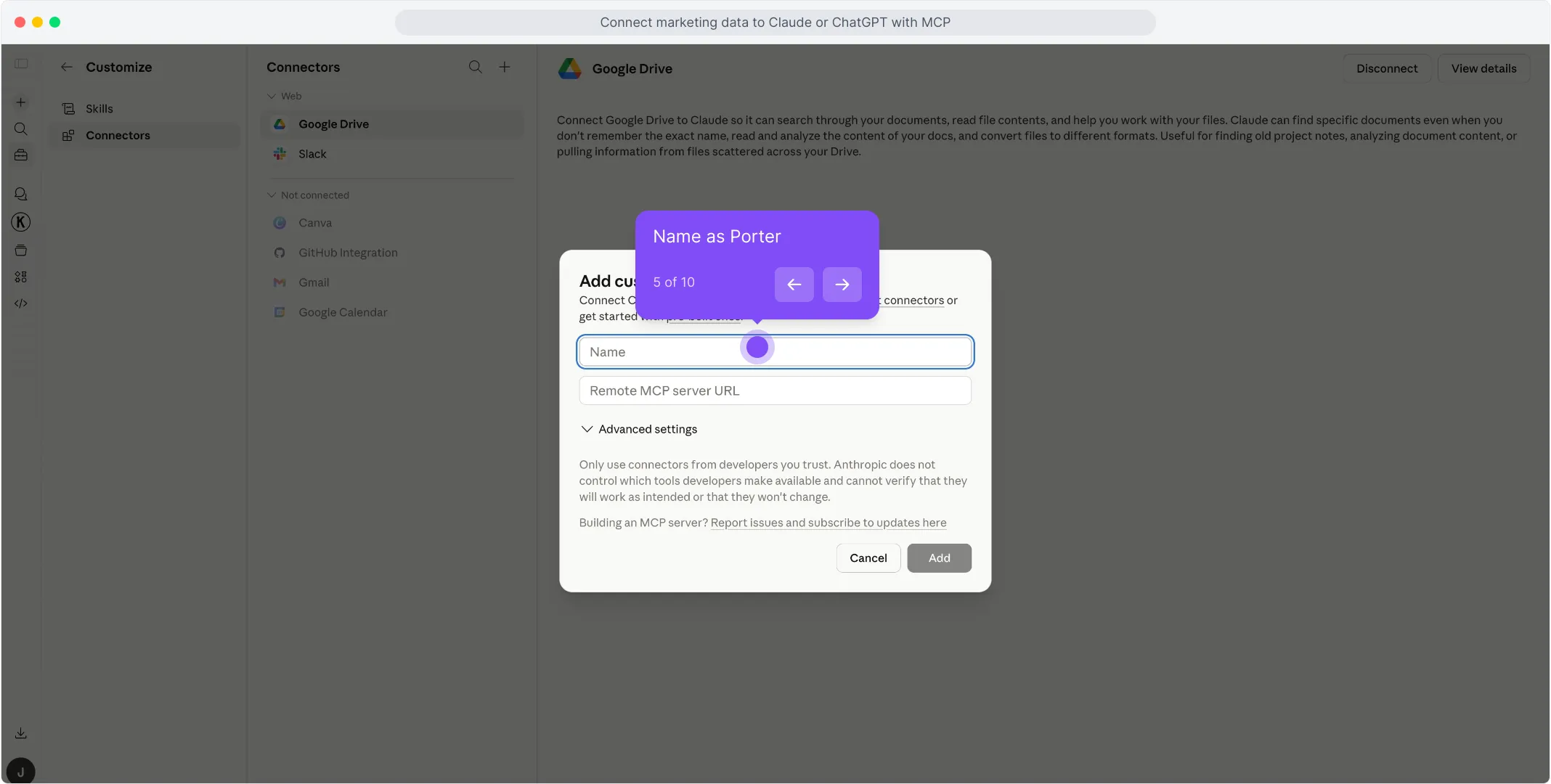
In the second field, paste https://mcp.portermetrics.com/mcp. Leave the advanced settings alone.
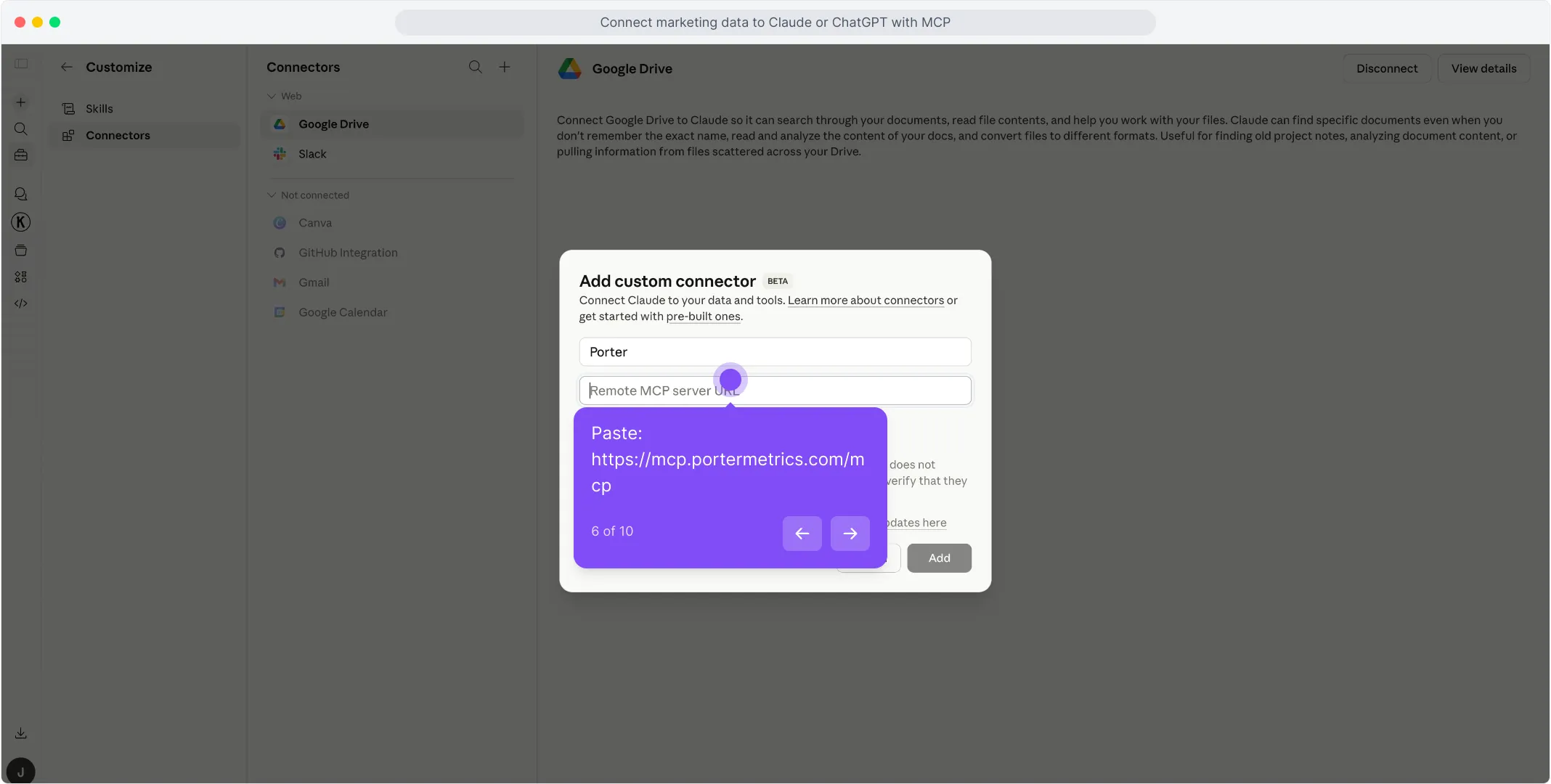
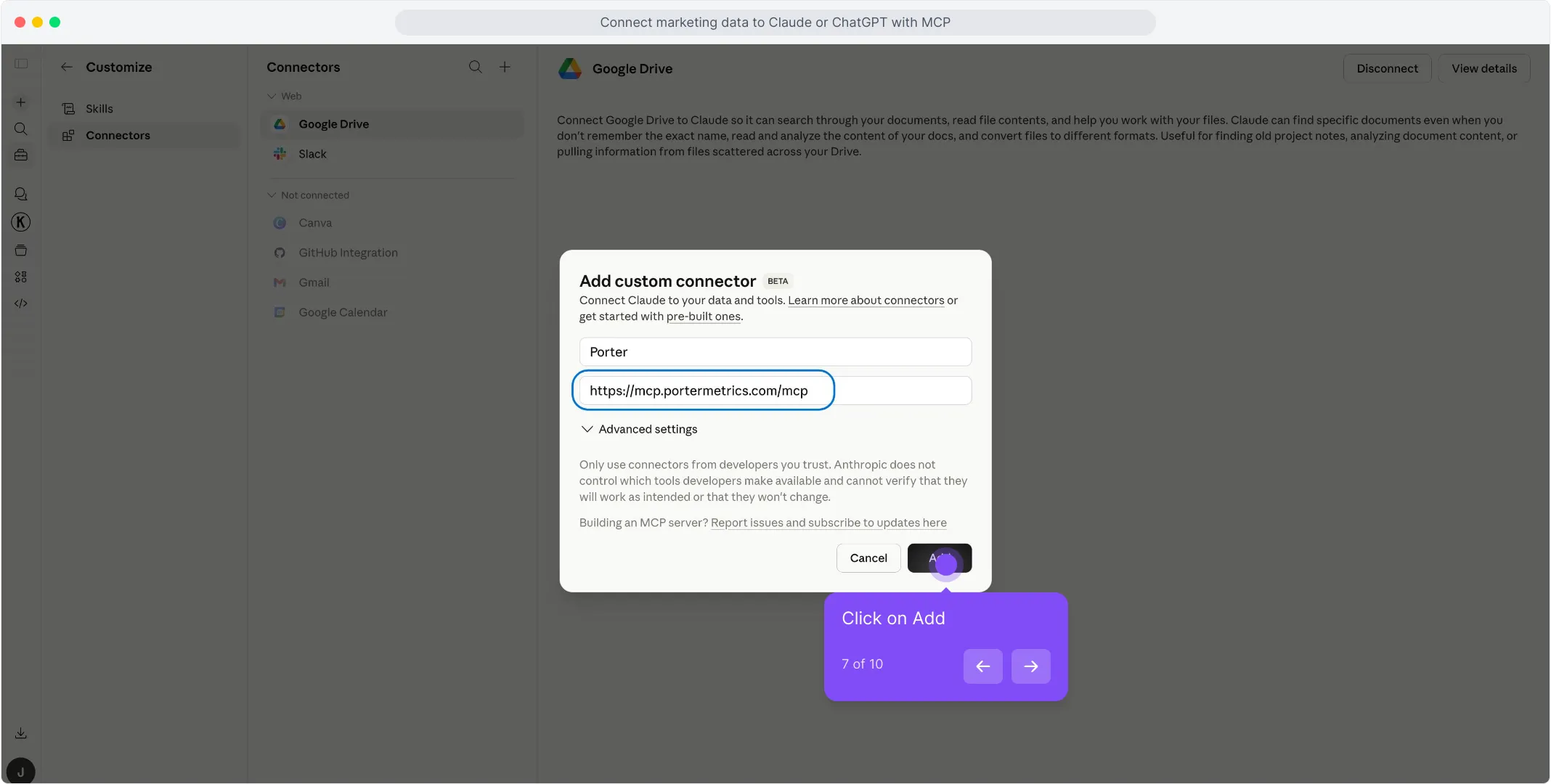
Click Add at the bottom right of the dialog. Claude opens a sign-in window — use the same Google account linked to your Porter workspace and approve access.
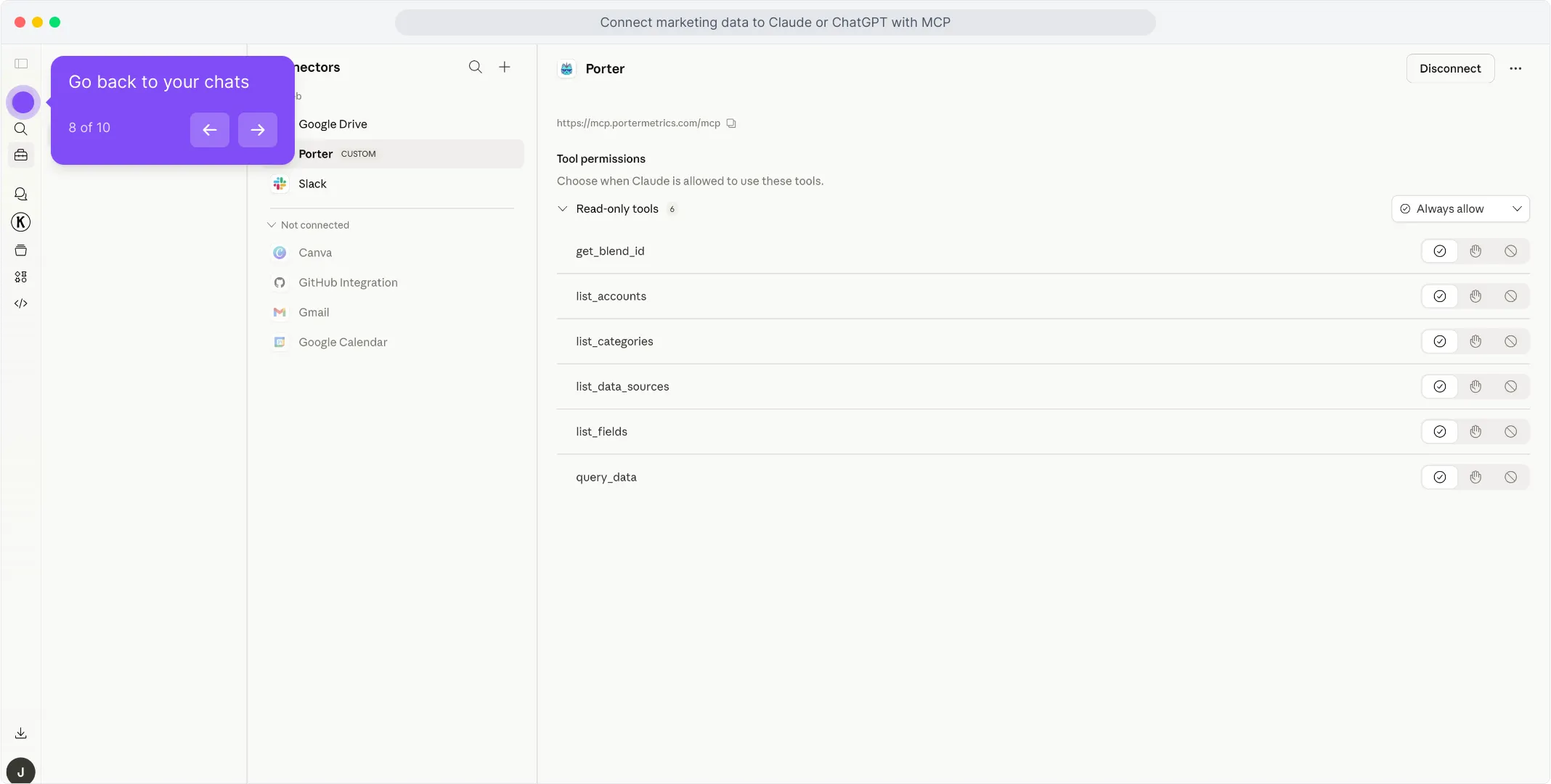
Once the authorization finishes, you’ll see Porter’s read-only tools appear in the connectors panel. You’re ready to start asking questions.
For a fuller walkthrough with screenshots at every step, see the Porter MCP tutorial.
3. Start building questions and dashboards
With Porter connected, open a new Claude chat and ask anything about your LinkedIn Pages in plain English. Claude calls Porter behind the scenes, pulls live data from LinkedIn, and answers with tables, charts, or summaries.
Try one of these to verify the setup is working:
For a full catalogue of copy-paste prompts organized by use case (performance, fatigue, budget, agency, B2B, e-commerce, cross-channel), jump to the prompts section below.
Alternative ways to connect LinkedIn Pages to Claude
MCP is the path we just walked through — and the one we recommend for most marketers. But it’s not the only way to get LinkedIn Pages data in front of Claude. The most common alternatives are LinkedIn Pages’s direct API (or its official MCP if it has one), a live Google Sheets bridge, and BigQuery for scale. Each has its trade-offs — pick the one that fits how your team already works.
- 🔌 LinkedIn Pages’s direct API (or official MCP) — Talk to LinkedIn’s Marketing API yourself, or install LinkedIn Pages’s native MCP if one exists. Maximum control, but you handle auth, rate limits and pagination — and you only get one source.
- 📊 Google Sheets — Live Sheet or one-off CSV upload. Auditable, familiar, faster for big exports — but aggregation happens in the Sheet, not the API.
- 🗄️ Google BigQuery — For large Company Pages or agencies running multi-Company Page analysis. BigQuery aggregates; Claude only queries pre-built summaries.
Via LinkedIn Pages’s direct API (or official MCP)
If you’re building a product around LinkedIn Pages — or you’re a developer who’d rather own every layer of the integration — the most direct path is talking to LinkedIn’s Marketing API yourself, or installing the official LinkedIn Pages MCP (if one exists). LinkedIn doesn’t ship an official MCP yet, so this means writing API calls directly in Claude Code or in your own scripts. You’ll need to follow LinkedIn’s rate limits & quotas and request a Developer Token / API access where applicable. Either way, you skip Porter entirely and call LinkedIn from your own code or from Claude Code with raw HTTP requests.
The trade-off to know. Going direct gives you maximum control and the freshest possible data — every endpoint, every parameter, no abstraction layer in between. But you’re now responsible for OAuth flows, refresh tokens, rate limits, pagination, schema changes, and error retries. And critically, you only get one source. The moment you also want Google Ads, GA4 or Shopify in the same conversation, you’re back to building (or stitching together) more integrations. When this makes sense: engineering teams that need a single source with full control, products that ship LinkedIn Pages data as a feature (where you own the integration anyway), or one-off scripts where you don’t mind writing the auth and pagination code yourself. For marketers who want to ask questions in plain English and blend LinkedIn Pages with the rest of their stack in a single conversation, the Porter MCP path is dramatically less work.Via Google Sheets (live Sheet or manual CSV)
If your team already lives in Google Sheets — or you want a paper trail before Claude touches anything — feed LinkedIn Pages into a Sheet, then let Claude read the Sheet. You can automate the LinkedIn Pages → Sheets pipeline with Porter so it refreshes daily, or do one-off CSV exports from LinkedIn Pages’s native UI for static analysis.
The trade-off to know. With the MCP path, Claude calls LinkedIn’s API directly and LinkedIn does the filtering and aggregation on its side — clean and deterministic. With the Sheets path, Claude aggregates inside the Sheet itself, which can introduce hallucinations on totals, averages, and joins when you have thousands of rows. The upside is speed: for very large date ranges or historical analysis, a pre-built Sheet is dramatically faster than live API calls. When this makes sense: finance teams that want to review numbers before Claude acts on them, agencies already delivering client reports in Sheets, historical analysis across years of data, or any case where you care more about speed than real-time freshness. Read the full Sheets tutorial →Via Google BigQuery (for scale)
This is the path most people overlook — and it’s the one that saves you when your LinkedIn Pages Company Page gets serious. A single large page administrator or an agency managing 10+ Company Pages will hit API rate limits and latency problems querying Claude directly. Claude will literally tell you it’s taking too long or timing out on big pulls.
BigQuery fixes that. You load LinkedIn Pages data into BigQuery tables on a schedule, then connect BigQuery to Claude — either through a BigQuery MCP or via Claude Code with SQL queries. Instead of asking Claude to pull raw LinkedIn Pages data, you let BigQuery aggregate into small, optimized tables, and Claude only queries the summarized output. Scale problem solved.
When this makes sense: enterprise Company Pages with thousands of page views and followers, agencies running multi-Company Page analysis across 10+ clients, or any team already using BigQuery as a data warehouse. Porter loads LinkedIn Pages (and 25+ other sources) directly into BigQuery so you don’t have to build your own ETL. Read the full BigQuery tutorial →Connecting LinkedIn Pages to Claude Code
Most marketers lump Claude and Claude Code together and miss the biggest advantage of the entire MCP ecosystem. They’re not the same tool — and the difference matters enormously once you start working with LinkedIn Pages data seriously.
Claude is a chat interface. You ask a question, Claude pulls live data through the MCP, answers, maybe builds a quick dashboard inside the conversation. Great for one-off analysis. The problem: everything is ephemeral. Want to refresh the dashboard tomorrow? You regenerate it from scratch. Want the same report every Monday? You re-ask the question every Monday. Claude Code is Claude running inside your computer’s terminal. Because it has access to your filesystem, runtime, and other developer tools, it doesn’t just answer questions — it can build real software. Persistent scripts, scheduled routines, HTML apps, internal dashboards, integrations that run 24/7 without your input. Once it’s connected to Porter’s MCP for LinkedIn Pages, a whole category of work becomes possible.What Claude Code unlocks that Claude alone cannot
This is where the MCP ecosystem pays off most. Because Claude Code can combine Porter’s MCP with other MCPs — Firecrawl for web scraping, Airtable for structured data, Notion for wikis, Vercel for deployment, Slack and Gmail for delivery — you’re no longer querying data. You’re building tools.
🛠️ Build your own LinkedIn analytics dashboard
Stack: Porter MCP + Vercel MCP (or Cloudflare Pages, Netlify)Feed Claude Code your LinkedIn Pages targets and goals — engagement rate targets, follower growth goals, CTR benchmarks — and ask it to generate a custom engagement dashboard for each client. It builds the HTML, pulls live data, deploys to a URL. No PowerPoint embed to break when the vendor changes pricing, no template constraints. The dashboard updates automatically because it queries Porter’s MCP on every page load.
Best for: agencies that want white-label client dashboards without Looker or Data Studio dependencies.🔍 Full competitor + performance monitoring
Stack: Porter MCP + Firecrawl MCPCombine your own LinkedIn Pages performance from Porter with competitor company pages and industry benchmarks scraped via Firecrawl. Claude Code stitches both into a weekly competitive intelligence report — your numbers next to their content strategy and posting frequency, with an LLM summary on top of what changed week over week. Runs on cron, lands in your inbox every Monday morning.
Best for: in-house teams that need market context, not just internal numbers.📚 Internal marketing wiki with live metrics
Stack: Porter MCP + Airtable MCP (or Notion MCP)Use Airtable or Notion as the schema, Porter as the data source. Claude Code keeps every page populated with current Page Views, Engagement Rate, and New Followers for every Company Page — no stale screenshots, no copy-paste from Excel. New hires read one wiki entry and have full context on a client’s account.
Best for: agencies and ops teams onboarding analysts or rotating account managers frequently.🔔 24/7 alerts on engagement drops and follower stagnation
Stack: Porter MCP + Slack MCP (or Gmail MCP)A Claude Code routine on cron pulls LinkedIn Pages via Porter, evaluates thresholds — Engagement Rate drops below 2%, daily Page Views fall 30% below the trailing 7-day average — and pushes Slack or Gmail alerts the moment something crosses the line. You stop checking dashboards reactively; the dashboard checks itself and tells you when to look.
Best for: any team that’s ever discovered a problem 48 hours too late because nobody opened the report. Bottom line: Claude is for quick questions and ad-hoc dashboards. Claude Code is for building apps, live dashboards, alerts, and actual tools — anything you want to run on its own without re-asking. Same Porter MCP URL works in both, so you don’t pick once and lock in.Use cases — what you can actually do once LinkedIn Pages is connected to Claude
Getting the connection right is half the battle. The real value shows up in what you do next. Here are the use cases Porter users build around their LinkedIn Pages data — from simple Q&A to full client-facing workflows.
1. Chat and ask questions directly
The simplest use case — and still the one 80% of marketers start with. Open Claude, ask a question, get an answer grounded in live data.
It’s the fastest way to replace a daily LinkedIn Page analytics dashboard check-in. But chat is table stakes — the interesting use cases come next.
2. Blend LinkedIn Pages with your sales data (Meta Ads, Shopify, HubSpot)
This is where a 360° view gets real. When you connect LinkedIn Pages and your revenue source (Meta Ads for paid amplification, Shopify for e-commerce, HubSpot for B2B lead tracking), Claude can map page posts and company updates to actual qualified leads or website conversions — using UTMs, post URLs, and campaign names — and give you attribution that no platform-side number can.
Claude handles the UTMs, post URLs, and campaign names mapping and joins. You get a client-ready attribution report that no single platform can generate on its own.
3. Automated alerts and notifications on Slack or Gmail
With Claude Code you can turn LinkedIn Pages monitoring into a routine that runs on its own. Hook Porter’s MCP (for the data) together with a Slack or Gmail MCP (for delivery), then write a Claude Code scheduled task that pulls performance every morning and pings you only when something actually needs attention.
No dashboards, no daily check-ins. The report comes to you — and only when it matters.
4. Client-ready presentations with live data (Gamma, HTML, PDF)
A common agency pain: you send clients a PowerPoint deck with stale screenshots — and you spend an hour explaining a broken dashboard. With Claude you can build the presentation itself — as a Gamma deck, a custom HTML page, or a PDF — populated with live numbers each time.
The presentation becomes a delivery artifact you send to the client, not a dashboard that depends on another tool staying up. No broken iframe, no login prompts, just the content.
LinkedIn Pages fields and metrics you can query with Claude
 Lifetime About Page ViewsLifetime Careers Page ViewsLifetime Desktop About Page ViewsLifetime Desktop Careers Page ViewsLifetime Desktop Insights Page ViewsLifetime Desktop Jobs Page ViewsLifetime Desktop Life At Page ViewsLifetime Desktop Overview Page ViewsAbout Page ViewsCareers Page ViewsDesktop About Page ViewsDesktop Careers Page ViewsDesktop Insights Page ViewsDesktop Jobs Page ViewsDesktop Life At Page ViewsDesktop Overview Page ViewsUnique About Page ViewsUnique Careers Page ViewsUnique Desktop About Page ViewsUnique Desktop Careers Page ViewsUnique Desktop Insights Page ViewsUnique Desktop Jobs Page ViewsUnique Desktop Life At Page ViewsUnique Desktop Overview Page ViewsClicksCommentsCTREngagement rateEngagementsImpressionsLifetime ClicksLifetime Comment MentionsCompany SizeCompany Size IDCountryCountry IDCountry iconCountry icon urlIndustryIndustry IDPost Creation DatePost ImagePost Image URLPost TextPost TitlePost URLPost URNPosts countCareers Page Banner Promo ClicksCareers Page Employees ClicksCareers Page Jobs ClicksCareers Page Promo Links ClicksMobile Careers Page Employees ClicksMobile Careers Page Jobs ClicksMobile Careers Page Promo Links ClicksCompany IDCompany Logo Cropped ImageCompany Logo Cropped URLCompany Logo Original ImageCompany Logo Original URLCompany NameCompany WebsiteNew FollowersNew Organic FollowersNew Paid FollowersTotal FollowersCustom Button ClicksDesktop Custom Button ClicksMobile Custom Button ClicksReal time
Prompts you can copy-paste today
1. For agencies
Best for multi-client rollup, white-label-ready exports, and quick answers across dozens of pages.
2. For brand teams
Best for ICP alignment, content performance diagnosis, and executive reporting.
3. For creators & thought leaders
Best for personal-brand amplification, follower growth tracking, and topic performance.
4. Cross-channel
Best for connecting LinkedIn activity to downstream outcomes across your stack.
How to use Claude Code for LinkedIn Pages without getting banned
This is the cautionary tale that matters for LinkedIn Pages users: the risk isn’t using the official API — it’s using unofficial tools that scrape or automate the platform. LinkedIn’s enforcement is aggressive against scraping (they’ve sued multiple providers and deployed “BrowserGate” to scan 6,000+ browser extensions for scraping behavior), but the official Marketing API for Company Pages analytics is read-only and explicitly permitted. The real cost of getting this wrong isn’t a slap on the wrist — it’s litigation, permanent account termination, and loss of access to your own company page data. Marketers using Porter’s official LinkedIn Marketing API connector are on the safe side of this line by design.
LinkedIn’s enforcement is behavior-based and tool-based, not intent-based. LinkedIn doesn’t ban accounts because you used an MCP or connected to Claude. It bans, throttles, or sues because of how the data was accessed: scraping via fake accounts, browser extensions, or unauthorized automation triggers their legal and technical enforcement systems. Using the official LinkedIn Marketing API with read-only scopes is safe and explicitly supported. Parallel API bursts, programmatic writes at scale, and browser automation are not. LinkedIn does not publish exact rate limit numbers publicly — limits vary by application, endpoint, and access level — but they do send email alerts at 75% of your application-level quota and return HTTP 429 “Too Many Requests” when you’re approaching the ceiling.
The two behaviors that actually get accounts banned
After reviewing official docs and community threads, two patterns come up again and again.
1. Using unofficial scraping tools or browser extensions. LinkedIn actively detects and blocks scraping tools through its “BrowserGate” system, which scans over 6,000 browser extensions for scraping behavior. If your “LinkedIn connector” requires a browser extension, installs a Chrome plugin, or asks for your LinkedIn password directly, you’re in the danger zone. LinkedIn has sued companies like Nubela/Proxycurl for extracting data from 500M+ profiles using fake accounts. What happens: Account termination, legal exposure, permanent loss of data access. Use the official Marketing API instead. — MediaPost, “LinkedIn Hit With Privacy Suits Over Browser Scans” 2. Parallel API bursts or excessive polling frequency. Even with the official API, hitting LinkedIn with concurrent requests or polling every minute can trigger throttling. LinkedIn’s rate limits are not published as fixed numbers — they vary by endpoint and application — but the platform returns HTTP 429 when exceeded and resets quotas on a 24-hour window at midnight UTC. What happens: Temporary data unavailability, broken dashboards, “missing data” complaints from stakeholders. Use a connector that implements server-side rate limiting and backoff. — Microsoft Learn, “Rate Limits” 3. Attempting write operations (posting, messaging, connecting) through unofficial channels. LinkedIn’s Terms of Service explicitly prohibit automated mass messaging, mass connection requests, and unauthorized posting automation. The LinkedIn Pages Marketing API is read-only for analytics — it does not support posting, messaging, or profile actions. Tools that claim to “automate your LinkedIn presence” by posting content or sending messages are operating outside permitted use. What happens: Account suspension, permanent ban, potential legal action. Use LinkedIn’s native tools or approved publishing partners for content distribution. — GetSales.io, “LinkedIn Automation Safety Guide 2026”Both behaviors trigger LinkedIn’s legal and technical enforcement systems. If you want to use Claude for LinkedIn Pages safely, stick to official APIs, read-only scopes, and connectors that handle rate limiting for you.
The 5-rule safety protocol
Based on LinkedIn’s documented rate limits & quotas and the behaviors that have actually caused account termination and litigation — not guesswork:
- Use only the official LinkedIn Marketing API, never scraping tools. . LinkedIn’s legal team actively sues scraping providers; using unofficial tools exposes your company to litigation and permanent account loss. Porter connects exclusively through LinkedIn’s official OAuth and Marketing API endpoints.
- Respect rate-limit signals and implement backoff. LinkedIn returns HTTP 429 when approaching limits and sends email alerts at 75% of application-level quota. . Ignoring 429 responses can result in temporary suspension of API access. Porter handles rate limiting server-side with automatic backoff and retry logic.
- Never share LinkedIn credentials with third-party tools. . Official connectors use OAuth 2.0 — you authorize the app, you never type your password into a third-party site. If a tool asks for your LinkedIn password or asks you to install a browser extension, stop immediately. Porter uses standard OAuth flows with minimal scope requests.
- Poll data at reasonable intervals, not continuously. . LinkedIn analytics data is not real-time — it has processing delays. Polling every minute wastes quota and doesn’t improve data freshness. Porter syncs on a schedule optimized for LinkedIn’s data processing windows.
- Require Super Admin or Content Admin role for Company Page access. . Not every LinkedIn user can authorize analytics access — you need administrative privileges on the Company Page. Attempting to connect without proper role assignment results in authorization failures, not security risks, but it’s a setup friction point. Porter’s onboarding checklist verifies role requirements before starting OAuth.
Frequently asked questions
Ready to chat with your LinkedIn Pages?
Open Claude, add the Porter connector, and ask your first question. If you don’t have Porter yet, start a free trial and connect your LinkedIn Pages account — you’ll be chatting with your Company Pages in under five minutes.
rocket_launchStart free Porter trialopen_in_newOpen Claude